With dozens of Wi-Fi smart plugs, smart TVs, security cameras, phones, laptops, and NAS storage units connected to your home or office router, identifying which IP address belongs to which device can be tedious. Here is how to perform a fast, complete scan of your local network on Windows.
Why Traditional Command Line Tools Fall Short
Windows provides commands like arp -a or ping. However:
arp -aonly shows devices your PC has recently talked to, missing idle smart home sensors.- Manual pinging of 254 addresses in PowerShell is slow and lacks device vendor resolution.
- Router admin web pages are often clunky and slow to refresh.
Fast GUI Network Discovery with fTool Home Network Probe Pro
fTool Home Network Probe Pro sweeps every subnet your PC is connected to with ICMP pings and ARP requests sent in parallel, runs mDNS, UPnP, NetBIOS and its other discovery methods at the same time, and looks up each manufacturer in the IEEE MAC address (OUI) registry built into the app.
Start a Probe
Open the app and click Start Probe. There is no adapter to pick: the app reads the subnet of every network adapter that is connected, Wi-Fi and Ethernet alike, and sweeps up to 254 addresses on each (e.g. 192.168.1.1 - 192.168.1.254).
Watch the Device List Fill Up
Devices appear as they answer, one card per device with the best name available, its IP address, MAC address and manufacturer (e.g., Apple, Sony, TP-Link, Espressif). A row of chips shows which discovery methods have finished, and you can stop the probe at any time.
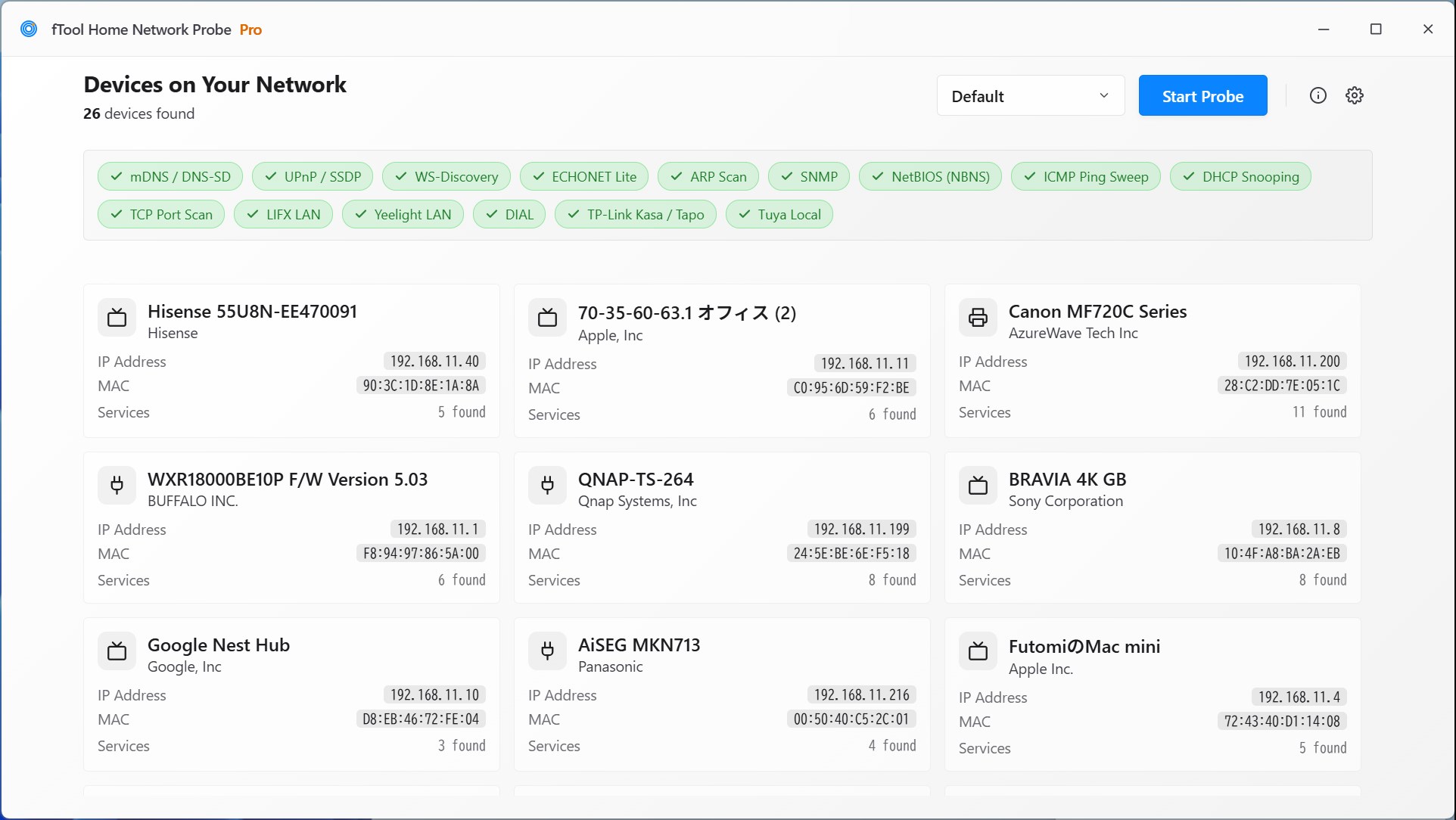
Check Open Ports & Services
Select a device to open Device Details. The TCP port check runs as part of the probe: every device that accepts a connection on port 80, 443, 22 or 445 is tried on 36 common ports, including HTTP 80, HTTPS 443, SSH 22, SMB 445, RTSP 554, IPP 631, RDP 3389 and JetDirect 9100. Together with the services the device announces, that is usually enough to tell a network camera, a file share, a printer or a web administration panel apart.
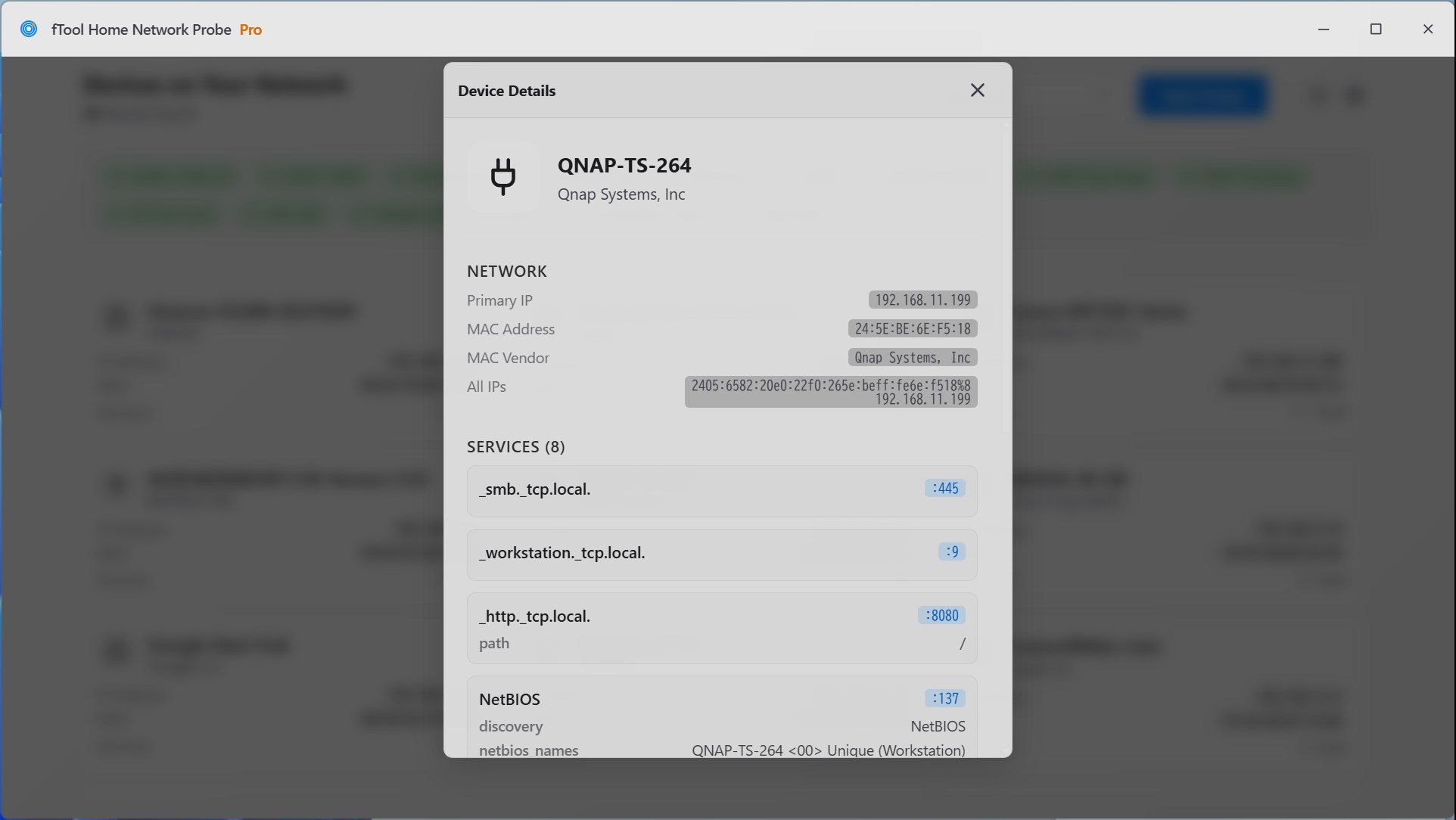
fTool Home Network Probe Pro for Windows 11 & 10
A network scanner for homes and small offices: it finds the devices on your LAN with 15 discovery methods and shows each one's name, manufacturer, model, open ports and services.