fTool Home Network Probe Pro Icon
Windows 11 / 10 100% Offline One-Time Purchase

LAN Topology & Connected Device Discovery

fTool Home Network Probe Pro

An IP address on its own tells you nothing. fTool Home Network Probe Pro runs fifteen discovery methods across your network at once, from an ARP sweep to mDNS, UPnP, ECHONET Lite and the vendor protocols behind smart plugs and lights, then merges the answers into one list where every device has a name, a manufacturer and the services it is actually offering. The whole probe runs from your PC and reports to nobody.

No Subscription No Cloud Uploads Verified by Microsoft
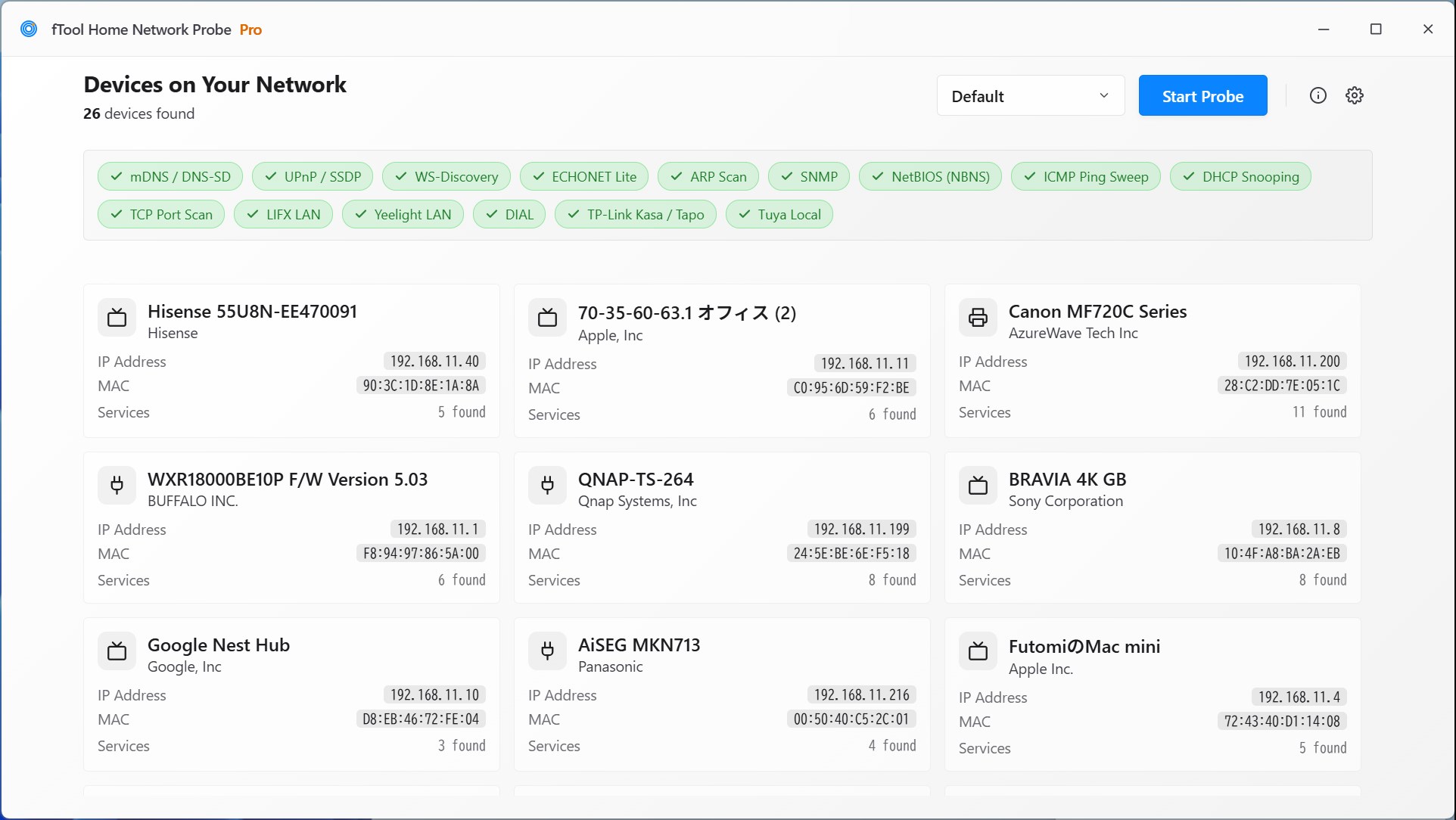
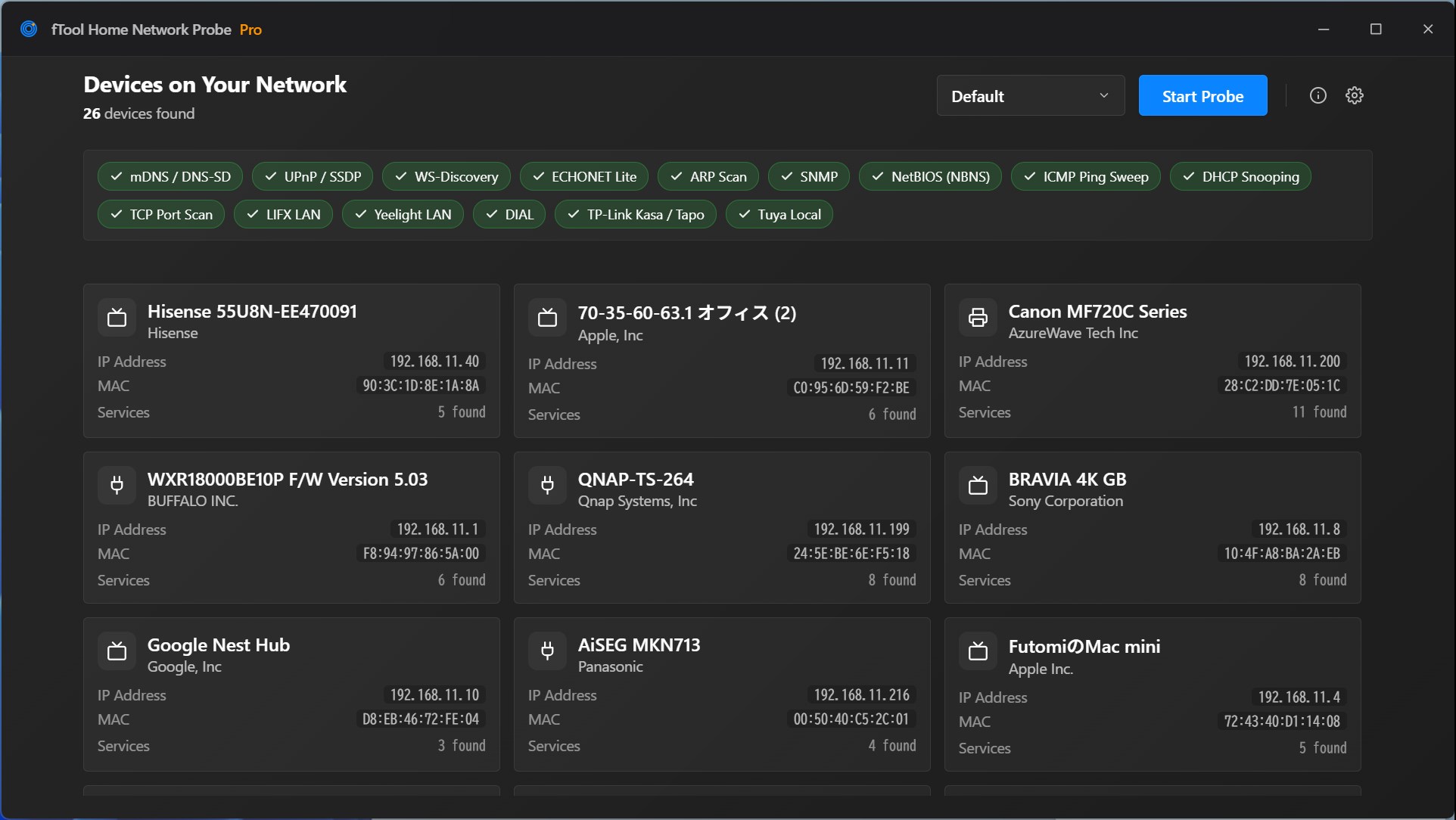
The Devices on Your Network screen listing twenty-six devices found, with a row of ticked discovery protocol chips above cards for a TV, a printer, a router, a NAS and several smart home devices

Why fTool Home Network Probe Pro

Find Out What Is Actually on Your Network

A ping sweep finds the machines that answer pings. An ARP table lists whatever your PC happened to talk to recently. Neither knows that 192.168.11.14 is the speaker in the kitchen. Devices announce themselves, but each family does it in its own dialect, and a scan that only speaks one of them comes back half empty.

Fifteen Ways of Asking

mDNS, UPnP, WS-Discovery, ECHONET Lite, ARP, SNMP, NetBIOS, ICMP, DHCP snooping, a TCP port scan and the vendor protocols behind LIFX, Yeelight, DIAL, TP-Link and Tuya all run in the same probe, and the answers land in one list.

Names, Not Just Numbers

Each device arrives with the name it broadcasts and the manufacturer resolved from its MAC address, so the list reads as a TV, a NAS, a printer and a water heater rather than a column of addresses you have to identify by elimination.

The Services Behind Each One

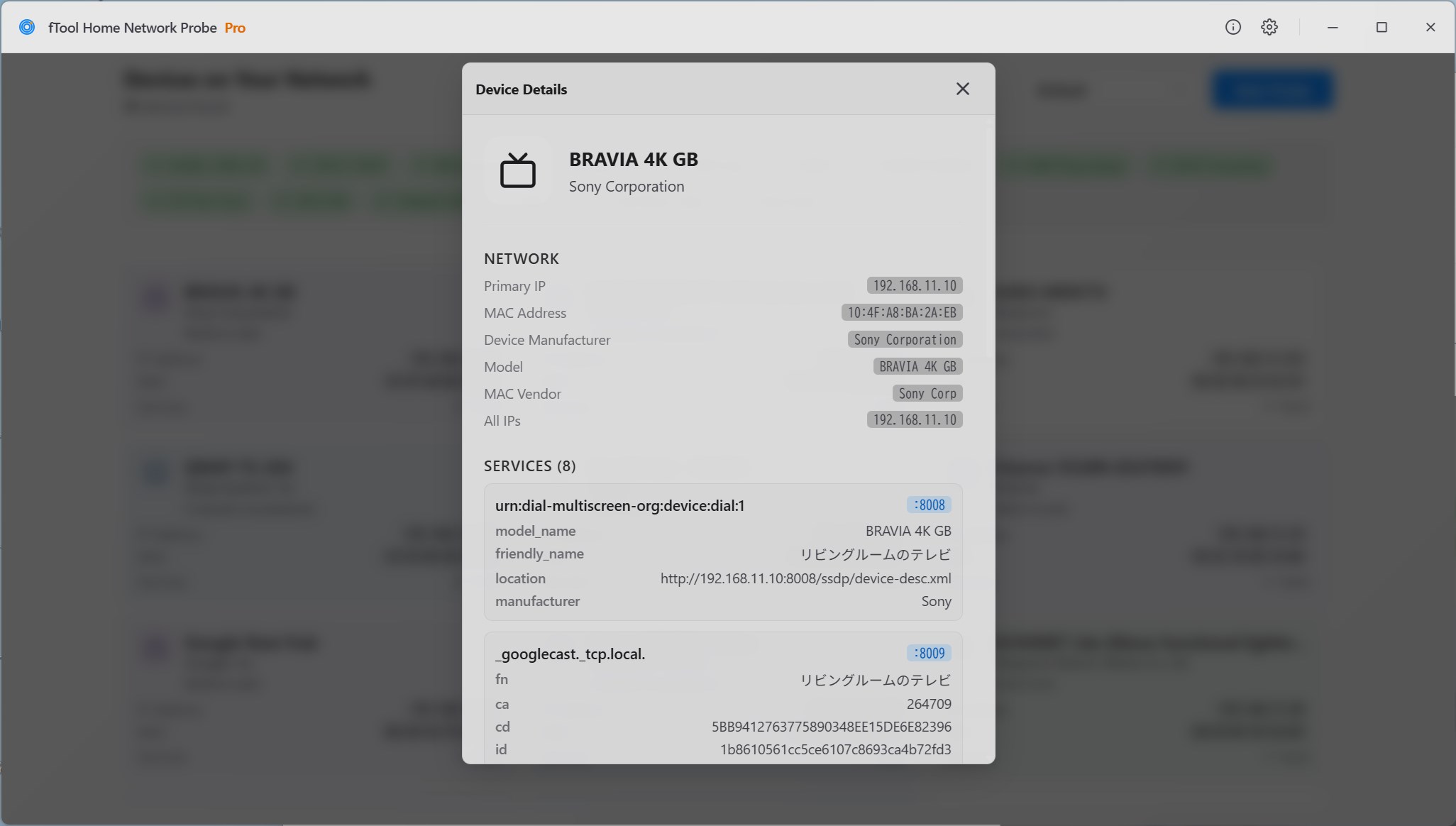
Open a device and you see what it is offering: the service names, the ports they sit on and the records they advertise. It is the difference between knowing a host is up and knowing it is running a Chromecast endpoint on port 8009.

What You Can Do

One Probe, Everything That Answers

Start It and Watch It Fill Up

Press Start Probe and the device count climbs while the protocols work through the network. A row of chips shows which method has finished and which is still running, so a slow answer looks like a slow answer rather than a hang. Stop the probe whenever you have seen enough.

One Card per Device, Not per Answer

The same television can answer over mDNS, UPnP and ARP with three different names. The results are merged by device, so you get one card carrying the best name available, the IP address, the MAC address and how many services were found, with an icon that reflects what kind of thing it is.

Look Inside a Device

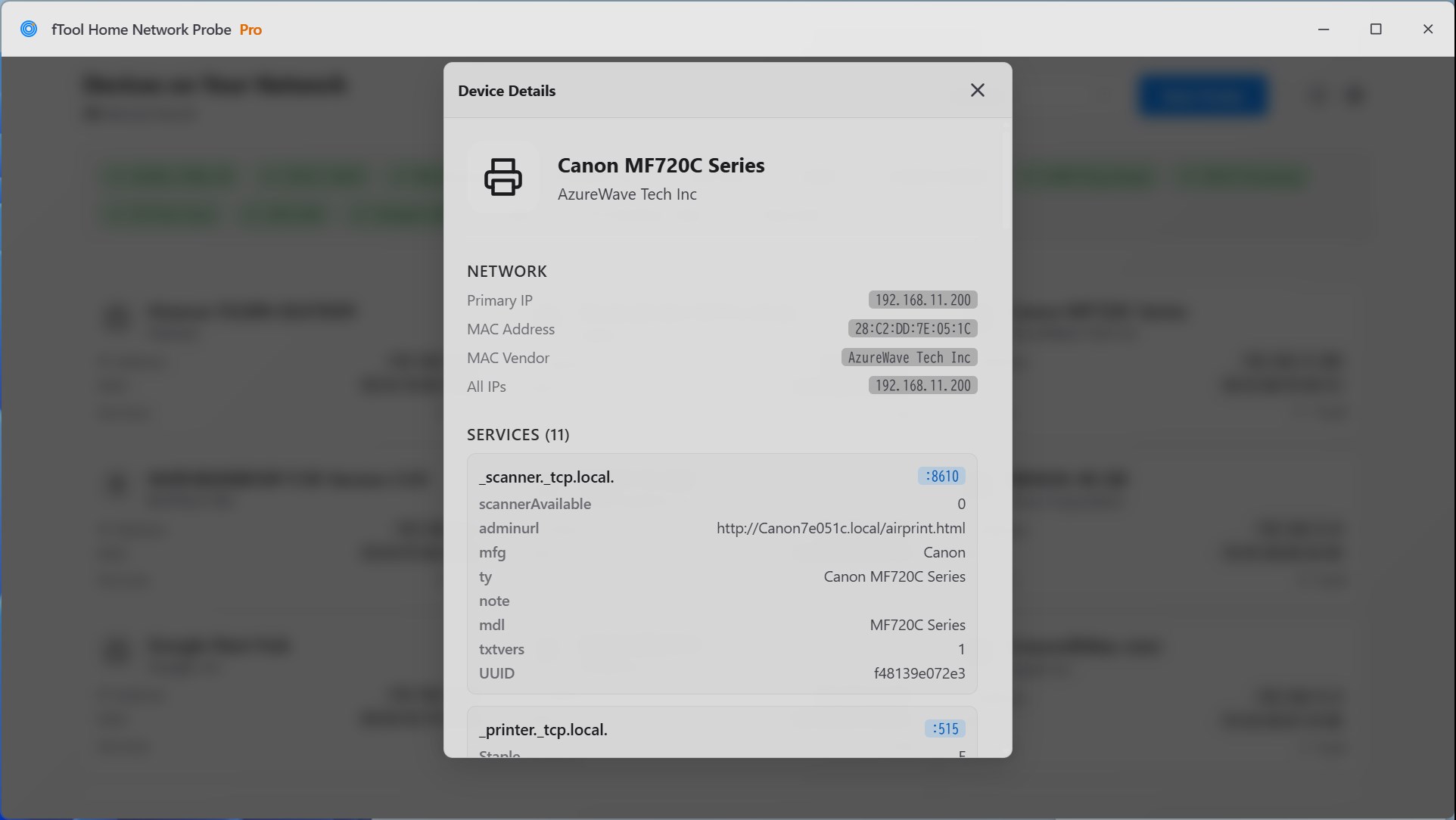
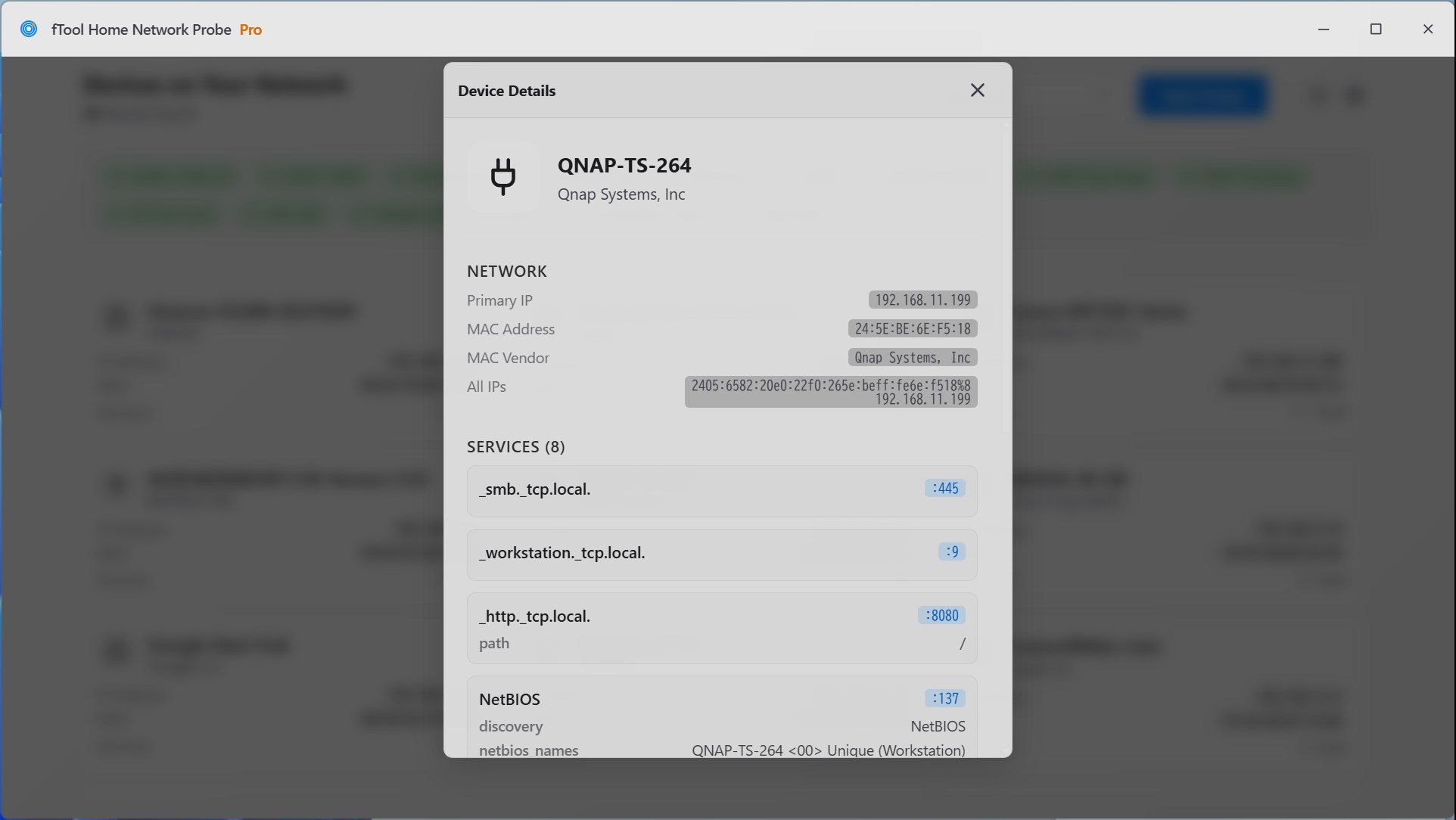
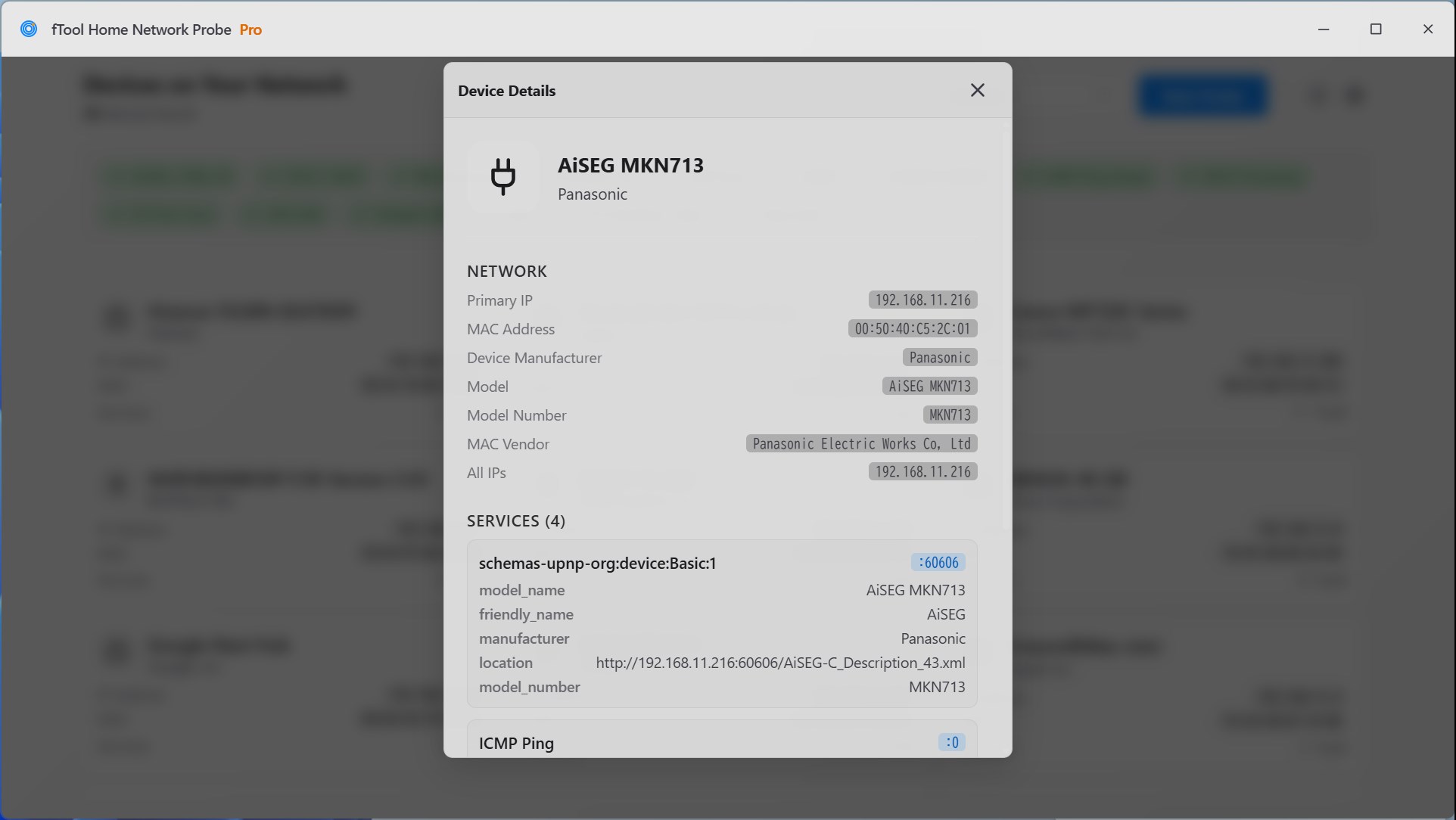
Device Details gives you the primary IP, the MAC address and the vendor behind it, the model where the device reports one, and every address it holds, IPv4 and IPv6 alike. Below that, each discovered service is listed with its port and the records it publishes, down to the individual TXT keys.

Speaks Smart Home, Too

Beyond the standard protocols, the probe talks to the ones consumer hardware actually uses: ECHONET Lite for Japanese appliances, DIAL for Chromecast and smart TVs, and the LAN protocols behind LIFX, Yeelight, TP-Link Kasa and Tapo, and Tuya devices. Gear that stays invisible to a generic scanner shows up here.

Choose What Runs

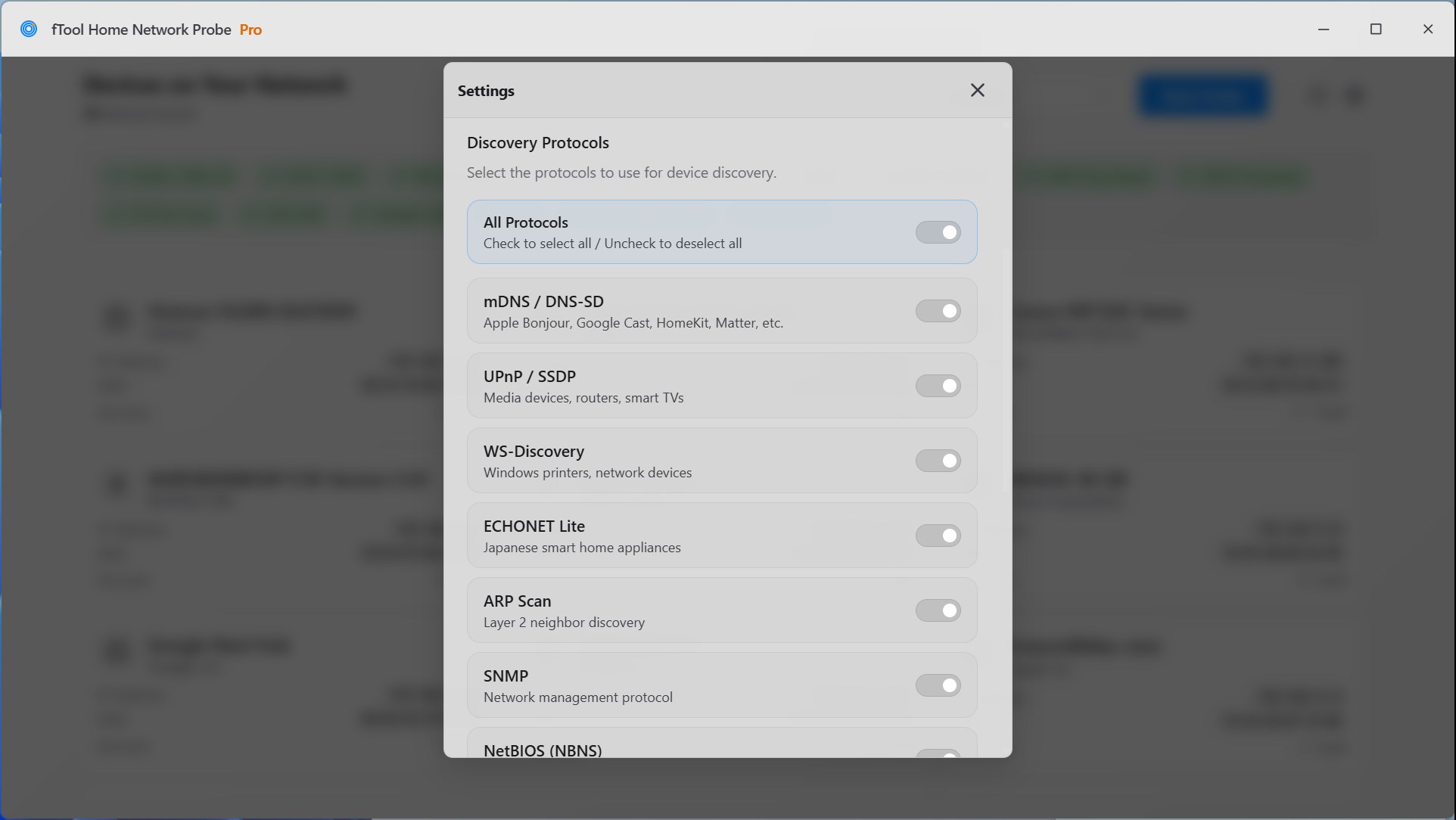
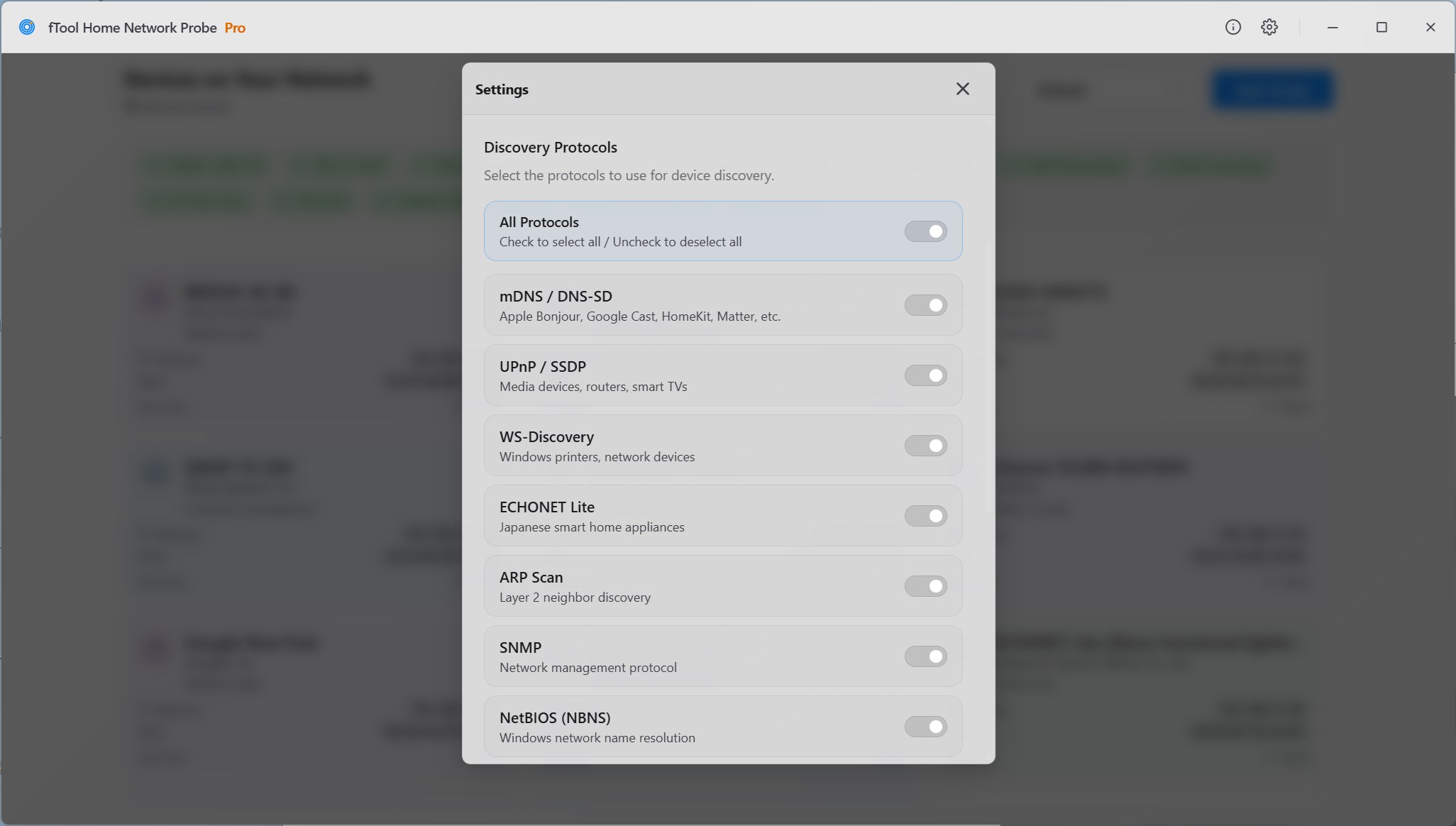
Every protocol has its own switch, with one control to turn them all on or off. Run everything when you are taking stock of the network, or narrow it to mDNS when you are chasing one AirPlay device. The TCP port scan is off by default, because it is the one method that knocks on doors rather than listening.

Keep a Long List Readable

Sort the results to bring what you are looking for to the front, and switch between light, dark and system appearance so a probe you run in a server room at night does not blind you. Twenty-six devices is a normal home, and the layout is built for that rather than for a lab of four.

Reading the Results

What a Probe Brings Back

On Every Device Card

Name — the friendly name the device broadcasts. When nothing announces one, the IP address takes its place.

Manufacturer — resolved from the MAC address, which is often the first clue to what an unnamed device is.

IP and MAC address — the address to connect to and the hardware address that identifies it across a reboot.

Service count — how much this device is willing to tell you, and how much detail waits inside.

Inside Device Details

Network — the primary IP, the MAC address and its vendor, the model where one is reported, and every address the device holds.

Services — each service by name, such as _googlecast._tcp.local., with the port it listens on.

Records — the keys and values a service publishes, from model identifiers to firmware versions and setup paths.

Both address families — IPv4 and IPv6 are listed side by side, which matters when only one of them is answering.

Local by Design

A Map of Your Network Stays in Your House

A complete inventory of what is on your network is exactly the kind of thing that should never be uploaded anywhere. fTool Home Network Probe Pro talks to your own network and to nothing beyond it.

  • No cloud uploads, no account registration and no tracking
  • Probing stays inside your own network. Results, addresses and service records never leave this PC
  • MAC vendors are resolved from a database inside the app, so no lookup is sent anywhere
  • The probe reads what devices publish. It does not log in to them, change them or store credentials
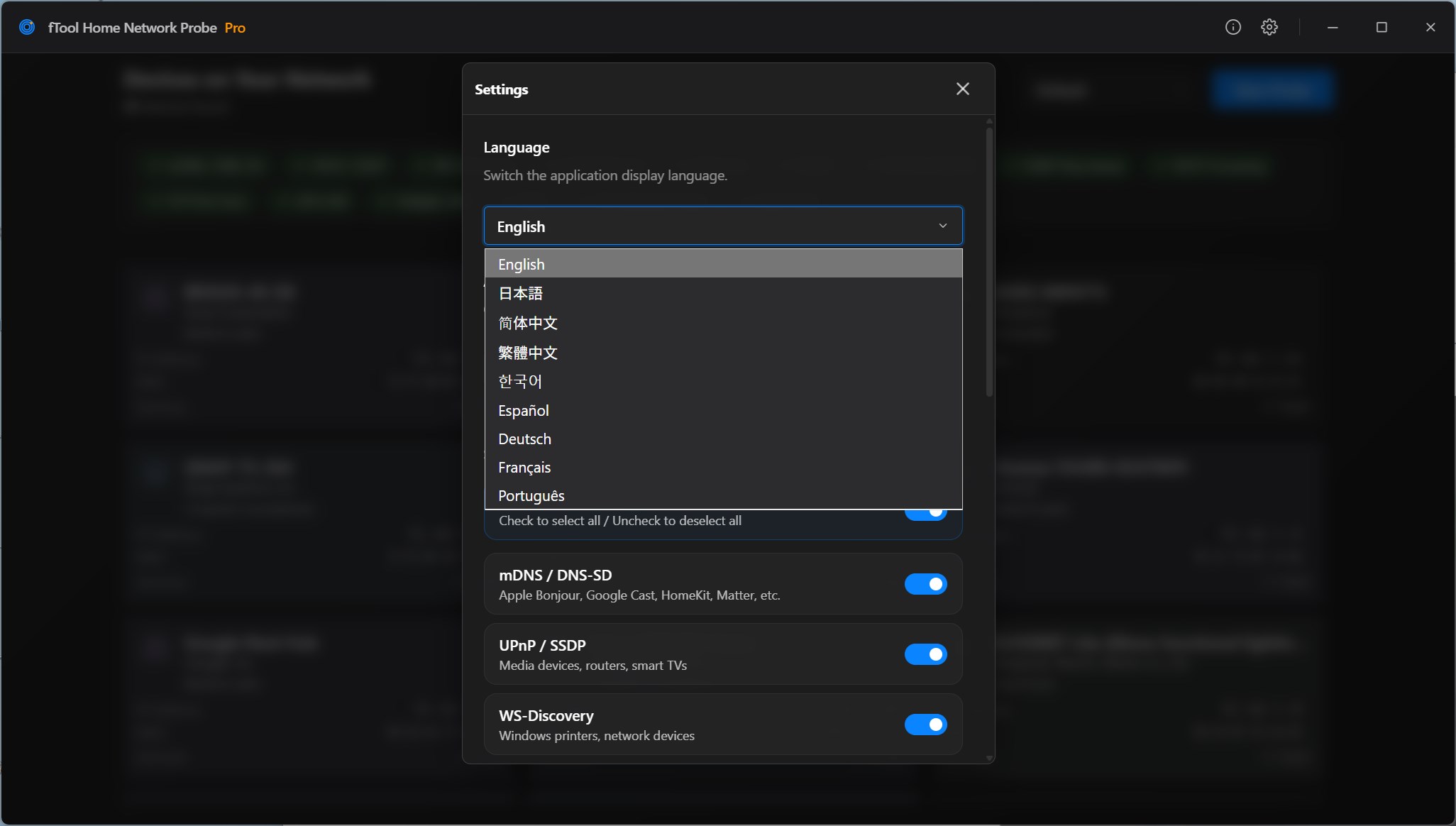
  • Light, dark or system appearance, with the interface available in 9 languages
Discovery Protocols
Zero-configuration discovery mDNS / DNS-SDUPnP / SSDPWS-DiscoveryDIAL
Network-level sweeps ARP ScanICMP Ping SweepDHCP SnoopingNetBIOS (NBNS)SNMPTCP Port Scan
Smart home protocols ECHONET LiteLIFX LANYeelight LANTP-Link Kasa / TapoTuya Local
Per device IPv4 and IPv6MAC vendorService recordsPorts

A network probe can only report what the devices on it are willing to say, and some of them say very little. Please read these points before you buy.

Good to Know
  • Only the network your PC is connected to is probed. Devices on a guest network, a separate VLAN or the other side of a router will not appear.
  • Some devices answer nothing but an ARP request. They still show up, with an address and a manufacturer rather than a name and services.
  • Multicast discovery depends on your network passing multicast traffic. Wi-Fi access points with client isolation, and some mesh setups, will quietly swallow it.
  • The TCP port scan is off by default and is the one method that actively connects to devices. Turn it on only on networks you are responsible for.
  • Windows Firewall may ask for permission the first time you probe. Discovery replies cannot reach the app until you allow it on the network you are using.
  • An internet connection is needed for purchases and may be needed to verify your license. Probing does not require one.

Pricing

Try Everything for 7 Days

Install the free trial from the Microsoft Store and use every feature for 7 days. If it saves you time, buy the full version once and keep it. No subscription, no tiers.

Gallery

See It In Action

Device Details for a Canon MF720C Series printer, with its IP and MAC addresses above the eleven services discovered on it, including the scanner and printer records
Device Details for a QNAP NAS, listing its SMB, workstation and HTTP services alongside the NetBIOS name reported for it
Device Details for a Panasonic AiSEG unit, showing the device manufacturer, model name and model number resolved for it above the records its UPnP service publishes
The settings dialog listing each discovery protocol with its own switch, from mDNS and UPnP to WS-Discovery, ECHONET Lite, ARP Scan, SNMP and NetBIOS
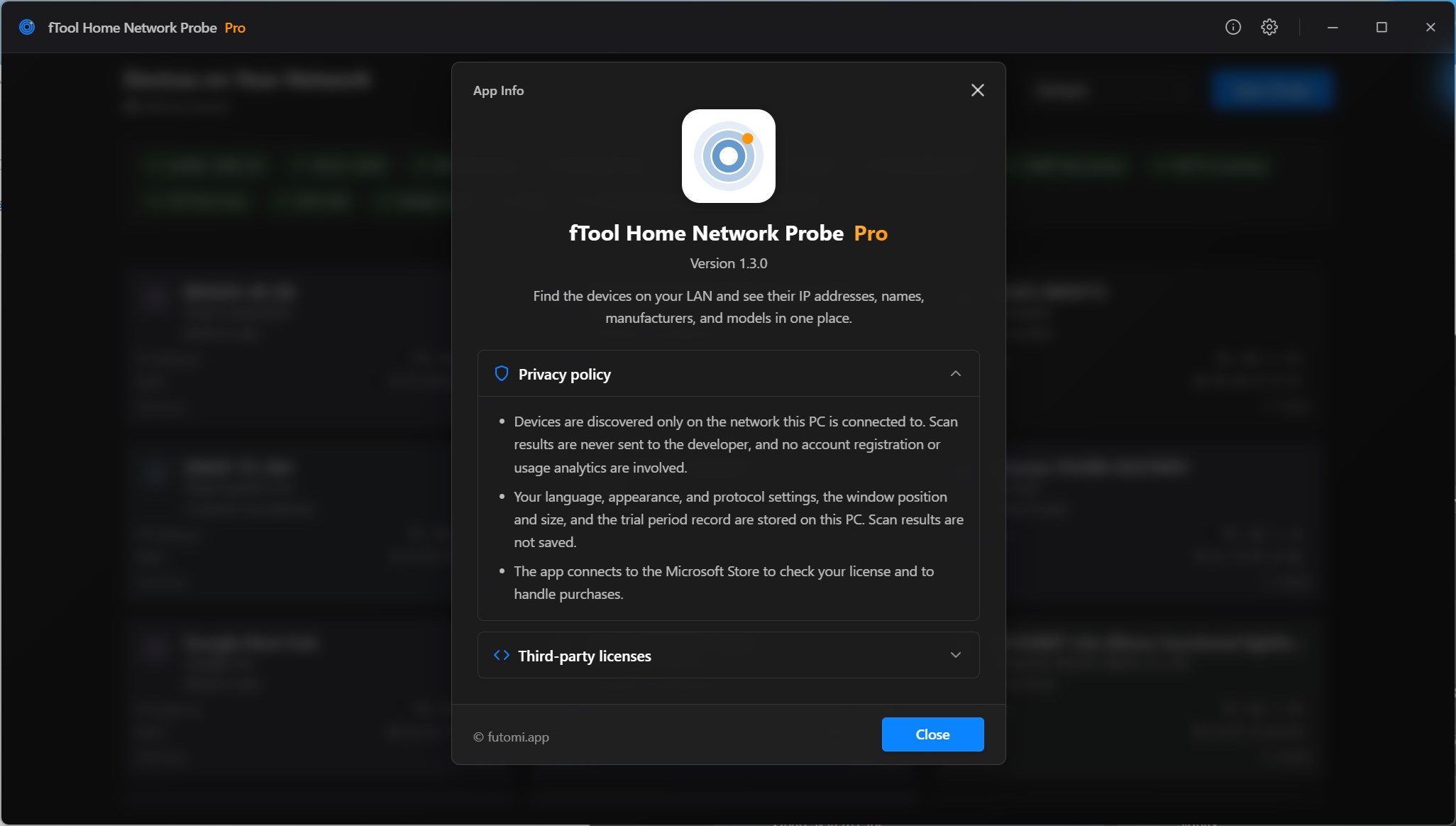
The same device list in the dark theme, with every discovery protocol chip ticked above the device cards

Get Started Today

Download from Microsoft Store

Supported OS: Windows 10 version 17763.0 or later, Windows 11
UI Languages: English, Japanese, Simplified Chinese, Traditional Chinese, Korean, Spanish, German, French, Portuguese
Architecture: x64 | Publisher: futomi Co., Ltd.
Trial: Try every feature free for 7 days
Privacy: 100% Local Execution, Zero Data Collection