fTool Keyboard RGB Notifier Icon
Windows 11 / 10 100% Offline One-Time Purchase

RGB Illumination Alert & Key Event Controller

fTool Keyboard RGB Notifier

The keyboard is already in front of you, so let it tell you what is happening. fTool Keyboard RGB Notifier lights the keys you are typing on when a coding agent needs an answer, a long task finishes, a build fails, or an app you actually care about raises a notification. Connect Claude Code, Codex and Antigravity through Hooks, choose which Windows apps are allowed to light the keyboard, or post an event from your own scripts through a local Web API. Everything runs on your PC.

No Subscription No Cloud Uploads Verified by Microsoft
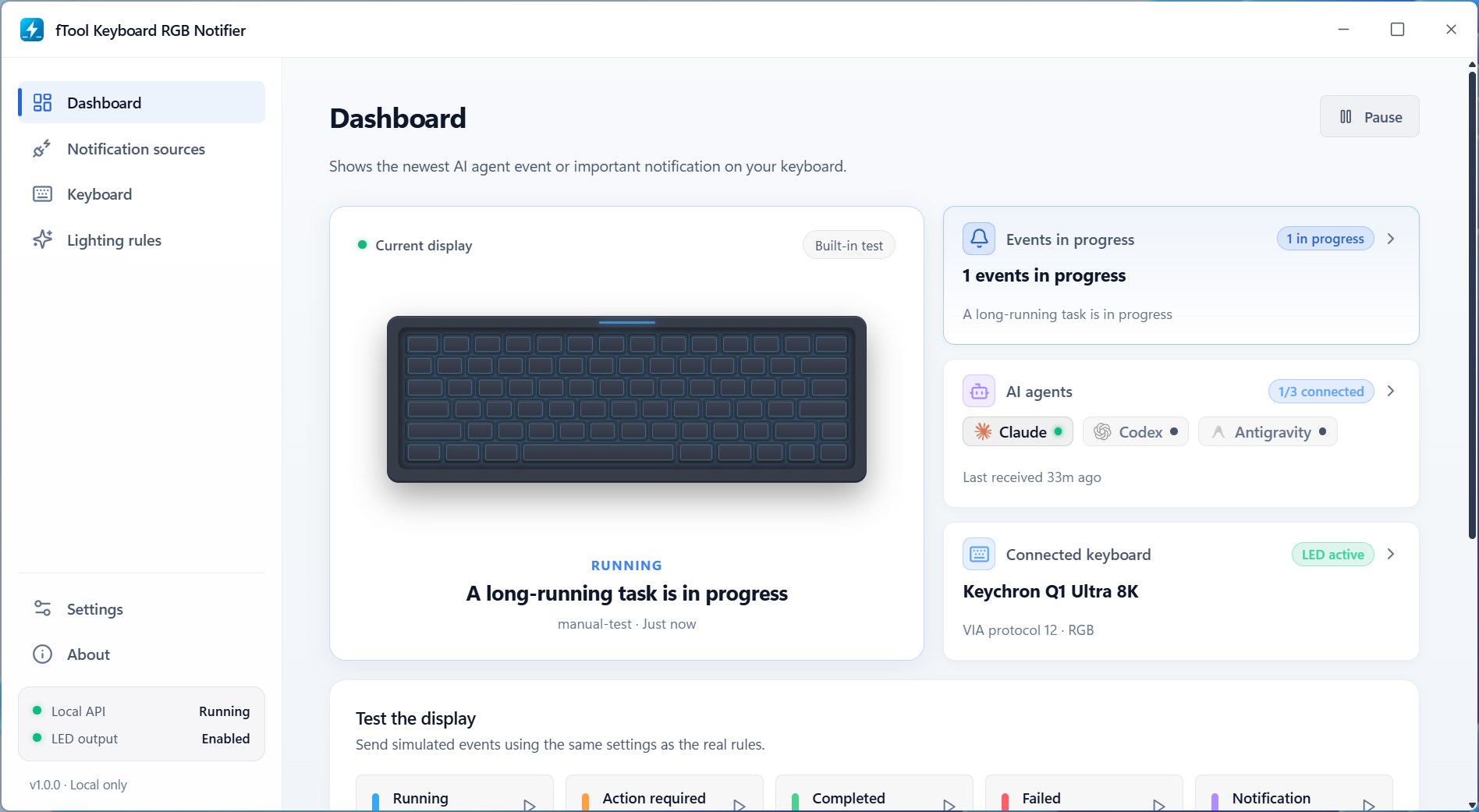
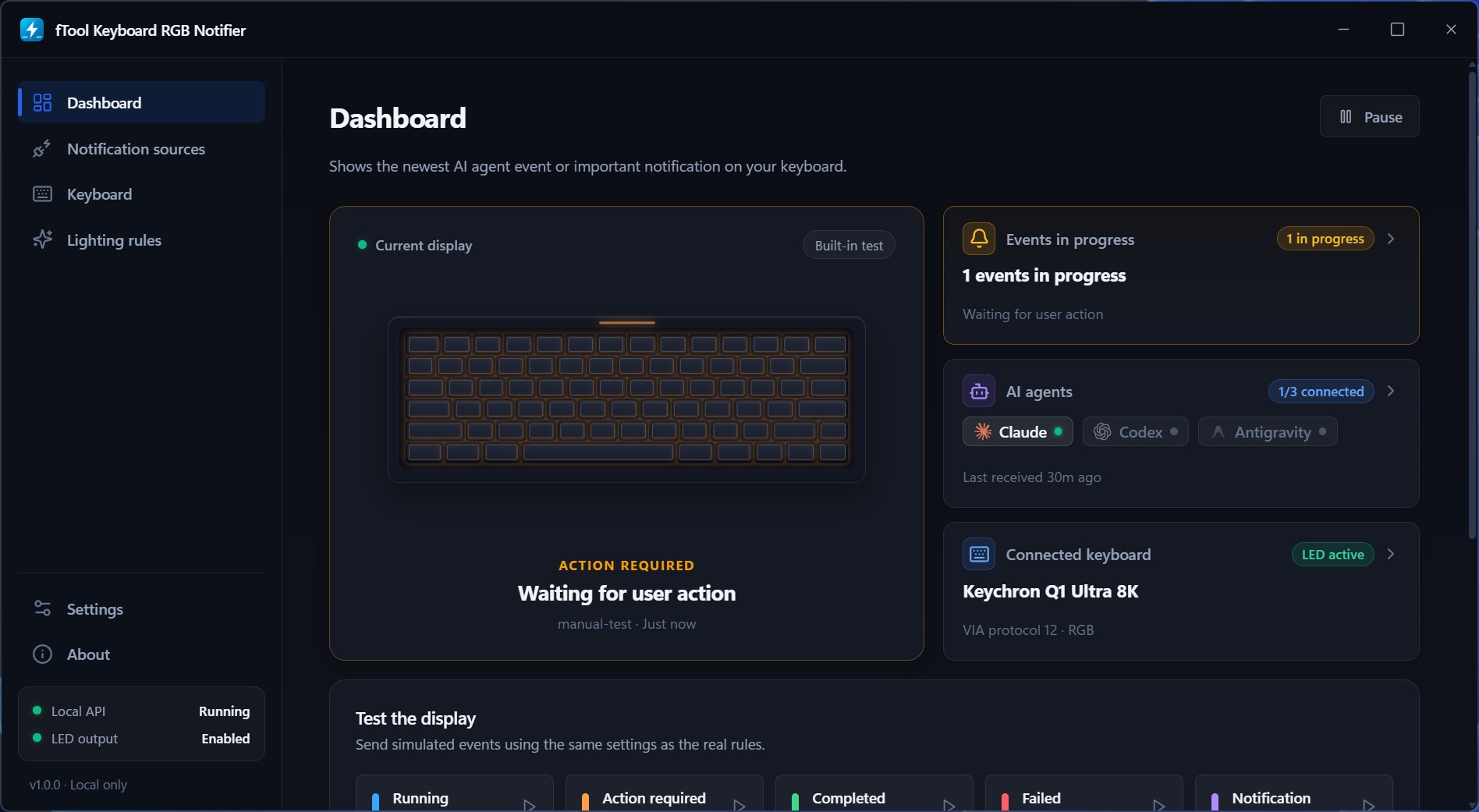
The fTool Keyboard RGB Notifier dashboard, showing a keyboard lit in blue for a long-running task next to cards for events in progress, connected AI agents and the detected keyboard

Why fTool Keyboard RGB Notifier

Notice It Without Looking For It

You start a long build, hand a task to a coding agent, and go and read something else. The agent stops and waits for an answer, and nobody tells you. A sound would be lost under music or a call, and a toast disappears while you are in another window. The keyboard under your hands does not.

Always in Your Field of View

The keys change color where your hands already are, so you catch it out of the corner of your eye without switching windows. It stays lit for the display time you set, instead of vanishing after a couple of seconds like a toast.

Knows What Your Agent Is Doing

Claude Code, Codex and Google Antigravity connect through Hooks and report the states that matter: waiting for you, finished, or failed. Set up the connection once in the app and the agent lights the keyboard from then on.

Uses the Keyboard You Own

Windows Dynamic Lighting, VIA/QMK raw HID, Lofree Flow 2 and NuPhy S4 keyboards are detected automatically, and monochrome backlit keyboards blink instead of changing color. No extra hardware and no vendor software running in the background.

What You Can Do

Decide What Lights Up, and How

Connect Your Coding Agents

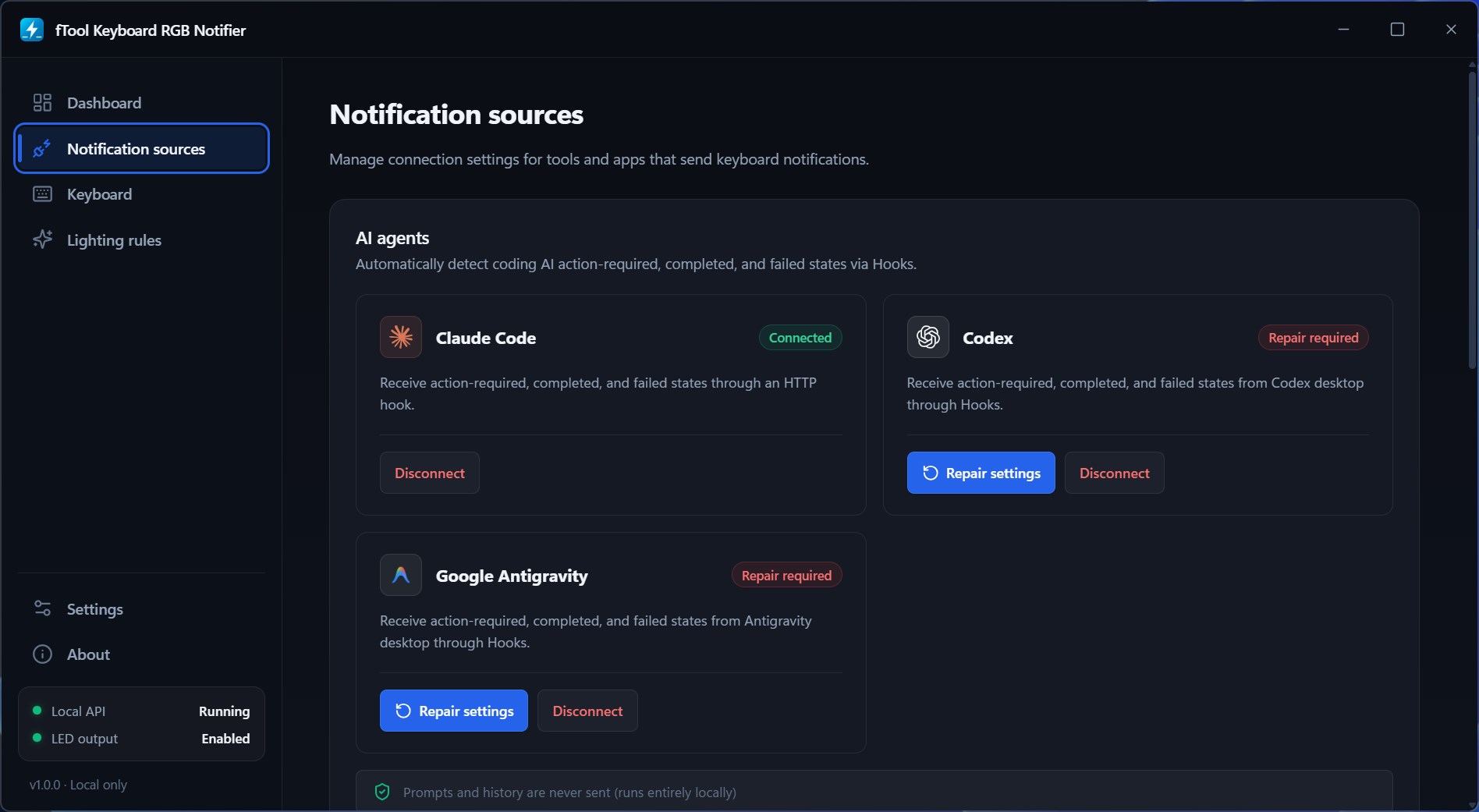
Claude Code, Codex and Google Antigravity are set up from the Notification sources page, and each one reports action required, completed and failed through Hooks. The app shows which agents are connected and when the last event arrived, and offers to repair the settings if an agent update breaks the connection. Prompts and history are never sent anywhere; only the state of the event is used.

Pick the Windows Apps That Matter

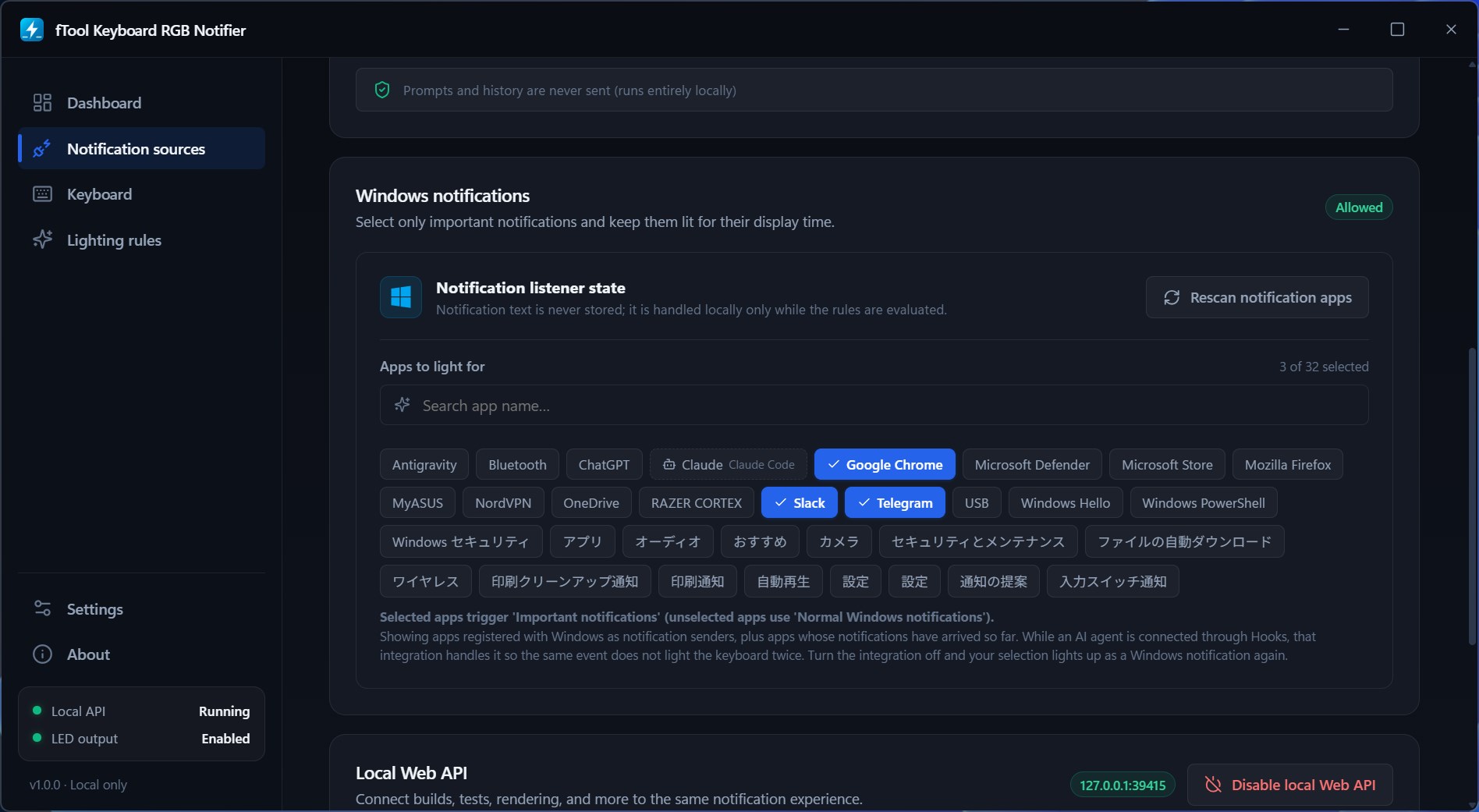
Choose app by app which Windows notifications are allowed to light the keyboard, from the list of apps registered as notification senders plus any whose notifications have already arrived. Selected apps light as important notifications and everything else stays quiet, so Slack and Telegram can reach you while a download that finished an hour ago cannot. Notification text is never stored, only evaluated against your rules as it arrives.

Light It Up From Your Own Scripts

A local Web API turns anything you can script into a keyboard notification: the end of a test suite, a render, a deployment, a watch task. Post a status with an optional label and detail, clear an event when the work is done, or check that the app is running. It listens on the loopback address only, is never exposed to the LAN, and requires the token shown in the app. See the setup guide for coding agents for working PowerShell and curl examples.

Tune Every Status Separately

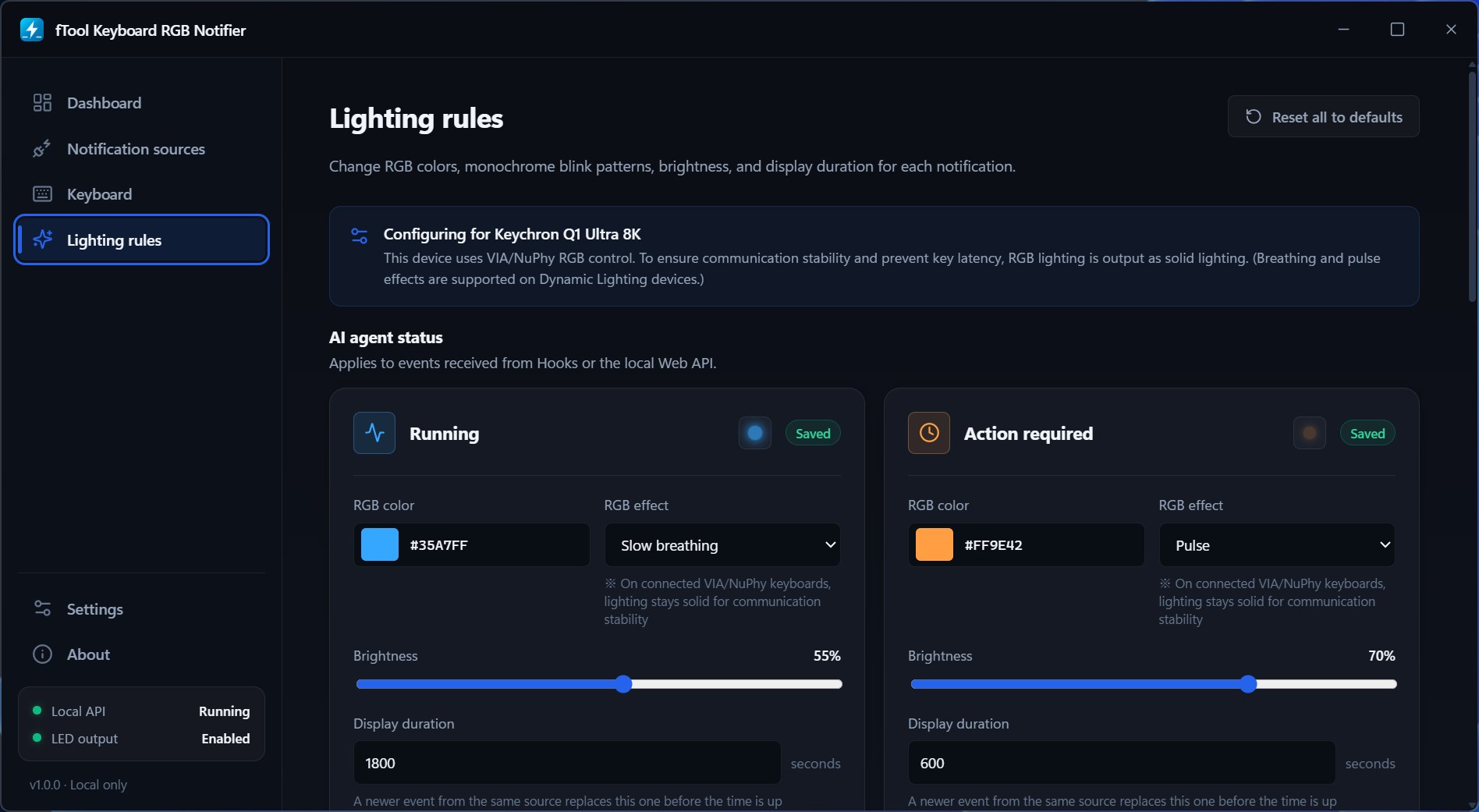
Each status has its own lighting rule. Choose the RGB color, the effect, how bright it is, and how long it stays on before the keyboard goes back to normal. Amber for a question that is holding up your work, green for a task that finished, red for a failure. Set a long display time for the things you must not miss and a short one for the rest, and reset everything to the defaults whenever an experiment goes too far.

Finds Your Keyboard on Its Own

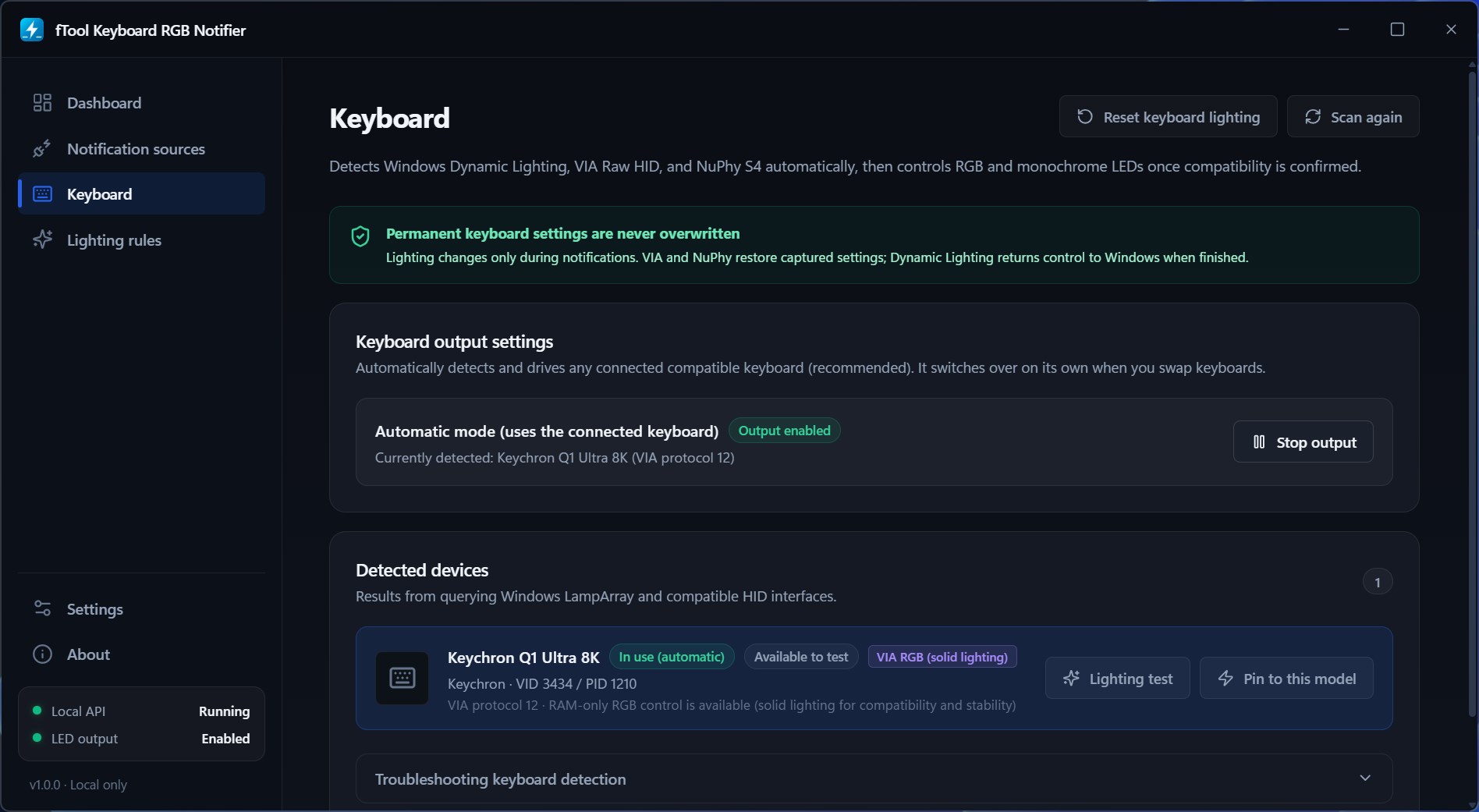
The app queries Windows LampArray and compatible HID interfaces, confirms what the device can actually do, and starts driving it. Swap keyboards and it switches over by itself, or pin it to one model when several are plugged in. A lighting test lets you check the result before you rely on it, and detection problems have their own troubleshooting section.

Try It Before You Trust It

The dashboard shows what the keyboard is displaying right now, how many events are still open, which agents are connected and which keyboard is being driven. Send a simulated running, action required, completed, failed or notification event and the keyboard responds exactly as it would for the real thing, using the same rules. Pause the output when you need the keyboard to stay still.

Signals & Integration

Six Signals, One Keyboard

What the Keyboard Is Telling You

Running — a long task is under way. Blue by default, breathing slowly, and set to stay on long enough to cover the whole job.

Action required — the agent has stopped and is waiting for your answer. Amber by default, pulsing, because this is the one that is costing you time.

Completed — the task finished. Green by default, so you can go back to it when you are ready rather than the moment it happens.

Failed — the build broke or the tests went red. Red by default, and worth a longer display time than the rest.

Important notification — one of the Windows apps you allowed has something to say. Purple by default, and kept short.

Standard notification — everything else that reaches the notification filter, kept as the quieter of the two so an allowed app can still stand out. It carries its own color, effect, brightness and display time like the rest.

Color, effect, brightness and display duration are set per status, so none of these defaults are fixed.

Local Web API
POST /v1/events
POST /v1/events/{id}/clear
GET /v1/health

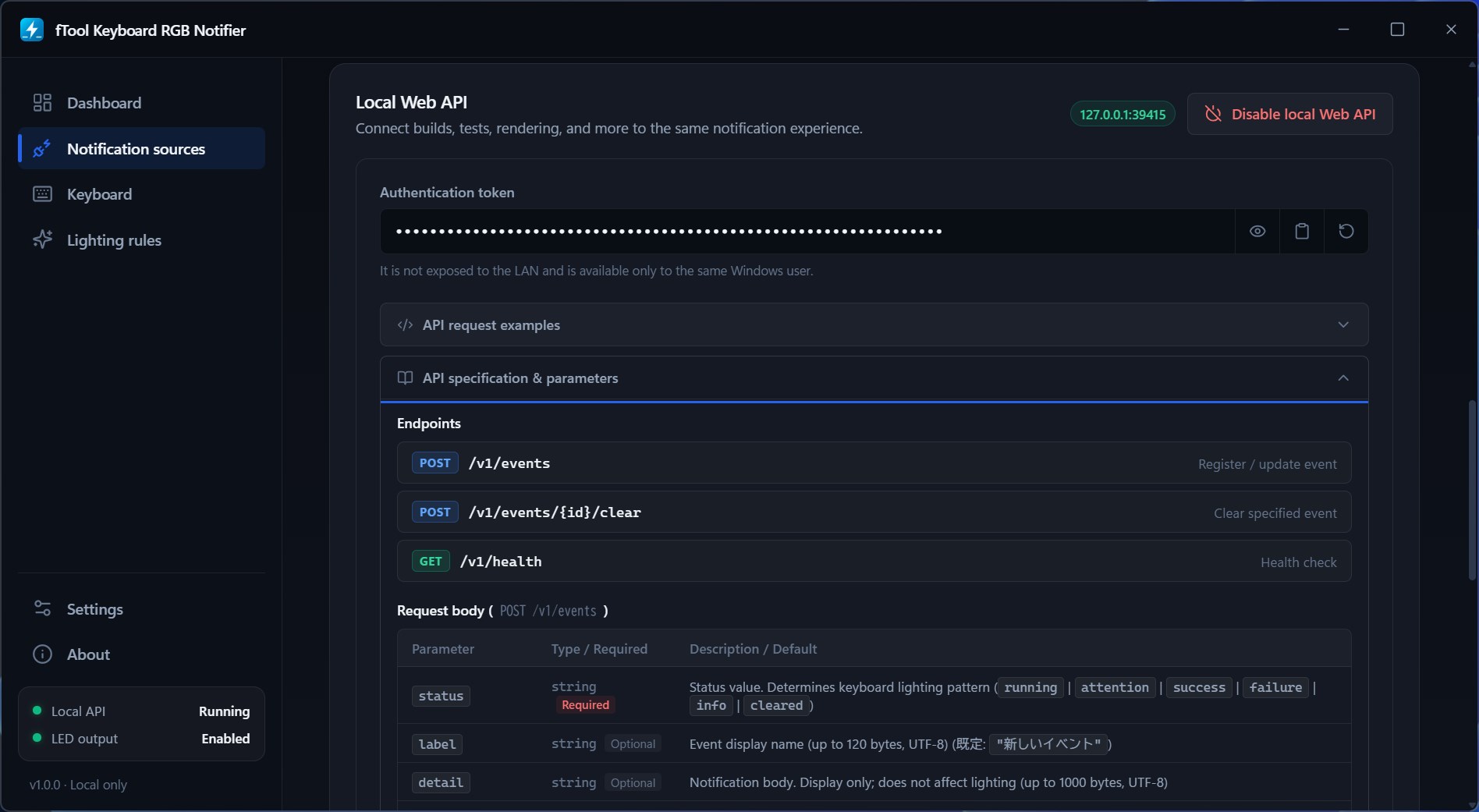
Register or update an event, clear one that is finished, or check that the app is alive. An event carries a status of running, attention, success, failure, info or cleared, plus an optional label and detail for the dashboard. The server is bound to the loopback address, is never reachable from the LAN, and accepts only requests carrying the token shown in the app.

Local by Design

Your Notifications Never Leave Your PC

An app that watches your notifications and your coding sessions has to earn its place. fTool Keyboard RGB Notifier is a native Windows app with no account, no server and nothing to sign in to.

  • No cloud uploads, no account registration and no tracking
  • Agent prompts and conversation history are never sent anywhere; only the state of an event is used
  • Notification text is not stored. It is evaluated against your rules as it arrives and then discarded
  • The local Web API is bound to the loopback address, requires a token, and is available only to the same Windows user
  • Your permanent keyboard lighting is never overwritten. Lighting changes only while a notification is shown, and the previous state is restored afterwards
  • Light, dark or system appearance, with the interface available in 9 languages
Keyboards It Can Light
Tested keyboards Keychron Q1 Ultra 8KKeychron Q1 MaxKeychron K8 ProNuPhy Air75 V3Lofree Flow 2Logitech G213Epomaker P65KiiBOOM LOOP 65
Windows Dynamic Lighting RazerSteelSeriesASUS ROGLogitech GCorsairHP OMEN
VIA / QMK raw HID Custom mechanical keyboardsKeychron
Vendor protocols NuPhy S4 seriesLofree Flow 2 series
Monochrome backlight Blink patterns instead of color

fTool Keyboard RGB Notifier does one job, turning events into keyboard lighting, and it is honest about where its limits are. Please check these points before you buy.

Good to Know
  • A compatible keyboard is required. The models above were tested over a wired connection, Lofree Flow 2 over wired or 2.4 GHz as well. Beyond them the app works with most Windows Dynamic Lighting (LampArray) devices and standard VIA/QMK raw HID keyboards, so check yours against the list before buying.
  • On VIA and NuPhy keyboards the lighting is output as solid color. Breathing and pulse effects need a Dynamic Lighting device, because holding a pattern over raw HID costs communication stability and adds key latency.
  • Dynamic Lighting has to be turned on in Windows Settings before the app can drive a Dynamic Lighting keyboard.
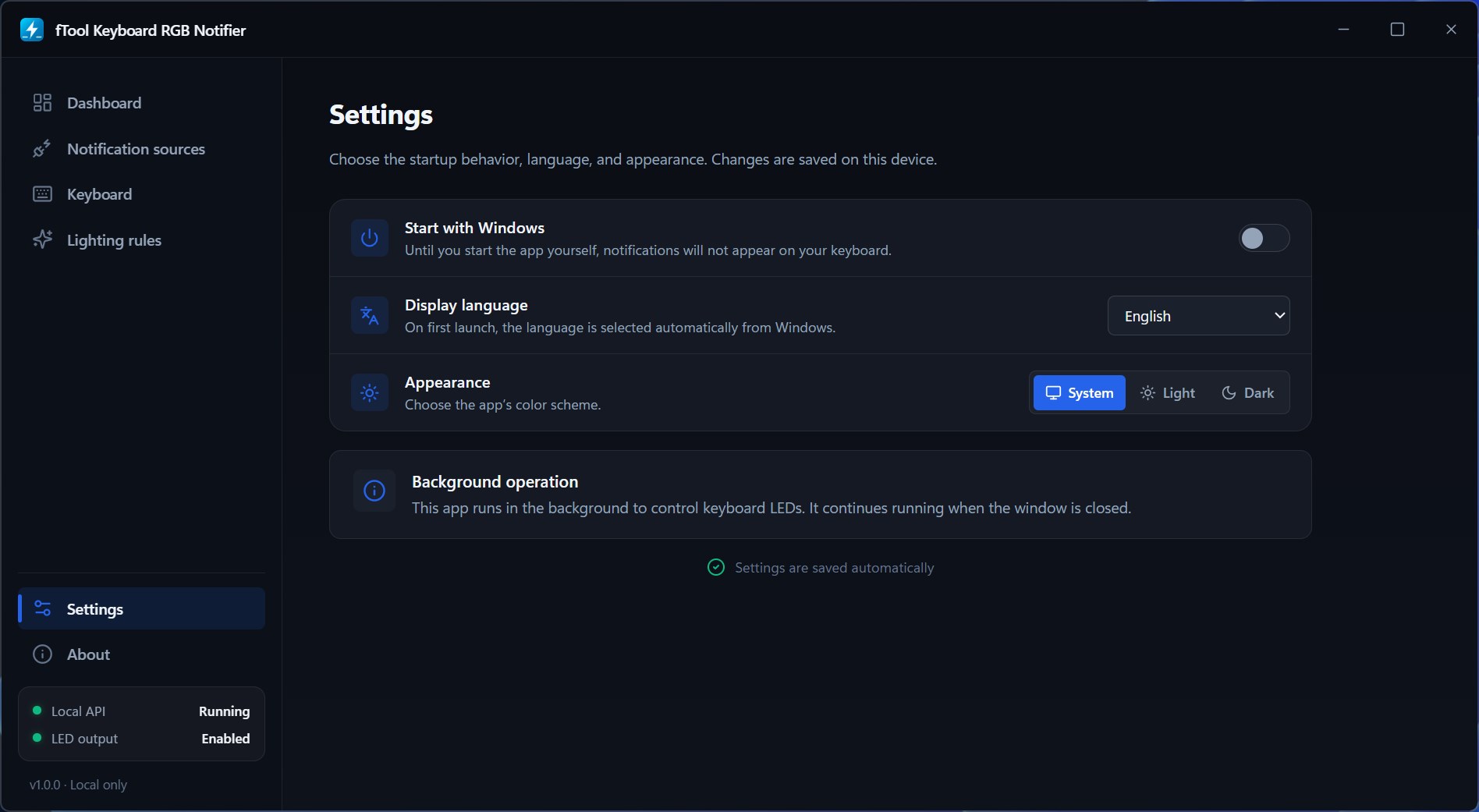
  • The app keeps running in the background after you close the window. If it is not running, nothing lights up, so turn on Start with Windows once you are happy with your rules.
  • While an AI agent is connected through Hooks, that integration handles its events. Turn the integration off and the same app lights the keyboard as an ordinary Windows notification instead, so the same event never lights it twice.
  • A newer event from the same source replaces the one on screen before its display time is up.
  • An internet connection is needed for purchases and may be needed to verify your license. Day-to-day use does not require one.

Pricing

Try Everything for 7 Days

Install the free trial from the Microsoft Store and use every feature for 7 days. If it saves you time, buy the full version once and keep it. No subscription, no tiers.

Gallery

See It In Action

The dashboard in the dark theme, showing Action required with the keyboard lit amber and a card counting the events still in progress
The Notification sources page with Claude Code connected and Codex and Google Antigravity offering to repair their settings
Choosing which Windows apps may light the keyboard, with Google Chrome, Slack and Telegram selected from the list of notification senders
The lighting rules for Running and Action required, each with its own RGB color, effect, brightness and display duration
The Keyboard page with a Keychron Q1 Ultra 8K detected over VIA, a lighting test button and a note that permanent keyboard settings are never overwritten
The local Web API settings showing the authentication token and the endpoints for registering, clearing and checking events
The Settings page with Start with Windows, the display language, the light and dark appearance choice, and a note about background operation

Get Started Today

Download from Microsoft Store

Supported OS: Windows 10 version 17763.0 or later, Windows 11
UI Languages: English, Japanese, Simplified Chinese, Traditional Chinese, Korean, Spanish, German, French, Portuguese
Architecture: x64 | Publisher: futomi Co., Ltd.
Trial: Try every feature free for 7 days
Privacy: 100% Local Execution, Zero Data Collection