fTool Media Cutter Icon
Windows 11 / 10 No Cloud One-Time Purchase

Video & Audio Cutter for Windows

fTool Media Cutter

Waiting before a scene starts, breaks in a recording, long stretches of silence: cut them out and keep only the parts that matter. fTool Media Cutter opens a video or audio file, lets you mark the parts to remove or the parts to keep, and saves the result as one joined file or as separate clips. The original is never changed, and nothing is uploaded.

No Subscription No Cloud Uploads Verified by Microsoft
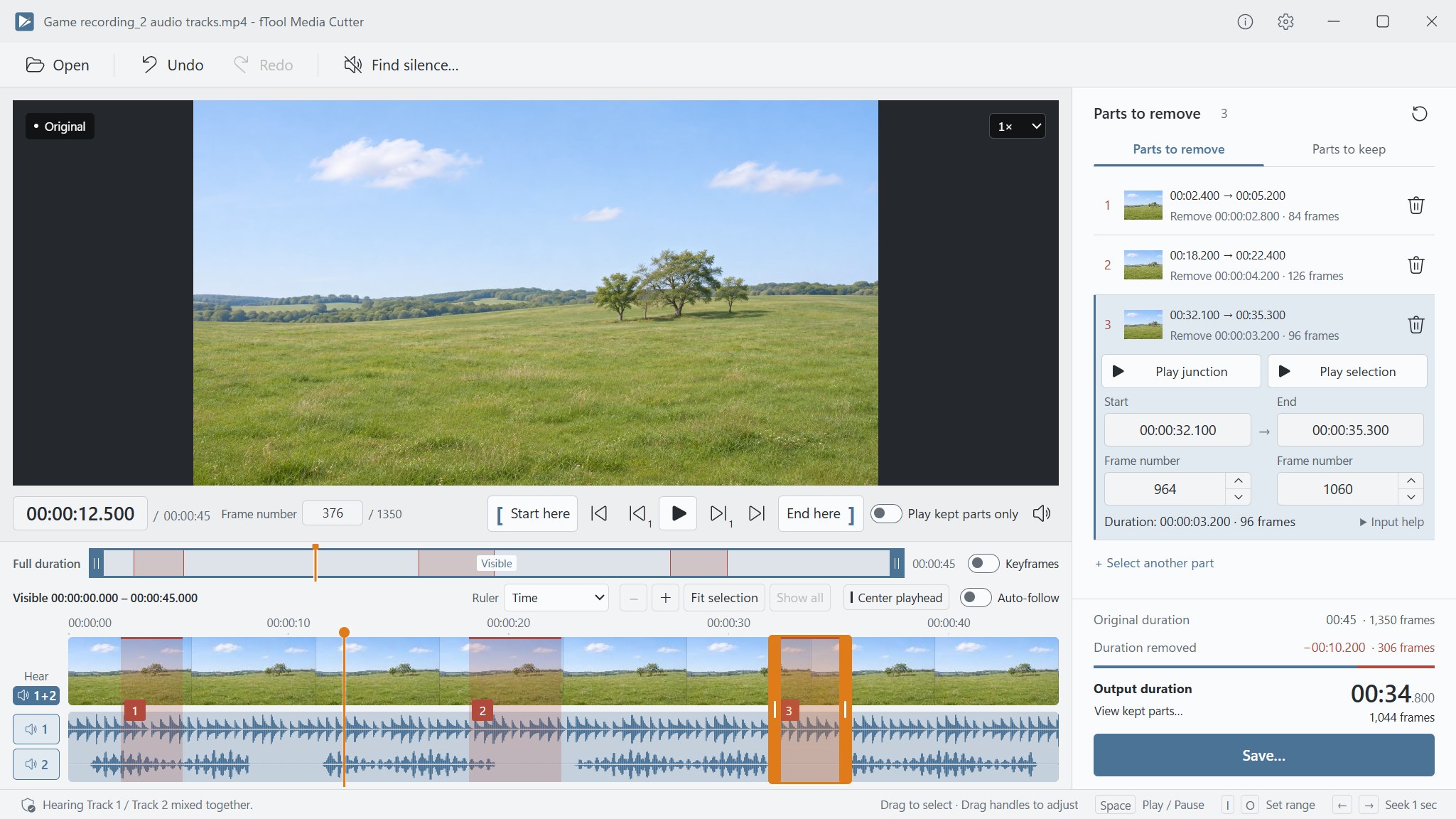
The editor with three parts to remove marked on a timeline of thumbnails and two audio waveforms, the third part open with its start and end times and frame numbers, and an output duration of 34.8 seconds

Why fTool Media Cutter

Keep the Parts That Matter

Travel and family videos, gameplay recordings, lectures, meetings, interviews and voice memos all collect stretches nobody wants to sit through again. fTool Media Cutter removes them in one pass and lets you check every join before anything is saved.

Up to 100 Cuts in One File

Trim the start and end, or remove sections from the middle. Mark up to 100 parts to remove from a single file, or switch to Parts to keep and pick only the scenes you want.

Long Silences, Found for You

Detect possible silent sections automatically, listen to each candidate and add only the ones you choose. Less time hunting through quiet stretches, and you still decide which pauses stay.

Re-encodes Only Around the Cuts

The default Automatic save method re-encodes supported video only around the cut points and copies the rest, so less of your video is recompressed. GPU acceleration is used where supported.

What You Can Do

From the First Cut to the Saved File

Trim the Ends or Cut the Middle

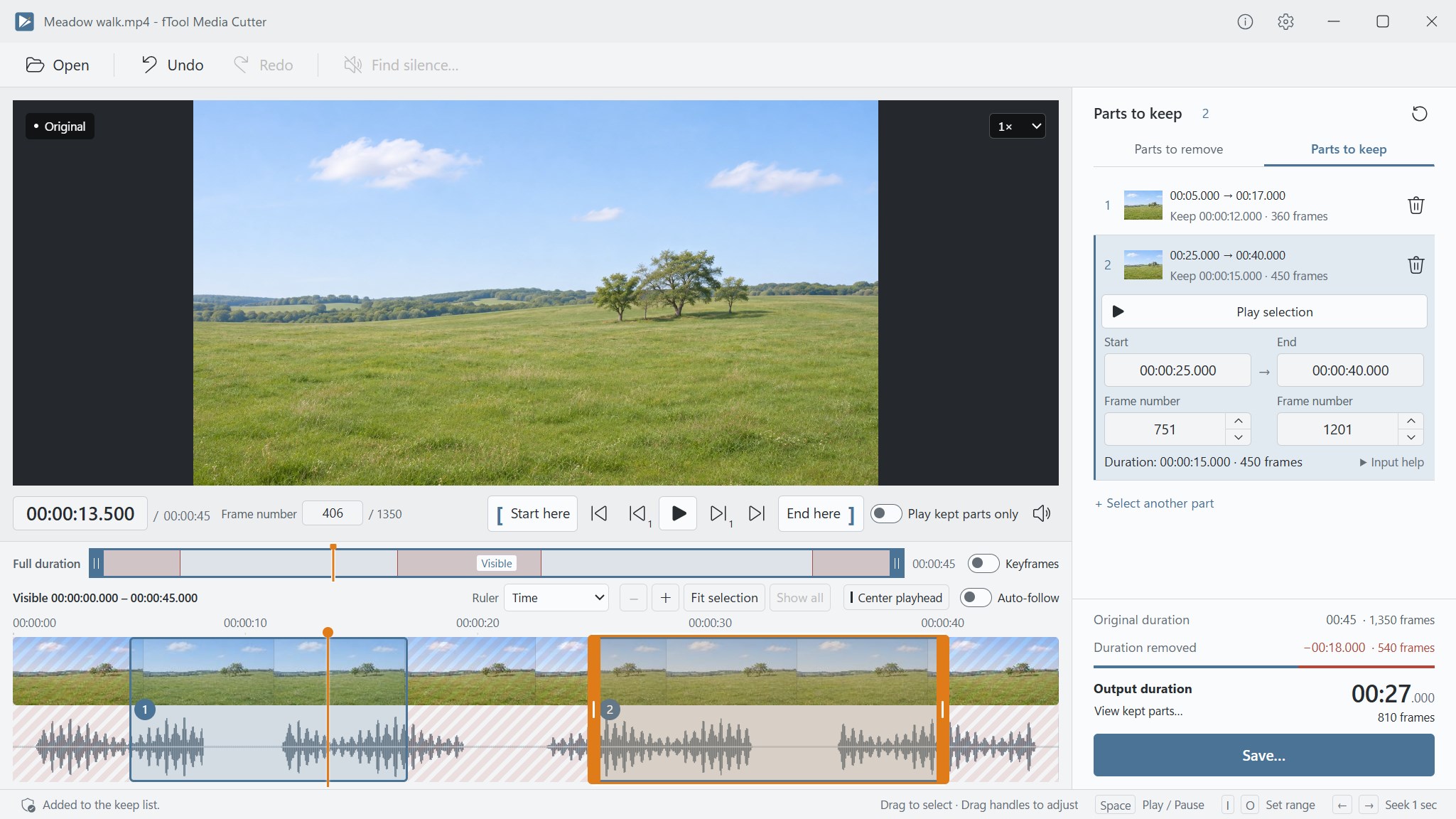
Select up to 100 sections to remove from a single file. Switch between Parts to remove and Parts to keep to suit the way you work, which is just as handy for picking the scenes you want out of a long recording.

Frame-Accurate Cut Points

Zoom into the timeline and set video cut points one frame at a time, or type a time or frame number directly. Thumbnails and audio waveforms show scene changes and pauses between words, and Undo and Redo let you adjust as you go.

Check Every Join Before You Save

Use Play kept parts only and Play junction to review your edits, at playback speeds from 0.5× to 2×. The output duration updates as you work, and after saving you can play the actual output file inside the app.

Find and Remove Long Silences

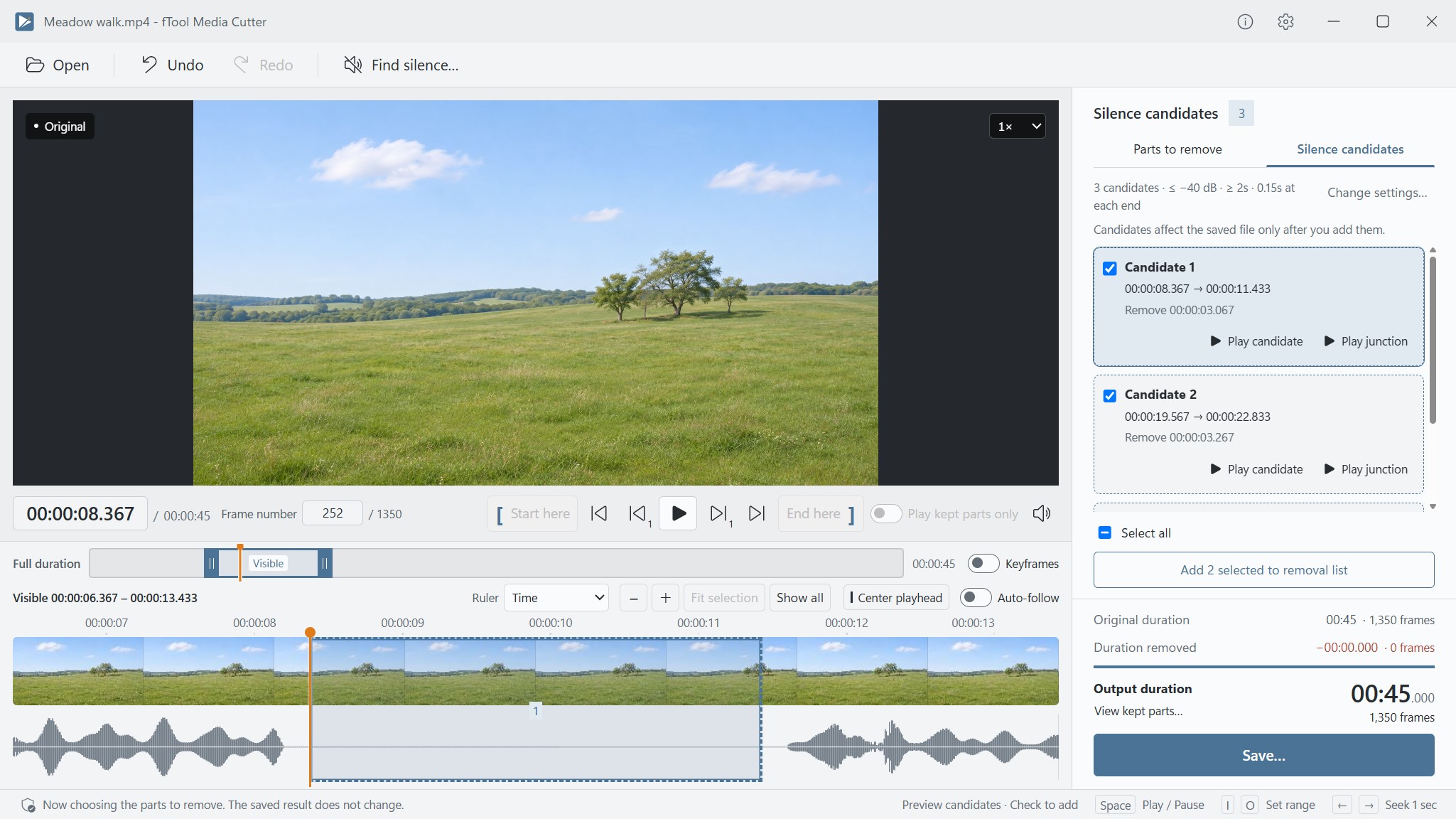
Find silence lists possible silent sections. Listen to each candidate and its junction, tick the ones to remove and add them to the list together. Candidates change the saved file only after you add them.

One Joined File or Separate Clips

Join the kept sections in their original order, or save each one as a separate file. Turn one long recording into several short clips, or split an audio recording into the sections you need.

Smart Saving, With GPU Help

With Automatic, supported videos are re-encoded only around the cut points while the rest is copied, and the Save dialog shows how much video will be re-encoded before you start. GPU acceleration is used on supported systems.

Lossless Cuts at Keyframes

Choose Lossless (cut at keyframes) to copy the video without re-encoding it. Cut points are adjusted to keyframes and some audio formats need converting, so the Save dialog shows the actual cut positions and output duration first.

Keep Just the Audio, or Drop It

Extract the audio from supported videos as an MP3 file, or save a video with its audio removed. Both are a single choice in the Save dialog, and the cuts you made apply to either.

Several Audio Tracks, Your Choice

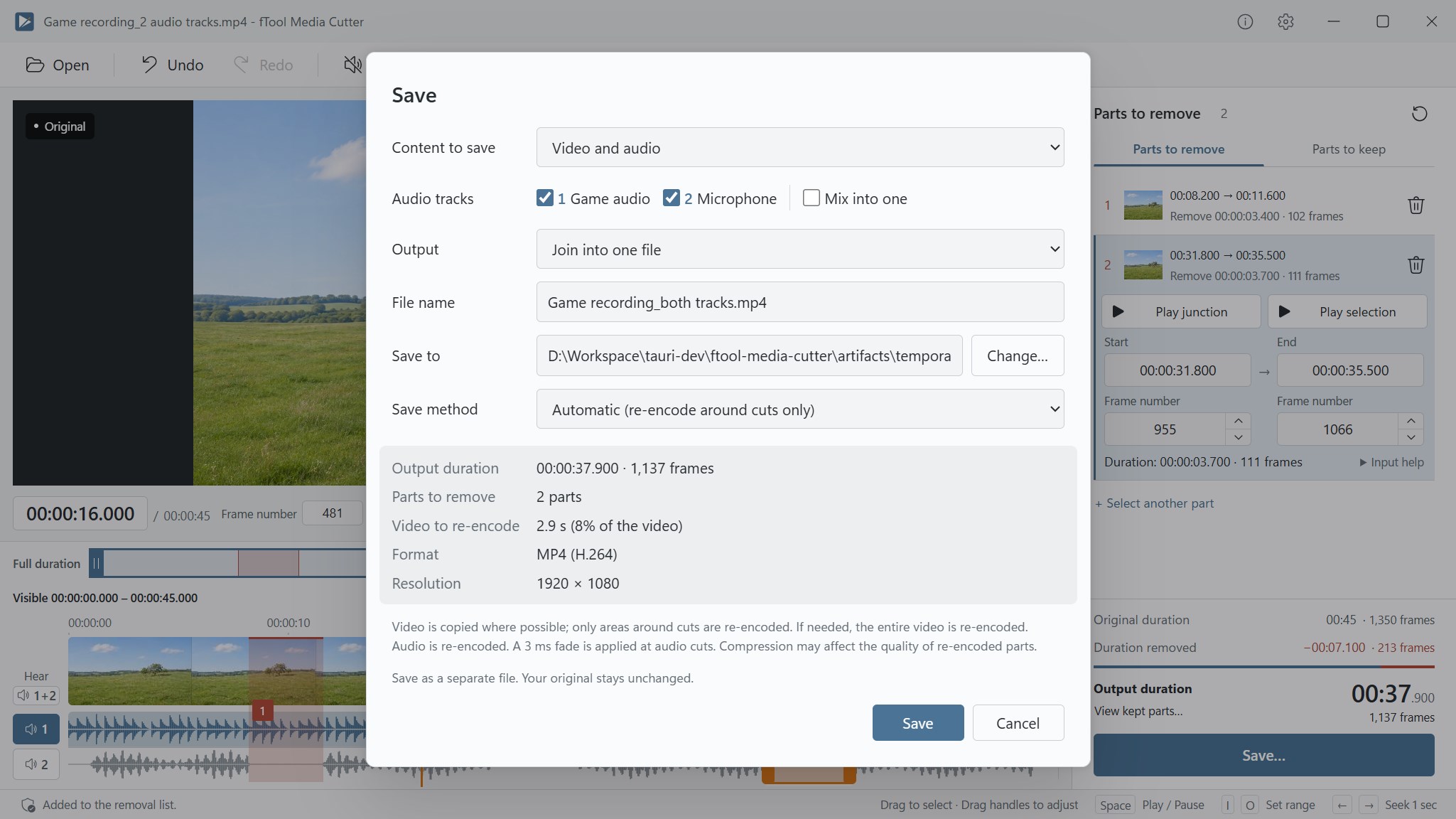
For videos with more than one audio track, listen to each track and choose which ones to save. Keep supported tracks separate or mix them into one, which helps when game audio and your microphone were recorded on separate tracks. Saved as separate tracks, supported 5.1 and 7.1 channel audio keeps all its channels.

Video and Audio, Same Controls

Edit MP4, MOV and MKV video and MP3, M4A and WAV audio on the same timeline. 4K, HEVC and supported HDR video work too, and supported HDR video can be saved in HDR or converted to SDR.

Originals Stay Untouched

The original file is left unchanged and your result is saved as a new file, without overwriting a file of the same name. Video recording dates carry over, as do title, artist and album tags in audio files.

Familiar Windows Controls

Drag and drop files, work from the keyboard with shortcuts, and zoom and scroll the timeline. Choose a light or dark theme or follow your Windows setting. The interface is available in 9 languages.

Saving Your Edit

Choose What and How to Save

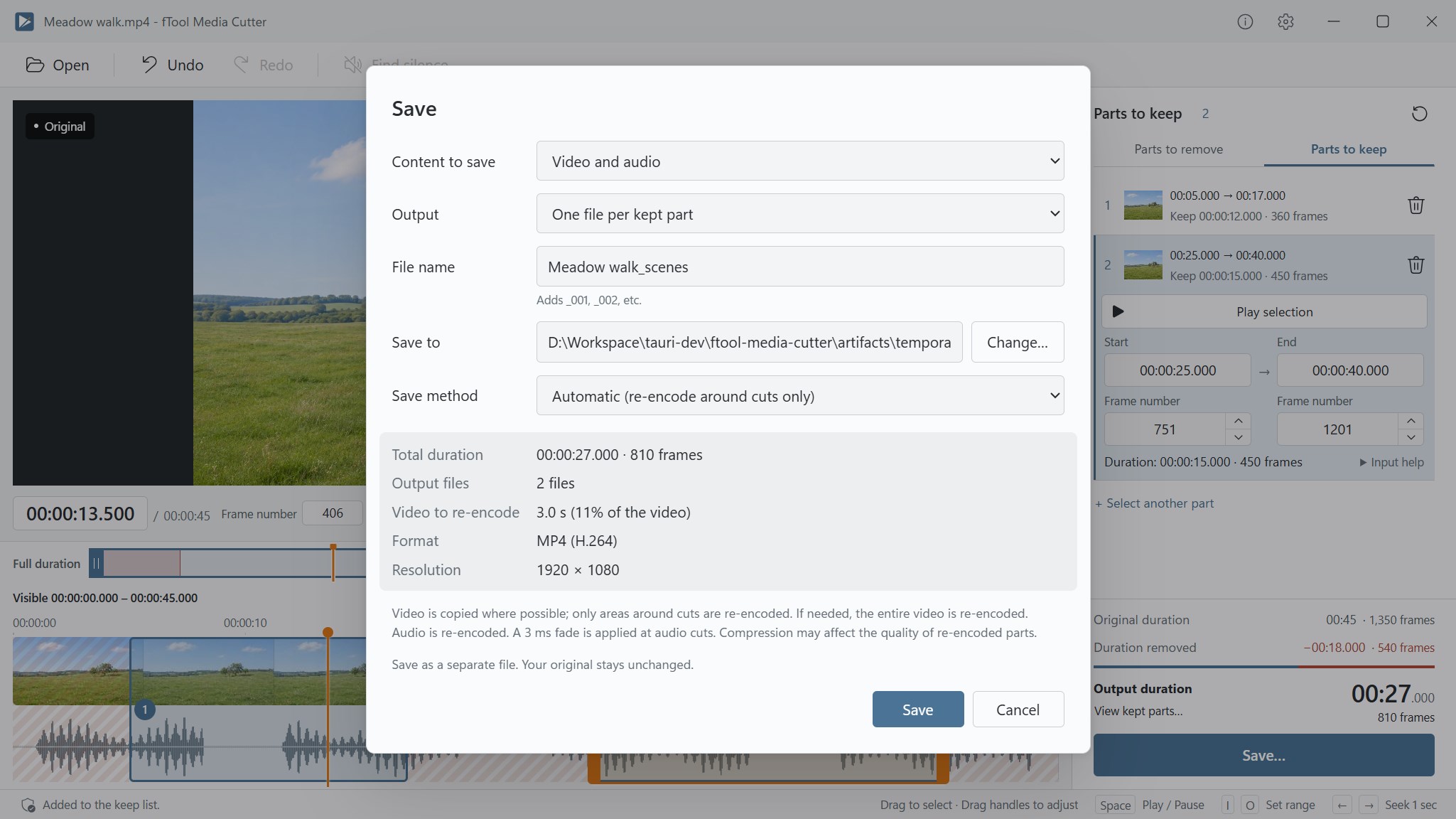
The Save dialog sums up the result before you commit: the output duration, the number of files, how much video will be re-encoded, the format and the resolution.

Save Method (Video)

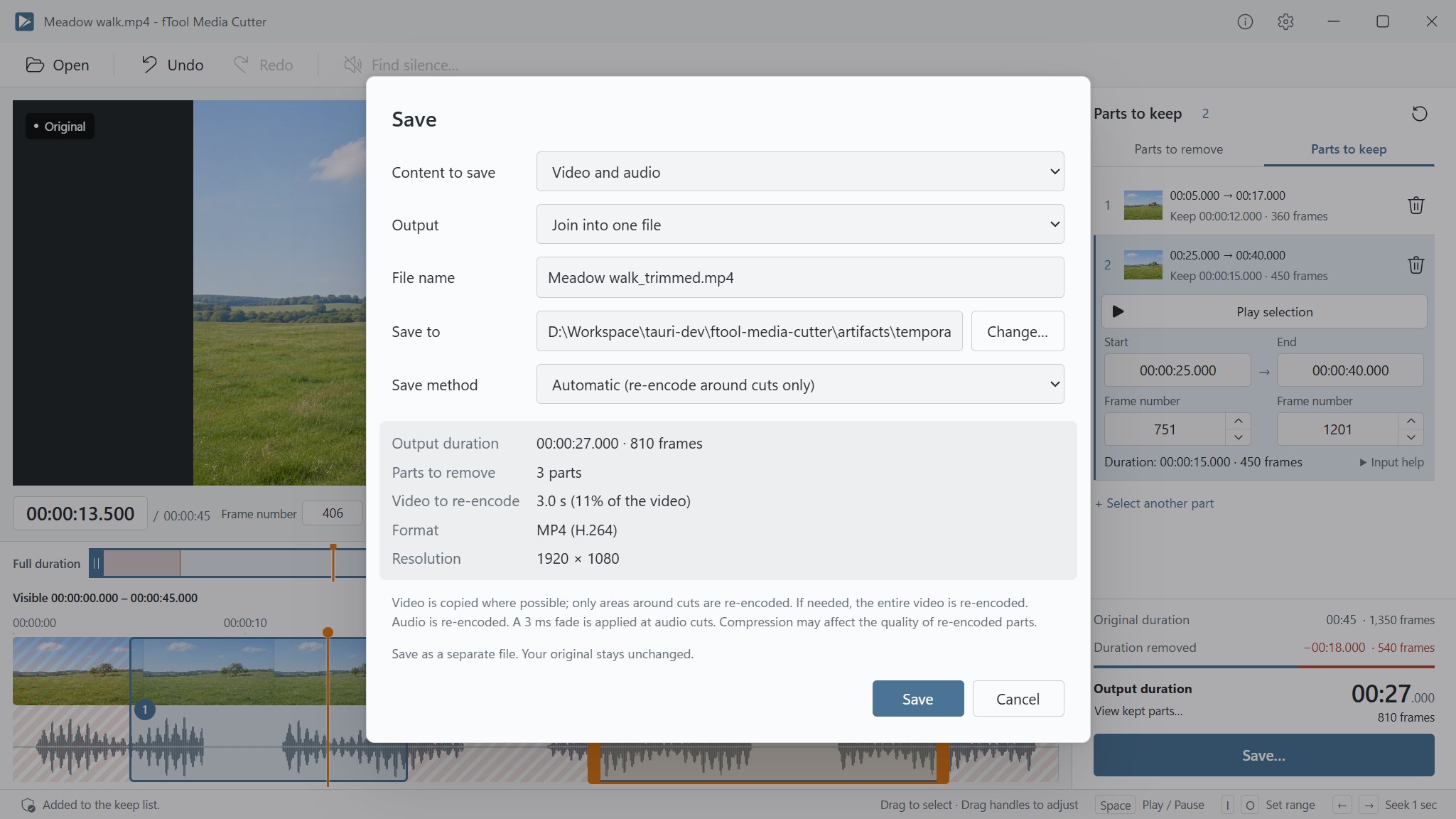
Automatic (re-encode around cuts only) — the default. Supported video is re-encoded only around the cut points and the rest is copied, and the dialog shows how much, for example 3.0 s (11% of the video).

Lossless (cut at keyframes) — copies the video without re-encoding. Cut points are adjusted to keyframes, and the dialog shows where the cuts actually fall before you save.

Re-encode all (for playback compatibility) — re-encodes the whole video as H.264, for when the file has to play on as many devices as possible.

Content and Output

Video and audio — the full result as MP4, with the audio tracks you choose kept separate or mixed into one.

Audio only (MP3) — the audio of a supported video, saved as an MP3 file.

Video only (no audio) — the video with its audio removed.

Join into one file or One file per kept part — one file with the kept parts in their original order, or a numbered file (_001, _002 and so on) for each part.

Local by Design

Your Recordings Stay on Your PC

Family videos, meeting recordings and interviews are exactly the files you would rather not upload to an online cutter. fTool Media Cutter does all of its work on your own PC, with the FFmpeg components bundled with the app and the media encoders built into Windows.

  • No file uploads, no usage-data collection and no separate app account
  • The original file is never modified; results are saved as new files in the folder you choose
  • Existing files are not overwritten, even when the folder already holds a file with the same name
  • Temporary preview and working files stay in your local temporary folder and are removed when no longer needed
  • The Microsoft Store is used only to check your license, trial or full version
Supported Formats
Video files MP4MOVMKV
Video codecs H.264HEVC4K
HDR (10-bit HEVC) HLGHDR10Dolby Vision Profile 8
Audio files MP3M4A (AAC-LC)WAV (PCM)
Output Video: MP4Audio from video: MP3Audio files: same format

fTool Media Cutter is built to do one job well: cutting a video or audio file and saving the parts you keep. Please read these points before you buy, and try it with your own recordings during the free trial.

Good to Know
  • Video support focuses on H.264 and HEVC. A file may not be supported even if its extension matches, depending on its video and audio formats and other properties.
  • Editing previews are shown in SDR. Dolby Vision enhancement metadata is not preserved; the underlying HLG or HDR10 video is saved.
  • Subtitles, chapters, location data and cover art are not carried over to the output.
  • With Lossless (cut at keyframes), audio may need to be converted depending on its format, and a very short part to remove can stay in if it does not span a whole keyframe interval. Check the cut positions in the Save dialog.
  • It cuts one file at a time. Joining separate files together and adding effects are not part of the app.
  • Your edits are not kept when you close the app, so save the result before closing.
  • Windows 10 version 22H2 or later, or Windows 11, is required. This is a newer minimum than most futomi.app tools.
  • An internet connection is needed for purchases and may be needed to verify your license. Your files are never sent anywhere.

Pricing

Try Everything for 7 Days

Install the free trial from the Microsoft Store and try every feature for 7 days, saving included. The trial adds no watermarks and puts no limit on the number of saves or the length of your output. If it saves you time, buy the full version once and keep it.

Gallery

See It In Action

Parts to keep mode with two scenes selected on the timeline and listed on the right, keeping 27 of the original 45 seconds
Silence candidates, each with Play candidate and Play junction buttons and a checkbox, above a button that adds the two selected candidates to the removal list
The Save dialog set to save one file per kept part, showing two output files and 3.0 seconds of video to re-encode
The Save dialog for a video with two audio tracks, Game audio and Microphone, both selected to be kept as separate tracks, with a Mix into one option beside them
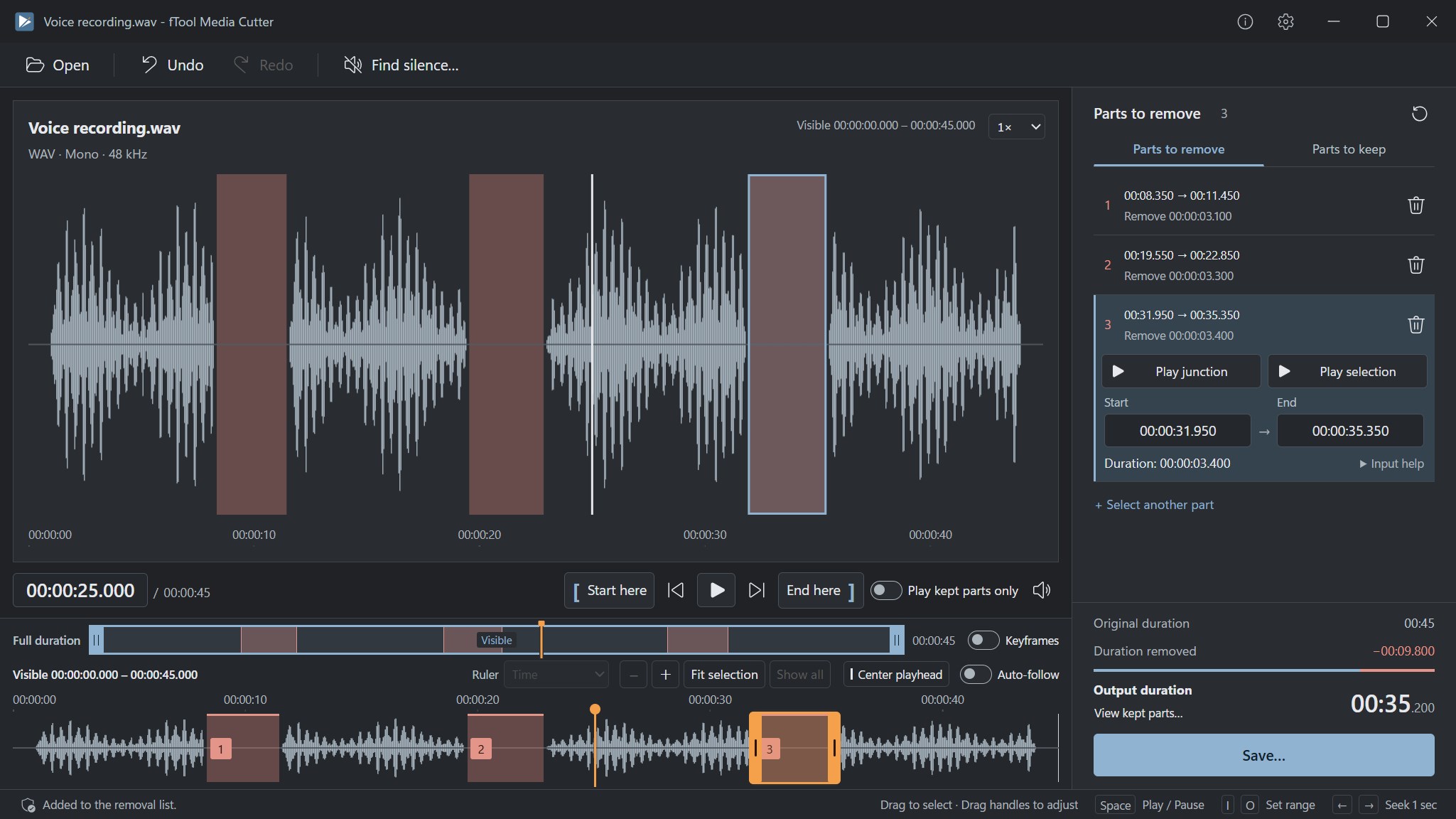
A WAV voice recording open in the dark theme, with three parts to remove marked on its waveform
The Save dialog joining the kept parts into one MP4 file with the Automatic (re-encode around cuts only) save method

Get Started Today

Download from Microsoft Store

Supported OS: Windows 10 version 19045.0 (22H2) or later, Windows 11
UI Languages: English, Japanese, Simplified Chinese, Traditional Chinese, Korean, Spanish, German, French, Portuguese
Architecture: x64 | Publisher: futomi Co., Ltd.
Trial: Try every feature free for 7 days
Privacy: No Cloud, Zero Data Collection