fGadget Mic Meter Icon
Windows 11 / 10 Audio Never Recorded One-Time Purchase

Desktop Microphone Gadget

fGadget Mic Meter

Ever started talking in a meeting, only to hear that you are on mute? Or found out halfway through a call that the laptop's built-in mic was picking you up instead of your headset? fGadget Mic Meter keeps your microphone in plain sight. A small panel on your desktop shows which mic Windows is using, how strongly your voice is coming through and which apps are listening, and when something is wrong you fix it right there, in one click.

No Subscription No Account, No Ads Verified by Microsoft
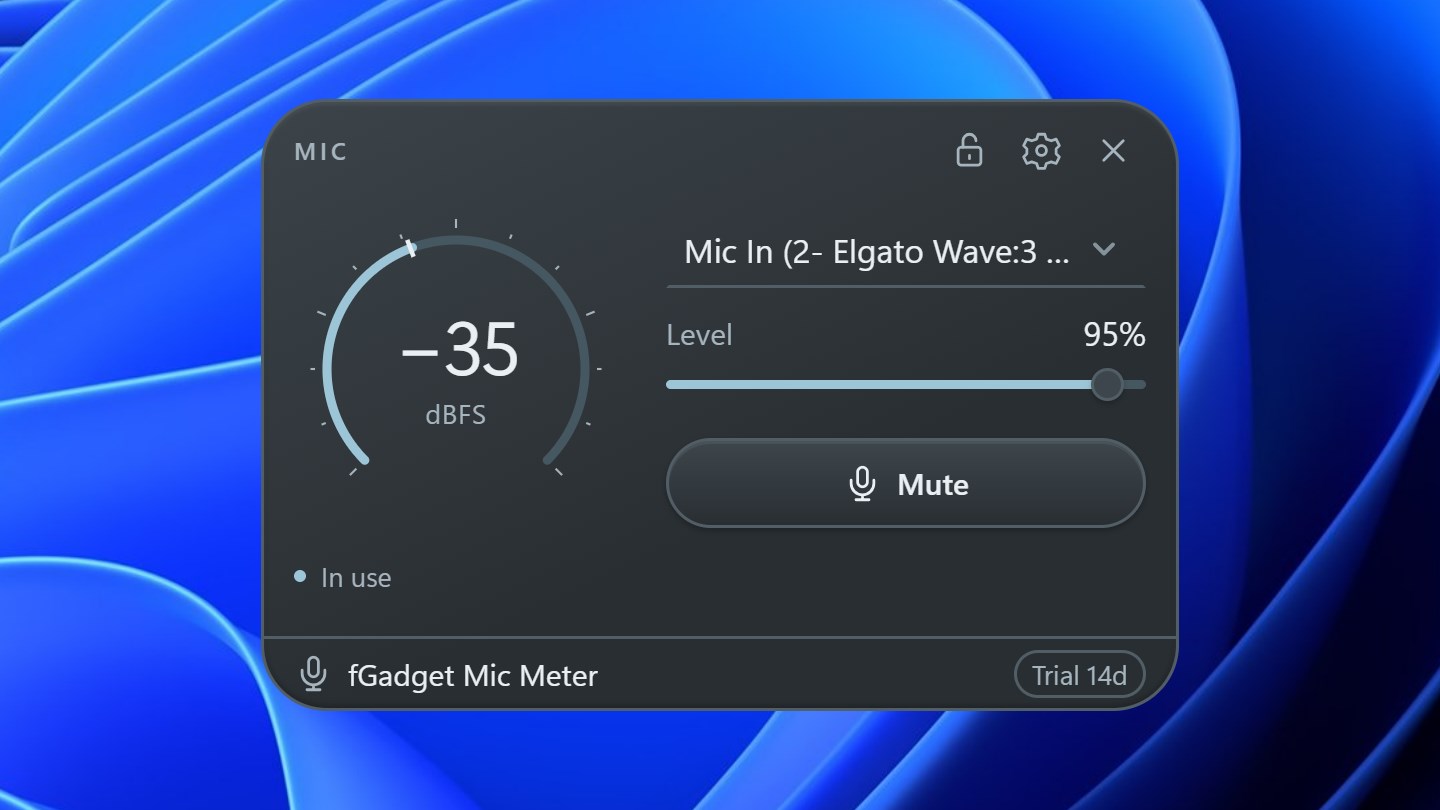
The fGadget Mic Meter panel on the Windows desktop with a ring meter reading −35 dBFS, the selected microphone, an input level slider at 95% and a Mute button

Why fGadget Mic Meter

Your Microphone, at a Glance

Video calls, online classes, voice chat, gaming, streaming and podcasting all depend on a microphone you usually cannot see. fGadget Mic Meter puts it on your desktop, so you know it is working before anyone has to tell you.

See That You Are Heard

A live level meter with peak hold shows your voice getting through. A clip warning tells you when you are too loud, and a silence warning tells you when the mic is in use but nothing is coming in.

Fix It in One Click

Switch the Windows default microphone, set the input level and mute, all from the panel, without digging through Windows sound settings. A global shortcut mutes you from any app.

Nothing Is Recorded

Levels are measured in memory and the audio is discarded immediately. Nothing is saved or sent anywhere, and there is no account, no advertising and no telemetry.

What You Can Do

Check It, Switch It, Mute It

A Live Meter You Can Trust

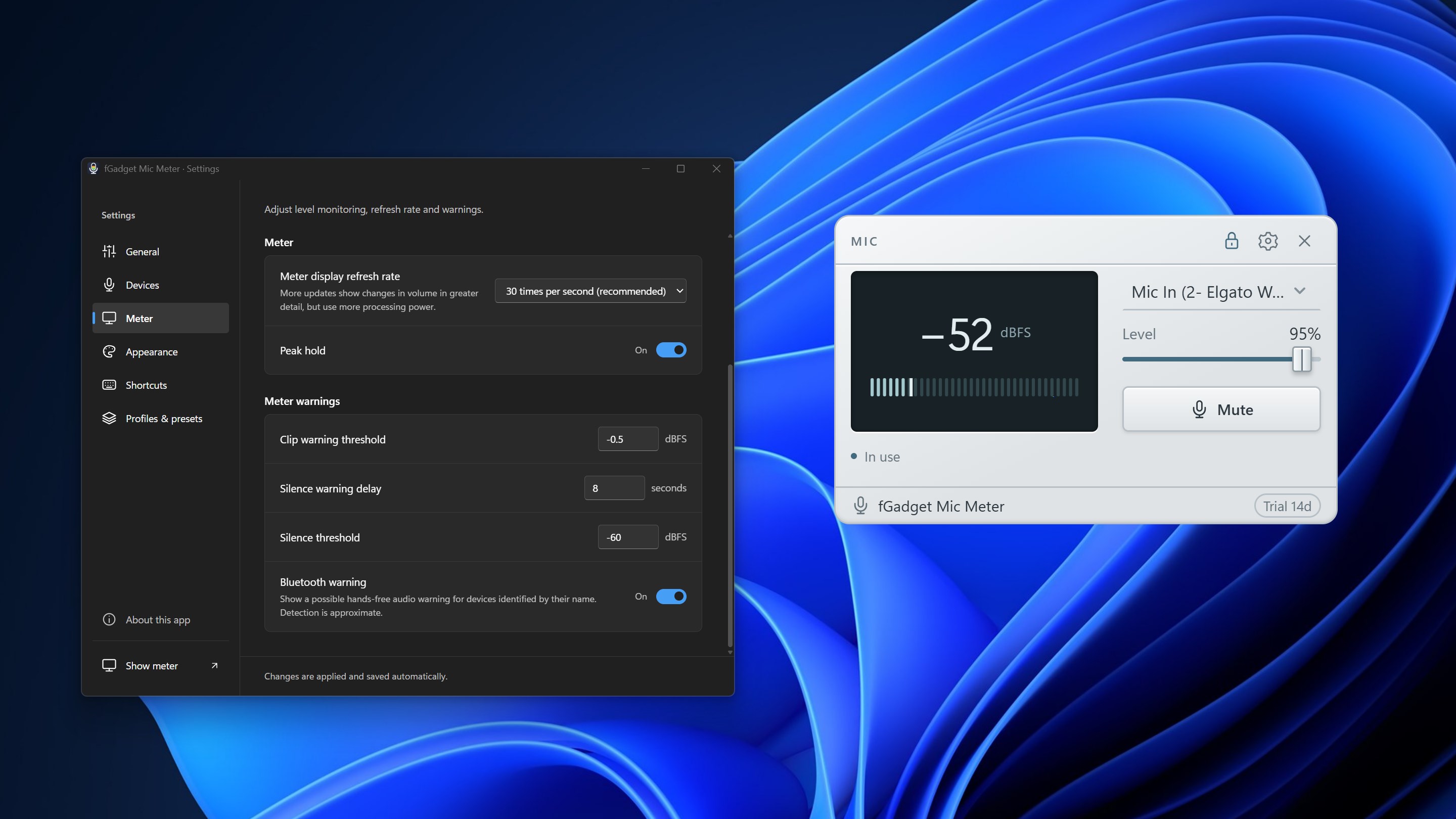
The panel shows the peak level of your default microphone in dBFS, with a peak-hold marker that makes short bursts easy to read. Choose how many times per second the meter refreshes: more updates show changes in volume in greater detail, fewer save processing power.

Warnings Before Anyone Notices

Set the level at which the clip warning appears, and how quiet and for how many seconds the input must stay before the silence warning shows. If a Bluetooth headset may have switched to its call mode (HFP), which can make playback sound worse, the panel gives you a hint.

Switch Microphones in One Click

Pick a microphone on the panel and it becomes the Windows default. Apps that follow the Windows default switch with it, for calls and recording alike. Your speakers or headphones can be switched the same way from the settings.

Mute in Windows, Not Just in One App

The Mute button mutes the microphone in Windows itself, so every app hears silence, and a clear OFF state shows that you are muted. A keyboard shortcut such as Ctrl+Shift+M does the same from any app, even while the panel is hidden.

Set the Level and Keep It There

Adjust the input level with the slider or your mouse wheel. Turn on Level Lock and your level is restored when another app changes it automatically, so you stay at the level you chose instead of being turned down halfway through a call.

Presets and Profiles for Every Situation

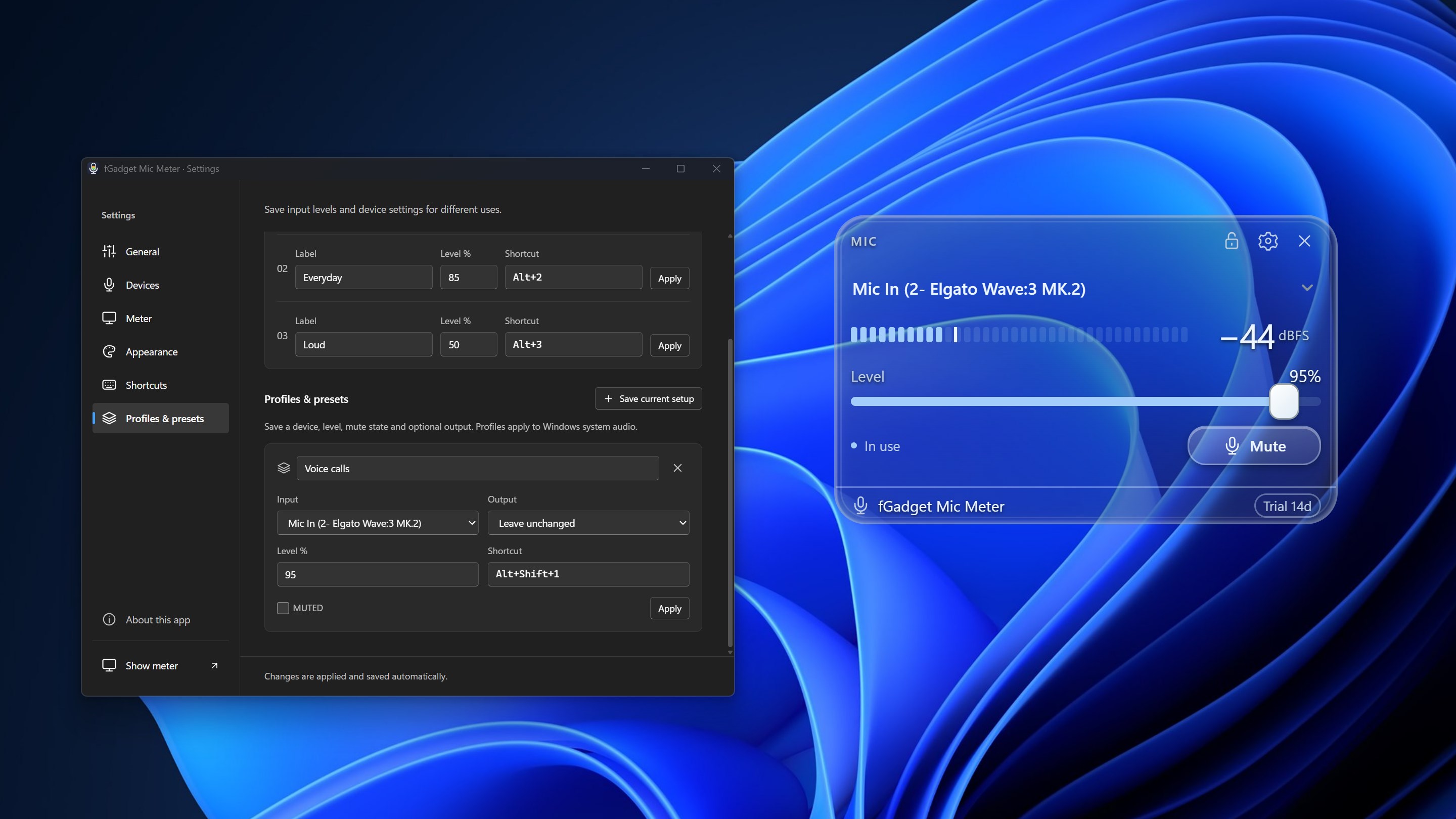
Three level presets, Meeting, Everyday and Loud, can be renamed and set to any level. Up to 20 profiles save your microphone, level, mute state and, if you like, your output device together. Give any preset or profile a keyboard shortcut and change your whole setup with a single key press.

See Who Is Listening

The panel lists the apps that are using your microphone right now. Up to three more microphones can be monitored alongside your default one, each with its own meter, so you can tell at a glance which input is actually live.

Always There, Never in the Way

Keep the panel always on top, in the normal window order, or pinned to the desktop so it stays visible when you press Win+D. It starts with Windows and waits in the notification area, and you can turn that off.

Designed to Live on Your Desktop

Nine Skins, Two Series

Choose a ring meter, a needle gauge, a fader or a big mute key, then pick portrait or landscape and a dark or light finish to match your setup.

Studio

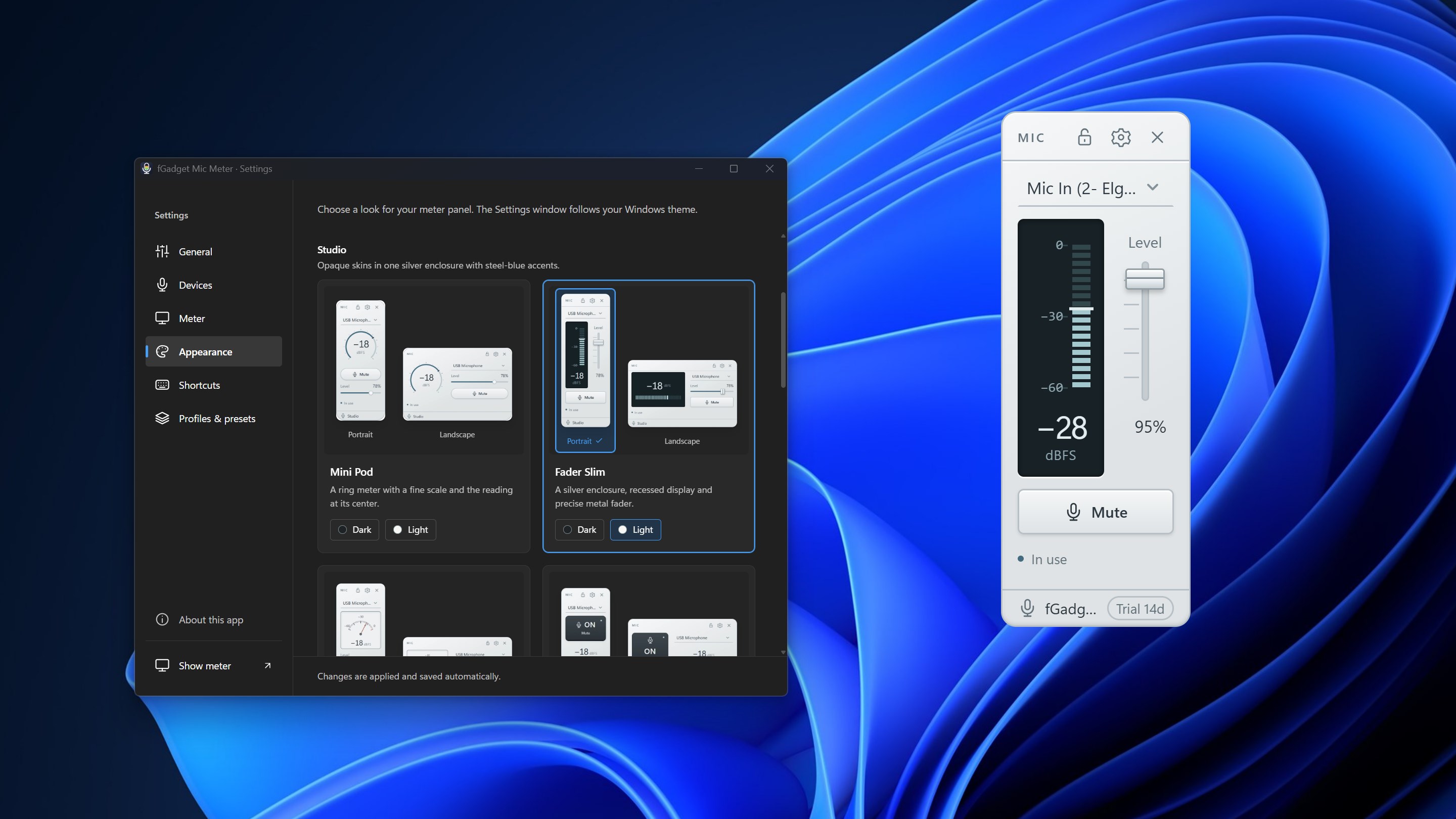
Opaque skins in one silver enclosure with steel-blue accents.

Mini Pod — a ring meter with a fine scale and the reading at its center.

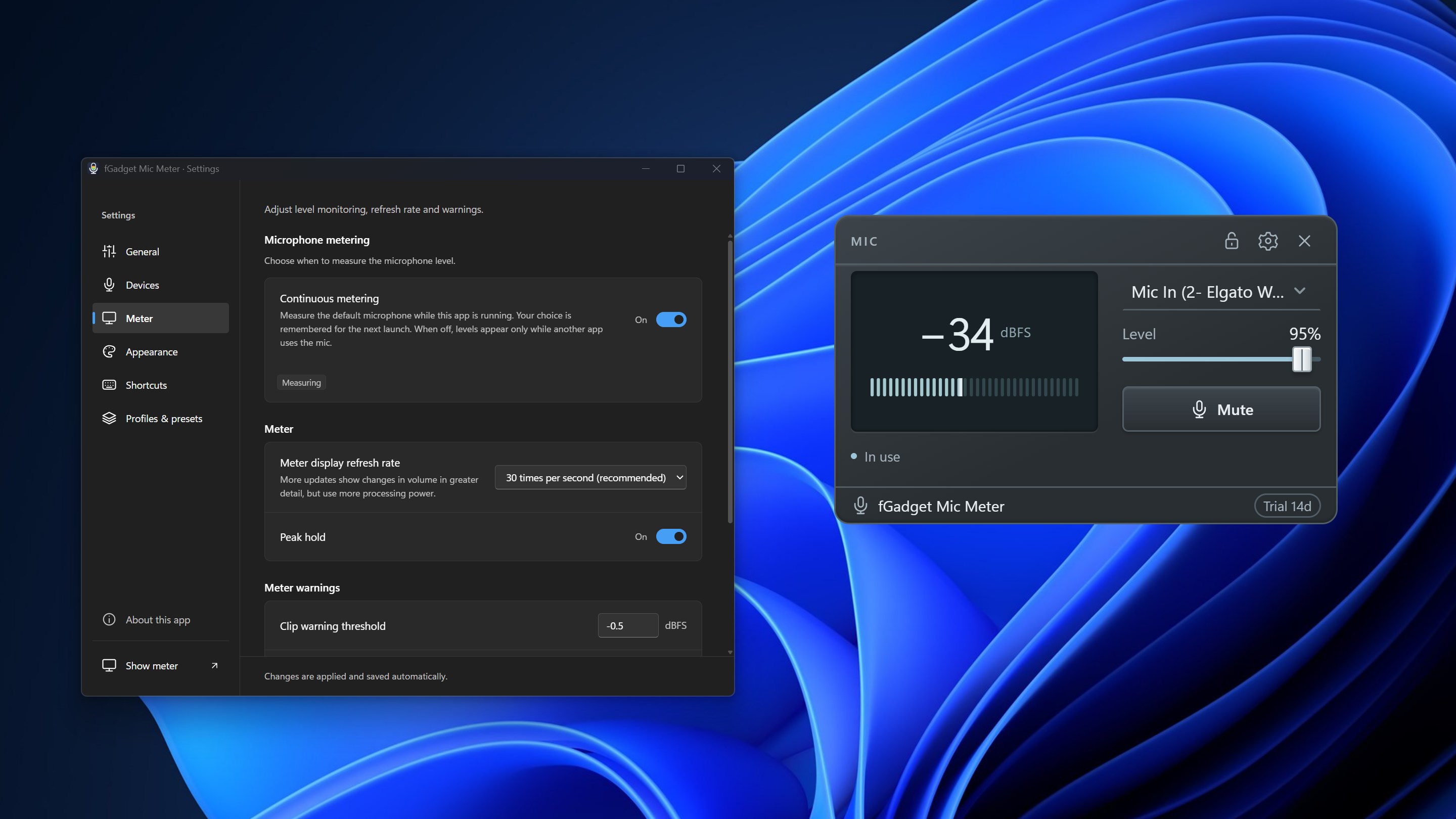
Fader Slim — a recessed display and a precise metal fader.

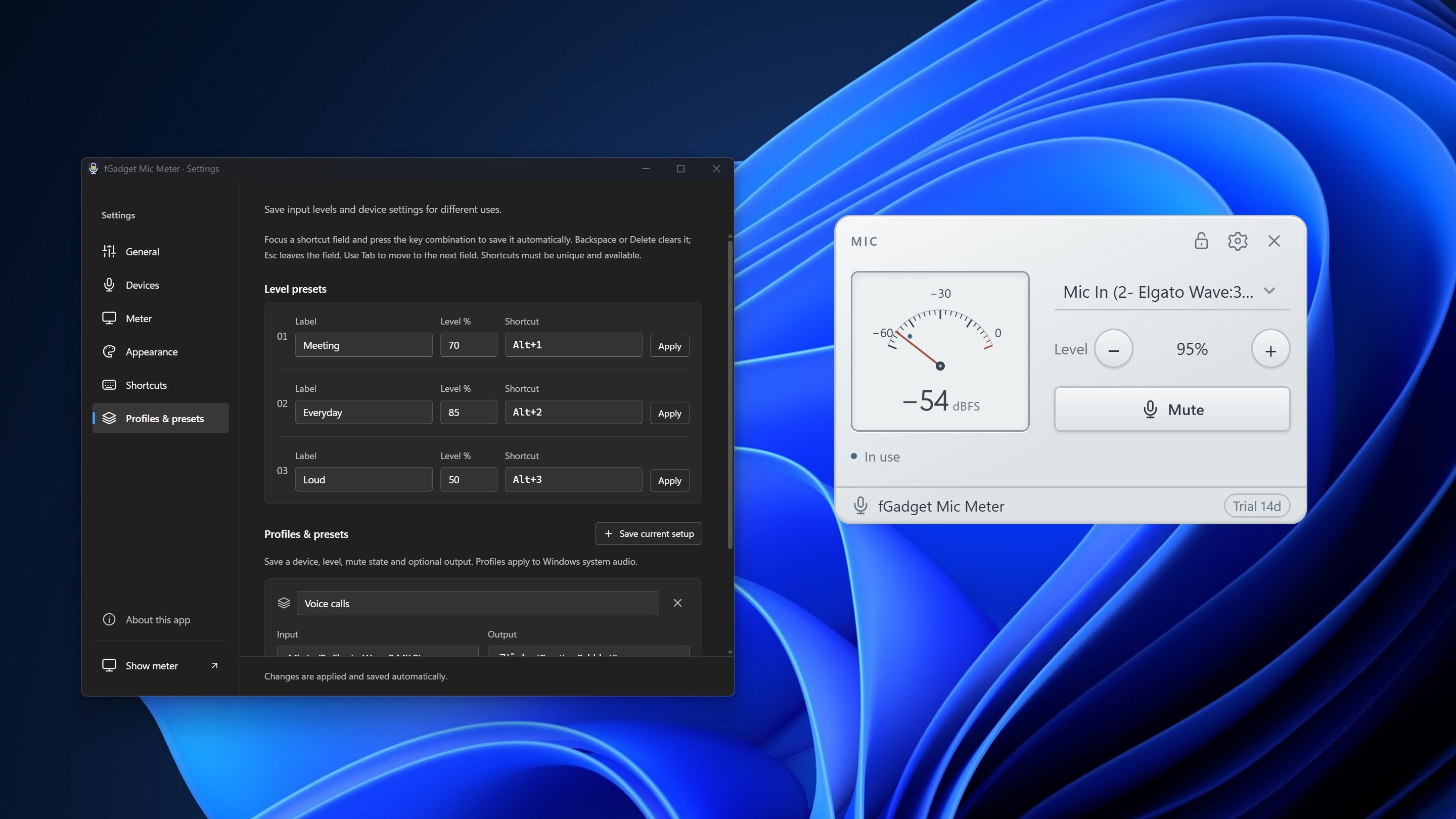
Pocket Gauge — an enamel dial with a fine needle and one-percent level steps.

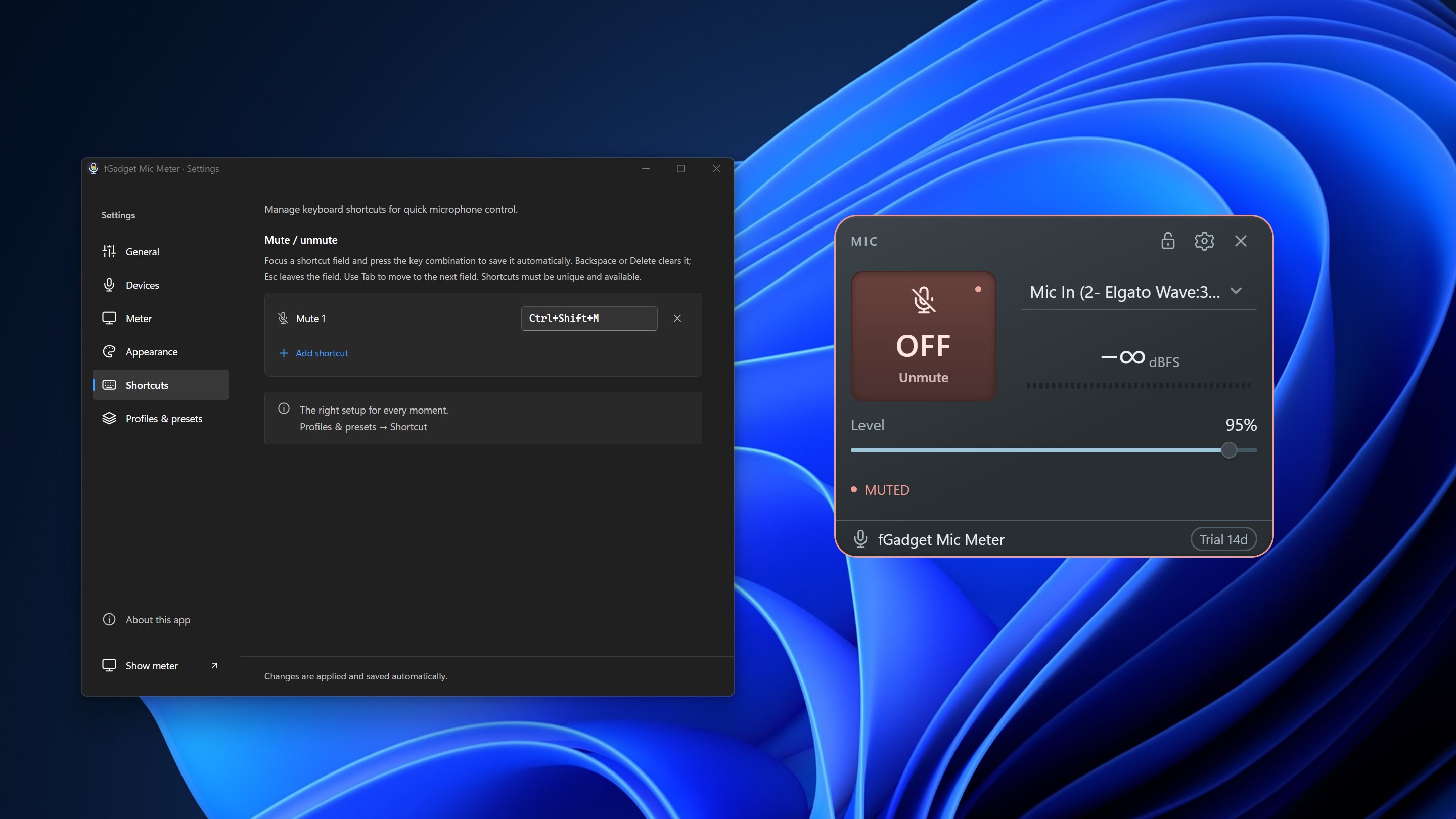
Mute Key — a tactile graphite mute key with a clear ON / OFF indicator.

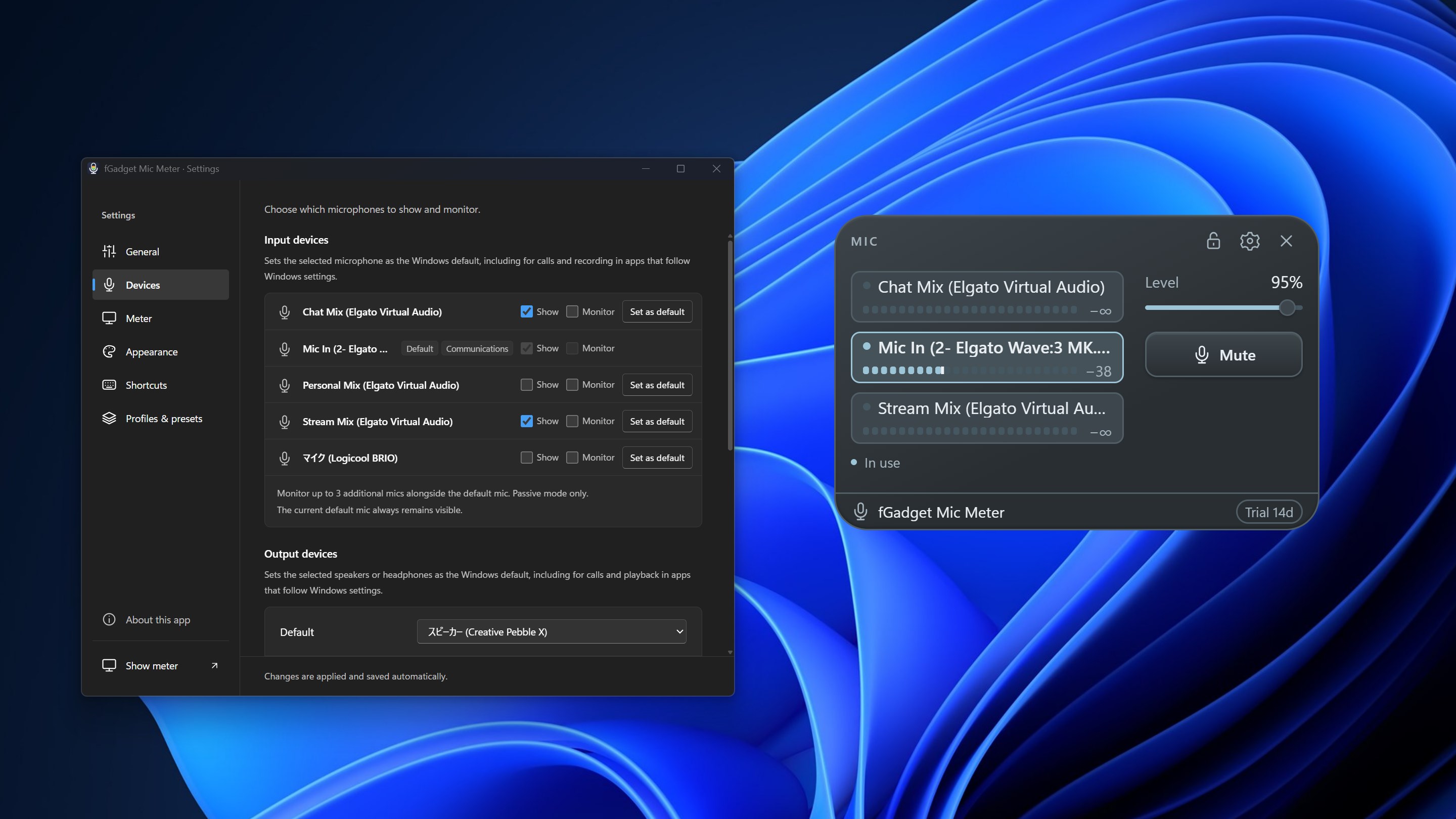
Mic Mixer — lists all your microphones with their status and level. Click a row to switch.

Glass

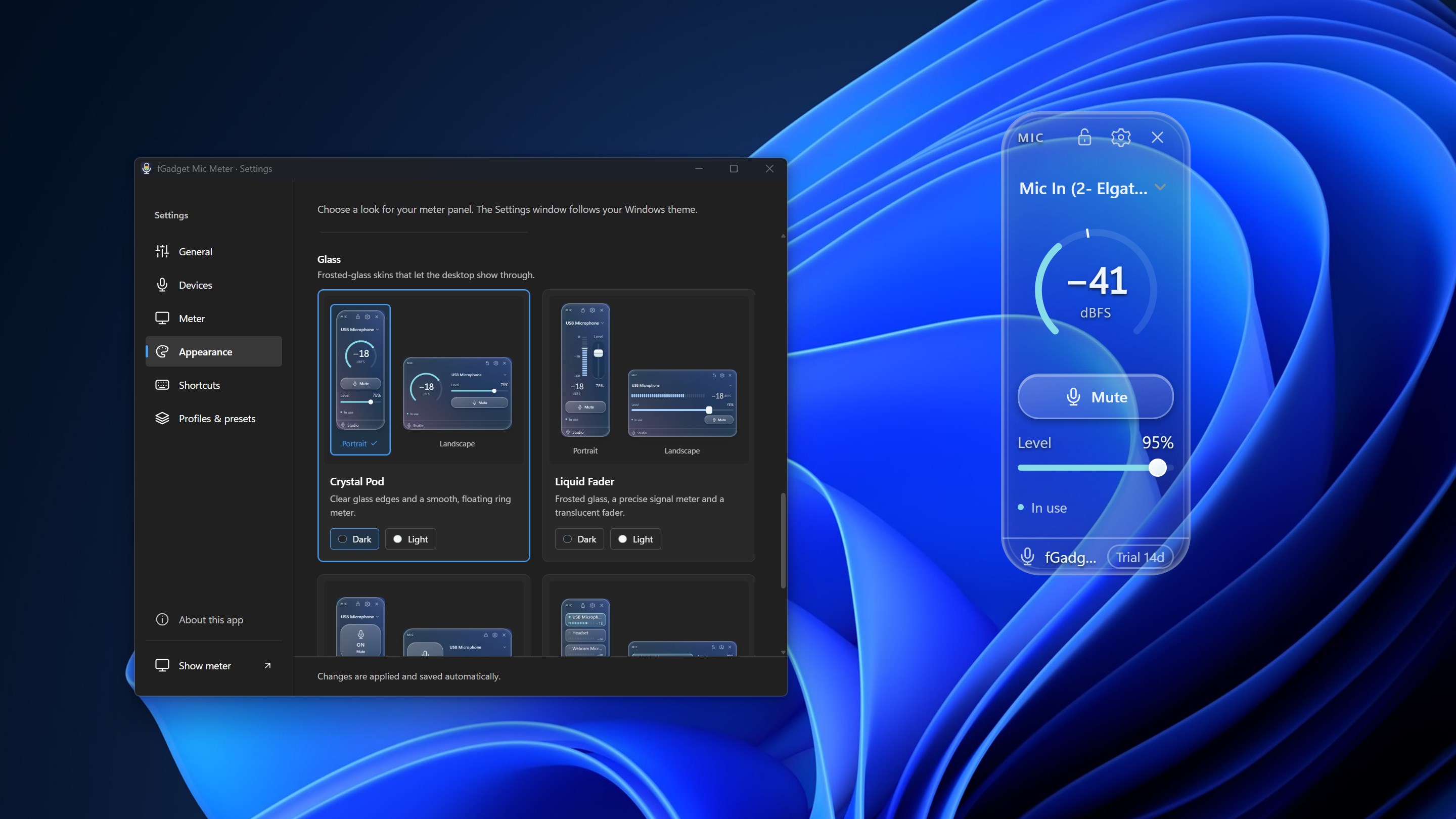
Frosted-glass skins that let your desktop show through.

Crystal Pod — clear glass edges and a smooth, floating ring meter.

Liquid Fader — frosted glass, a precise signal meter and a translucent fader.

Glass Key — a rounded glass key with a prominent ON / OFF state.

Glass Mixer — frosted rows for several microphones, each with its status and level.

Layout and finish PortraitLandscapeCompact modeDarkLight
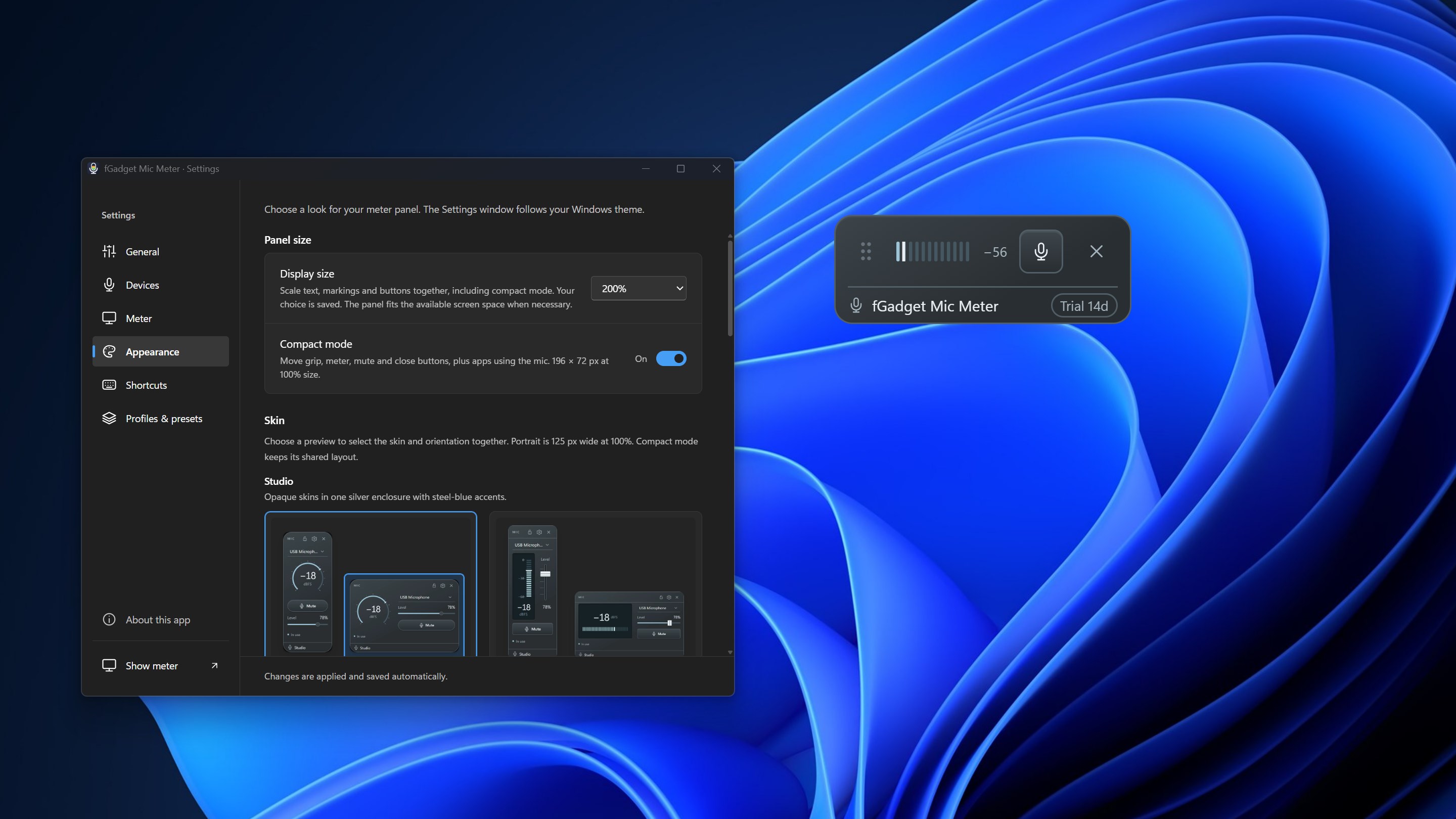
Display size 80% to 200%
Window layer Always on topNormalPinned to desktop

Private by Design

It Measures Your Voice, Never Records It

A microphone app should be the last thing you have to worry about. fGadget Mic Meter reads levels and device information on this PC and keeps everything there.

  • Audio is never recorded, saved or sent anywhere. Levels are measured in memory and the audio is discarded immediately
  • No account, no advertising and no telemetry
  • The app opens your microphone only after you choose to start continuous metering, and you can turn it off at any time. When it is off, the meter simply follows other apps that are using the mic
  • Devices, presets, profiles, shortcuts and appearance settings are saved only on this PC
  • The interface is available in 9 languages and follows your Windows display language

fGadget Mic Meter works with the controls Windows and your audio driver provide. Please read these points before you buy.

Good to Know
  • Switching changes the Windows default microphone. If an app is set to use a specific microphone instead of the default, change it in that app's settings.
  • Without continuous metering, and always for additional microphones, the meter moves only while another app is using that mic. Some audio drivers do not report levels in this mode.
  • While continuous metering is on, Windows shows the microphone as in use, some headsets keep their mic light on, and Bluetooth audio quality may change.
  • If another app keeps adjusting the level automatically, Level Lock pauses. Turn off automatic gain adjustment in that app, then turn the lock back on.
  • Microphone boost is controlled by your audio driver and is not changed by this app.
  • The Bluetooth hint is based on the device name and may not always be accurate.
  • An internet connection is needed for purchases and may be needed to verify your license. Metering does not require one.

Pricing

Try Everything for 15 Days

There is one edition with everything included, and the trial unlocks all of it. If it saves you from one more “you're on mute”, buy it once and keep it. No subscription, no tiers.

Gallery

See It In Action

Mic Mixer listing three microphones with their live levels, beside the Devices settings where each input can be shown, monitored or set as the Windows default
Mute Key showing a large OFF state and MUTED under the level slider, beside the Shortcuts settings with Ctrl+Shift+M assigned to mute
Fader Slim reading −34 dBFS, beside the Meter settings with continuous metering on, a refresh rate of 30 times per second and peak hold
Pocket Gauge in the light finish with its needle at −54 dBFS, beside the Meeting, Everyday and Loud level presets with their levels and shortcuts
Crystal Pod in a narrow portrait layout, a transparent glass panel with a ring meter and Mute button, beside the Glass skins in the Appearance settings
Fader Slim in portrait with the light finish, a vertical level meter and input fader, beside the Studio skins in the Appearance settings
Liquid Fader on the desktop, beside a Voice calls profile that saves the input, output, level, mute state and a keyboard shortcut
Compact mode reduced to a slim bar with a level meter, mute and close buttons, beside the Display size and Compact mode settings
Fader Slim in the light finish, beside the meter warning settings for the clip threshold, silence delay, silence threshold and Bluetooth warning

Get Started Today

Download from Microsoft Store

Supported OS: Windows 10 version 17763.0 or later, Windows 11
Microphone: Any microphone or headset that Windows recognizes
UI Languages: English, Japanese, Simplified Chinese, Traditional Chinese, Korean, Spanish, German, French, Portuguese
Architecture: x64 | Publisher: futomi Co., Ltd.
Trial: Try every feature free for 15 days
Privacy: 100% Local Execution, Zero Data Collection