fGadget Cam Monitor Icon
Windows 11 No Cloud One-Time Purchase

Desktop IP Camera Gadget

fGadget Cam Monitor

Keep an eye on your cameras without stopping what you're doing. fGadget Cam Monitor puts the live video of your IP cameras into small, frameless windows on your Windows desktop. Park them in a corner, keep them on top of other windows, and glance at the front door, the pet room, the driveway or the shop entrance while you work. When something happens, enlarge a view with a double-click, or let the camera's own detection enlarge it for you.

No Subscription No Account, No Ads Verified by Microsoft
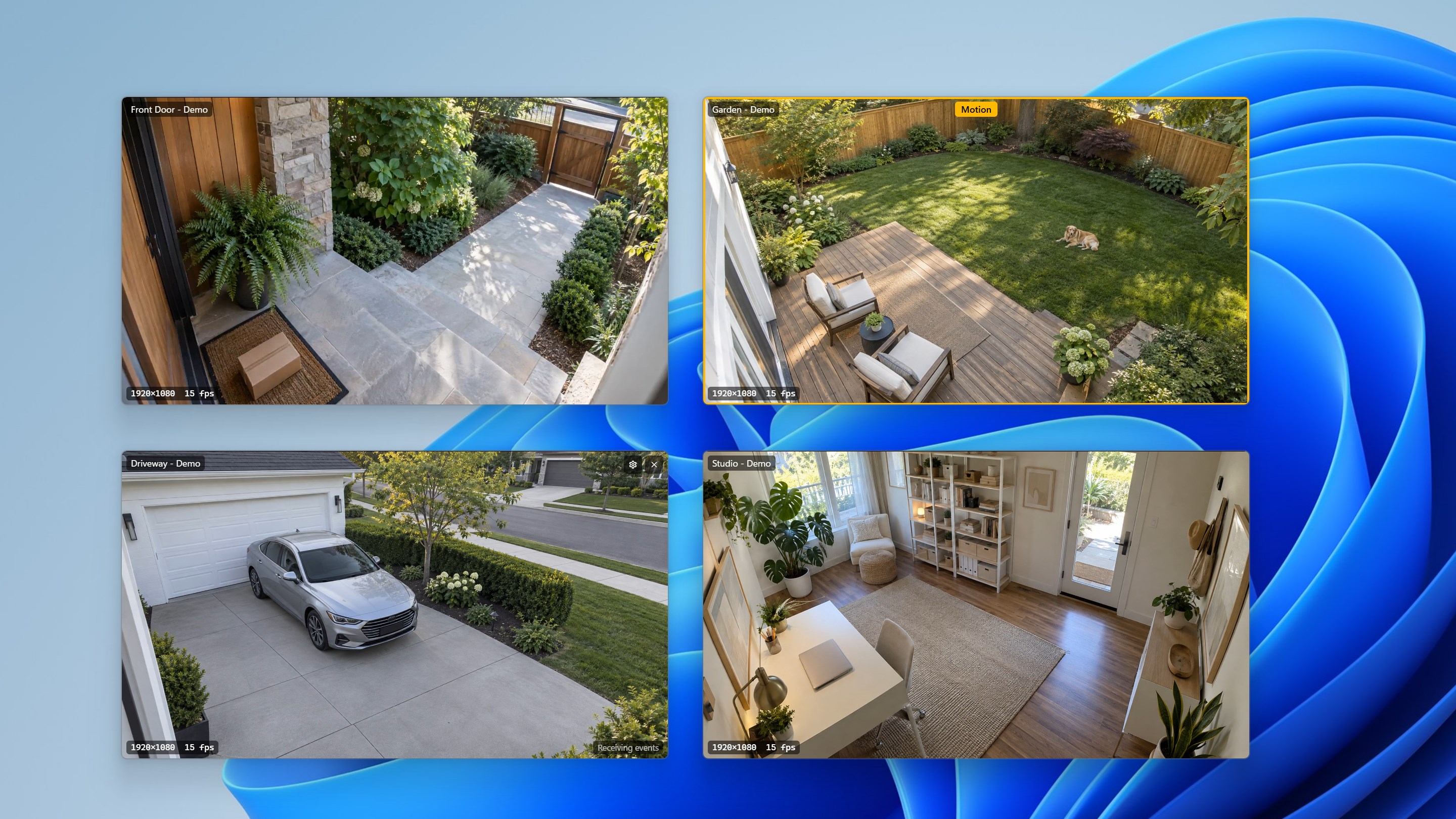
Four camera views on the Windows 11 desktop showing a front door, a garden, a driveway and a studio, with the garden view highlighted by a Motion detection

Why fGadget Cam Monitor

Keep Watching While You Work

A camera app on your phone or a full-screen viewer makes you stop what you are doing to look. fGadget Cam Monitor keeps your cameras in the corner of your screen, so a glance is enough, and it tells you when something needs a closer look.

Small Windows, Always in View

Up to 8 cameras on screen at once, in frameless windows that you can move, resize and keep always on top. Positions and sizes are remembered, including on several monitors and after a restart.

Know When Something Happens

Cameras with ONVIF events report what they detect: motion, person, pet, vehicle, visitor, sound and tampering. You get a Windows notification, and the camera's view can enlarge itself.

Straight from Camera to PC

The app connects directly to the cameras on your network over RTSP and ONVIF. Nothing goes to the cloud, and there is no account and no analytics.

What You Can Do

Glance, Enlarge, Get Notified

Enlarge a View with a Double-Click

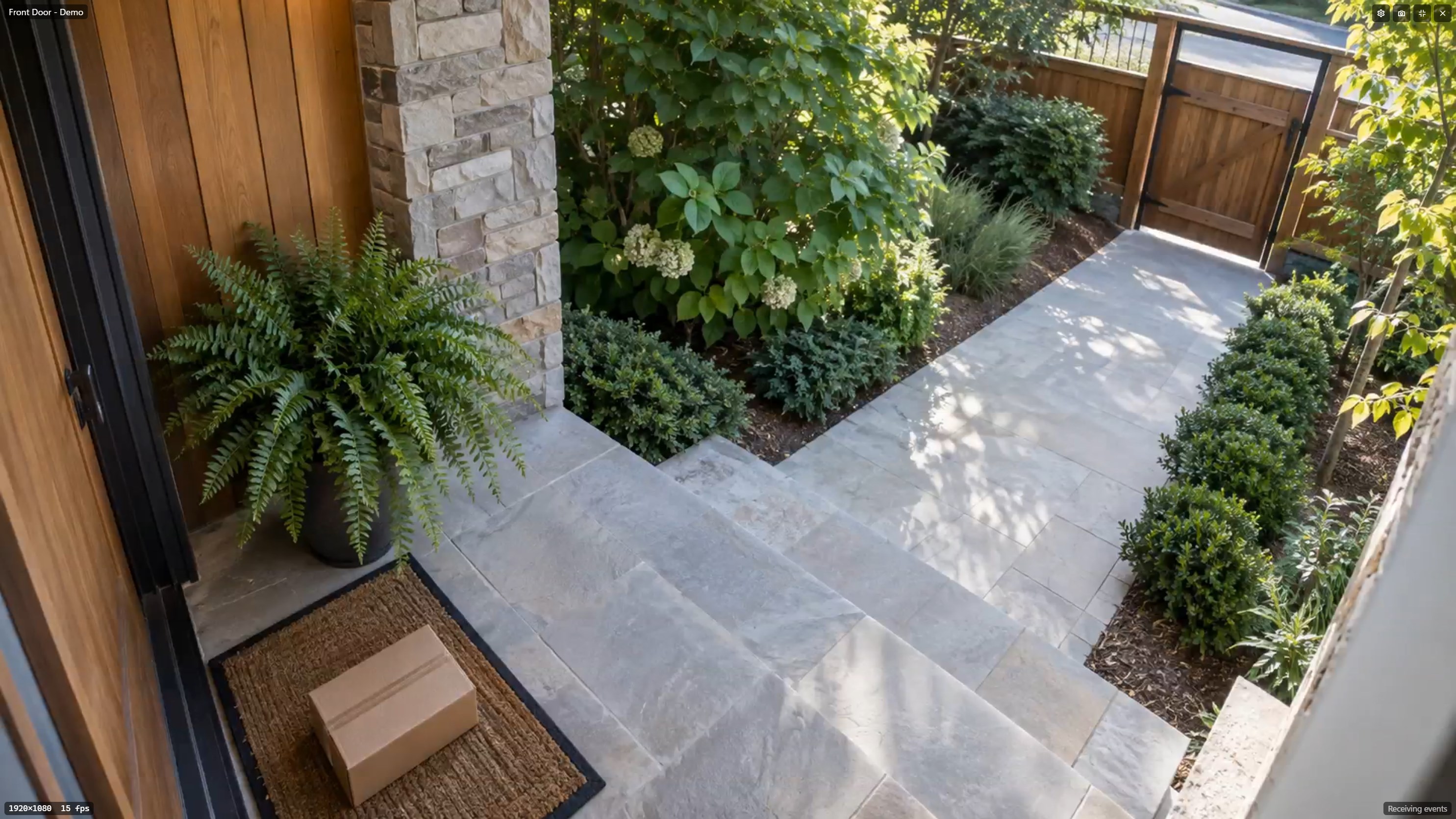
Double-click a view to see the details. While enlarged, it can switch to the camera's high-quality stream; press Esc and it returns to its place. Choose whether each window fills the frame, shows the whole picture or matches the video's aspect ratio.

Show Only the Part You Care About

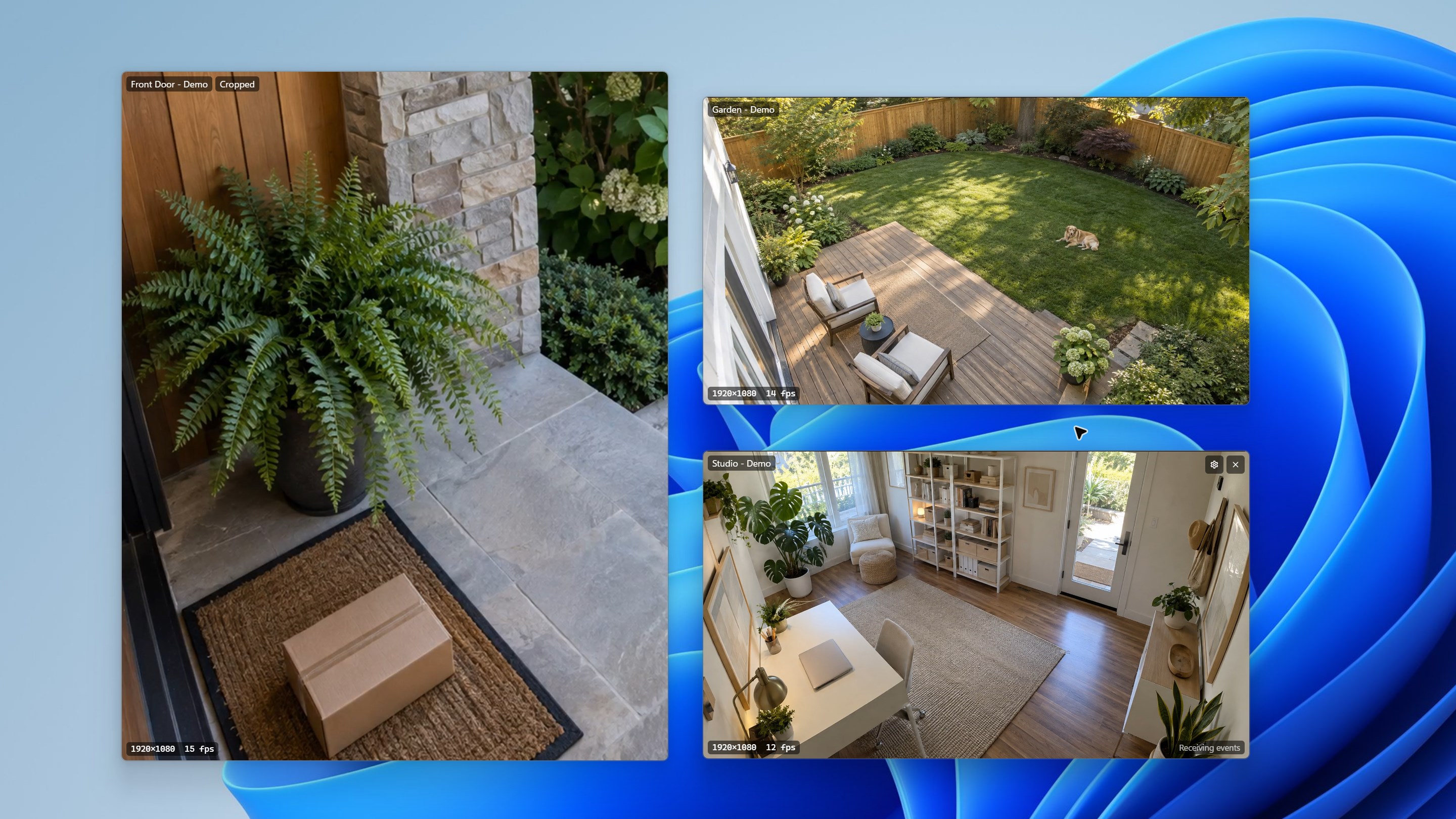
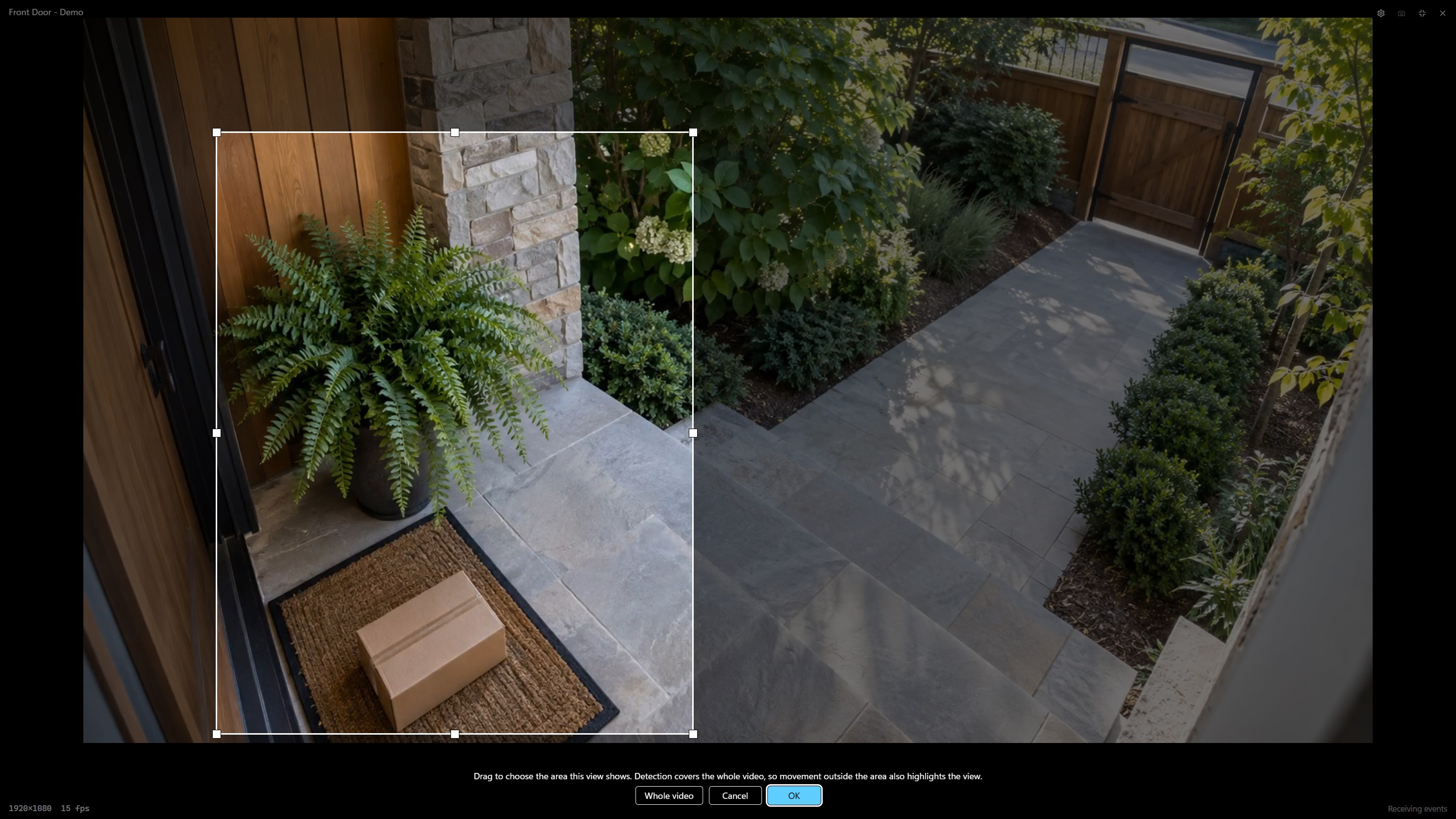
Drag to choose an area of the video, such as the doorstep or the gate, and the window shows just that, in portrait or landscape. Detection still covers the whole picture, so movement outside the area highlights the view too.

Notifications on Your Terms

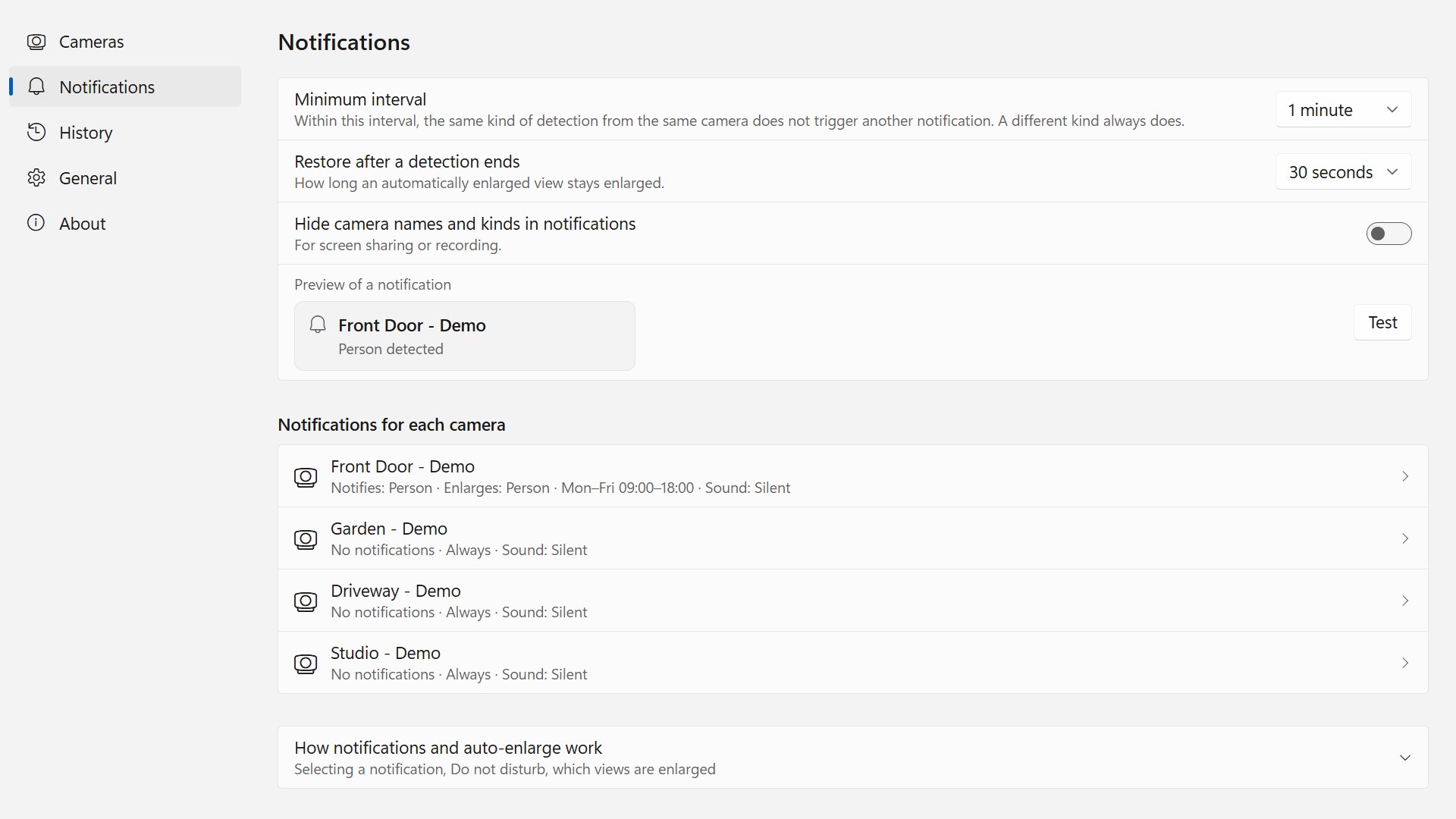
For each camera, choose which kinds of detection notify you, on which days and hours, and with which sound. A minimum interval keeps the same detection from notifying you again and again. Each notification shows the camera's name and the kind of detection, and you can hide both while you share your screen.

Auto-Enlarge on a Detection

A detection can enlarge that camera's window for a while without taking your keyboard focus, and the window returns to its size after the detection ends. Detections arrive even while a camera's window is closed, and selecting the notification opens it.

Choose How Much to Receive

Live always receives video, and the recommended sub stream keeps the load on your PC low. Stills takes a still picture at an interval you choose. Wait for events receives video only while the camera detects something.

Set Up Without Guesswork

The app finds the cameras on your network with ONVIF discovery, mDNS, SADP and a sweep of the network that names the maker of each device and suggests its usual RTSP address. Pick a video from the camera's list, or enter an RTSP URL yourself.

A Connection Check That Tells You Why

If a camera will not show, the connection check goes through it stage by stage: reaching the camera, signing in, usable video, playback on this PC, steady video, audio and detections. It tells you where the connection fails and what to try.

Pan, Tilt, Zoom and Listen

Pan, tilt and zoom ONVIF cameras from the window, and save preset positions. Play audio from as many cameras as you like at the same time (AAC and G.711), and save a snapshot as JPEG or PNG whenever you want one.

Built for Everyday Monitoring

Made to Run All Day

Cameras drop off the network, PCs go to sleep and routers hand out new addresses. fGadget Cam Monitor deals with all of that on its own, and gets out of the way when you need your screen back.

Keeps Itself Running

No need to check on it every morning.

Reconnects after a dropped connection, a network change or sleep.

Finds a camera again when its IP address changes.

A window that stops drawing is reloaded automatically.

Starts with Windows, reopens the windows you had and keeps watching for events from the notification area.

Out of the Way in One Click

For meetings, screen sharing and moments you want to yourself.

Hide all camera windows in one click from the notification area.

Turn on Privacy stop to stop receiving video and events from every camera. It stays on after a restart until you resume.

The camera's name is shown on every window, and the resolution and frame rate if you want them.

Dark and light mode following Windows, in 9 languages.

Detections reported by your cameras MotionPersonPetVehicleVisitorSoundTampering
Video and audio RTSPONVIFH.264H.265AACG.711
Capacity Up to 16 camerasUp to 8 windows at once
Tested cameras TP-Link Tapo C200TP-Link VIGI C240IReolink E1 ProHikvision DS-2CD1323G2-LIUSwitchBot Pan/Tilt Cam Plus 3KAqara Camera Hub G100ATOM Cam 2

Other RTSP and ONVIF cameras should work, but what each one offers varies by model and firmware. Use the trial to check yours.

Private by Design

Your Cameras Talk Only to Your PC

Your cameras look into your home and your shop, so where their video goes matters. fGadget Cam Monitor receives it directly over your own network and keeps everything on this PC.

  • Video, audio and events go from your cameras to this app and nowhere else. Nothing is sent to the developer or any other service
  • No cloud, no account, no advertising and no analytics
  • Camera passwords are encrypted with Windows DPAPI, so only your Windows account on this PC can read them
  • Searching for cameras, including cameras whose address has changed, stays inside your local network
  • No video or images are stored. The event history keeps only when each detection started and ended, and snapshots are saved only when you choose to save one

fGadget Cam Monitor shows what your cameras offer over RTSP and ONVIF. Please read these points before you buy, and use the trial to check your cameras.

Good to Know
  • Your camera must provide RTSP video on your local network. Cameras that can only be viewed through the maker's app or cloud cannot be shown.
  • ONVIF is needed for the video list, detections and pan/tilt/zoom. Look for “RTSP” and “ONVIF” in the camera's manual; many cameras need them turned on first.
  • Detections come from the camera. The app does not analyze video itself, so a camera without ONVIF events gives no notifications.
  • It is a viewer, not a recorder: no recording, no timeline and no viewing over the internet. The app talks to cameras on your network, or over a VPN you set up.
  • H.264 video plays on any PC. H.265 depends on your GPU and Windows codecs; if the camera offers both, the H.264 sub stream is the safe choice.
  • Nothing is received or reported while the app is closed or the PC is asleep.
  • An internet connection is needed for purchases and may be needed to verify your license. Watching your cameras does not require one.

Pricing

Try Everything for 15 Days

There is one edition with everything included, and the trial has it all: the same features and the same limits as after purchase. Check that your cameras work, then buy it once and keep it. No subscription, no tiers.

Gallery

See It In Action

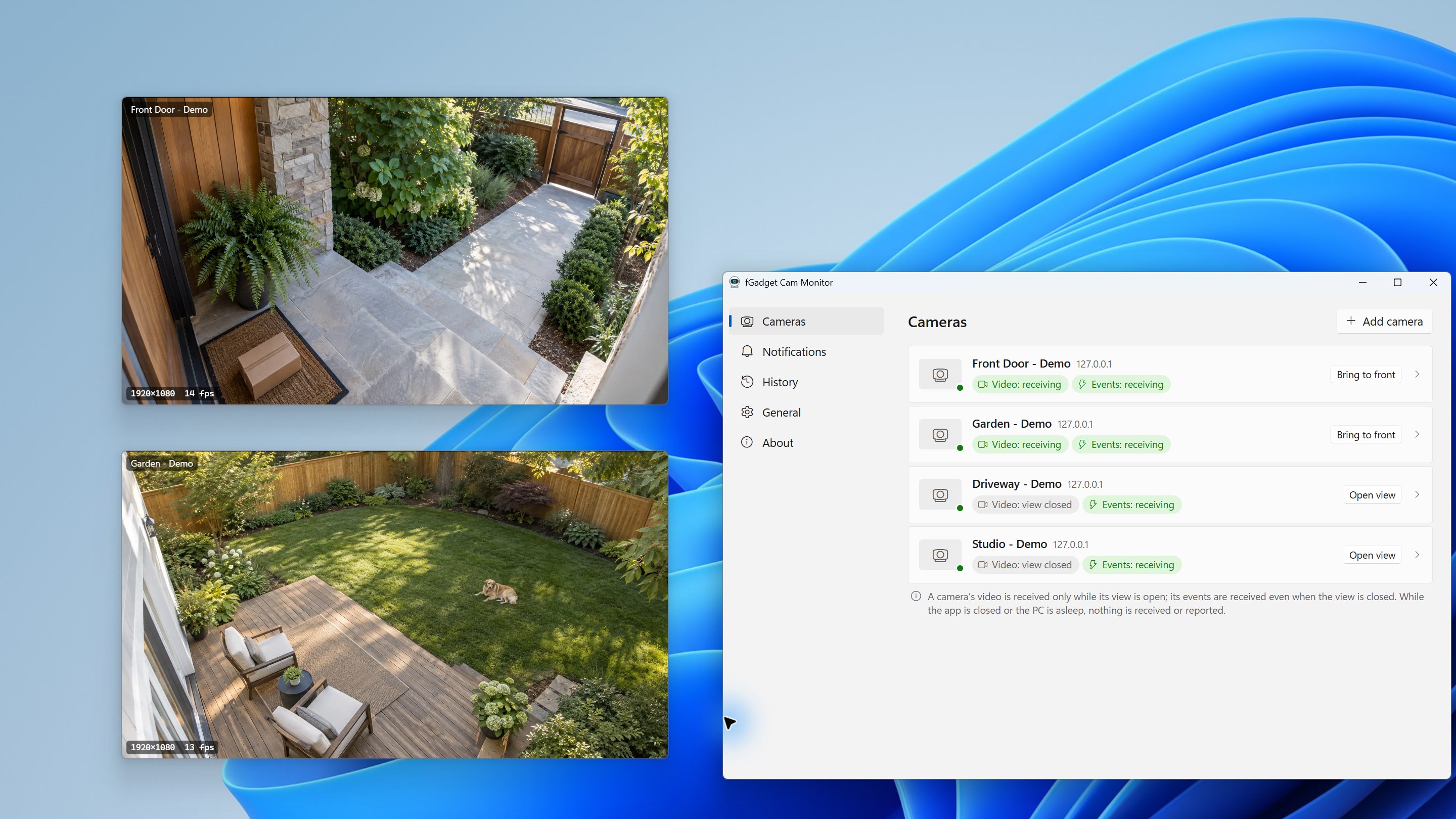
Two camera views on the desktop beside the Cameras page, which shows whether each camera's video and events are being received
A tall front door view cropped to the doormat and a parcel, next to landscape views of the garden and a studio
The front door view enlarged to fill the screen, with buttons for camera settings, a snapshot, restoring the size and closing
Choosing the area a view shows by dragging a frame over the video, with the Whole video, Cancel and OK buttons
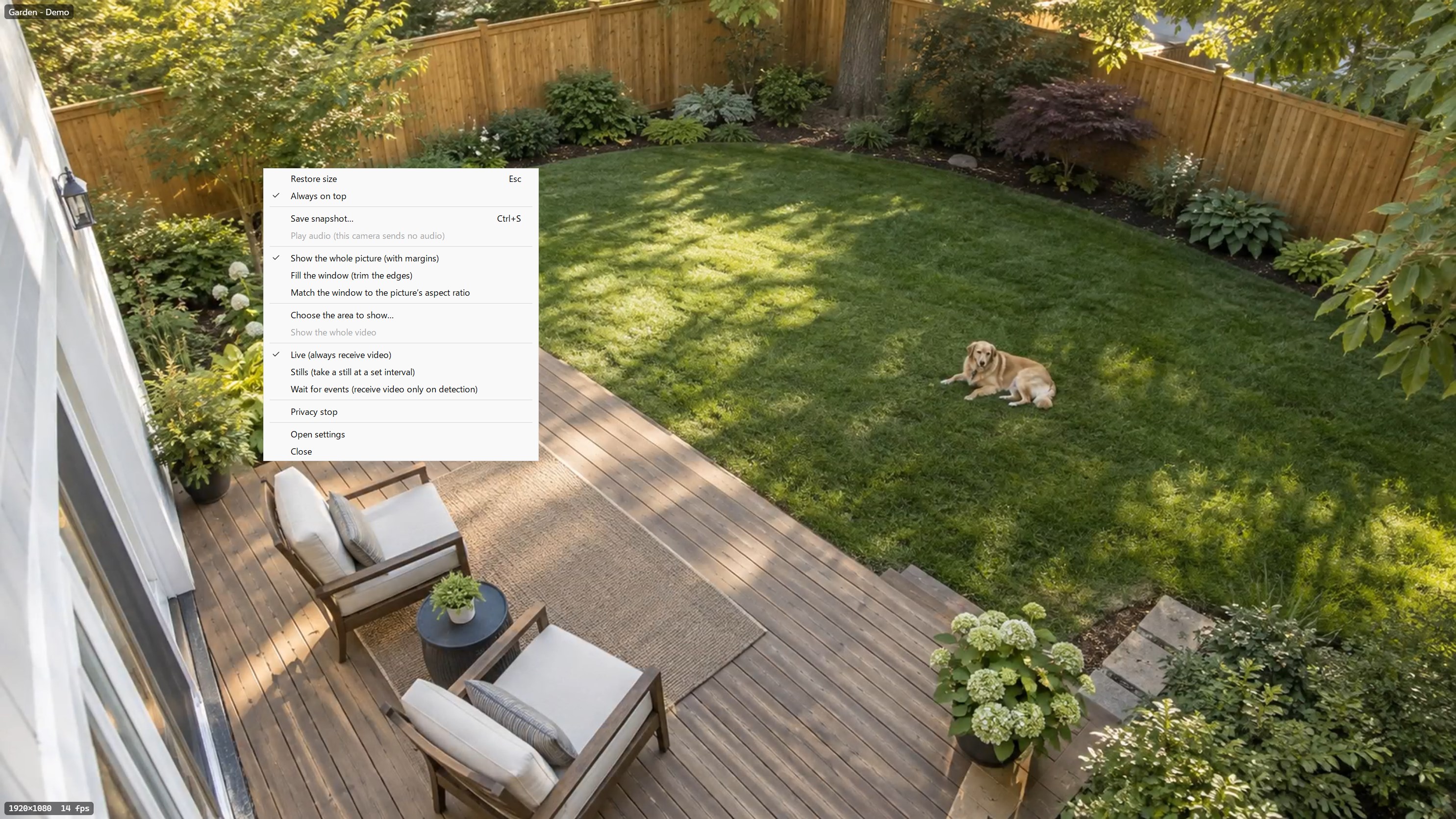
The right-click menu of a view with display options, Save snapshot, Choose the area to show, the Live, Stills and Wait for events modes and Privacy stop
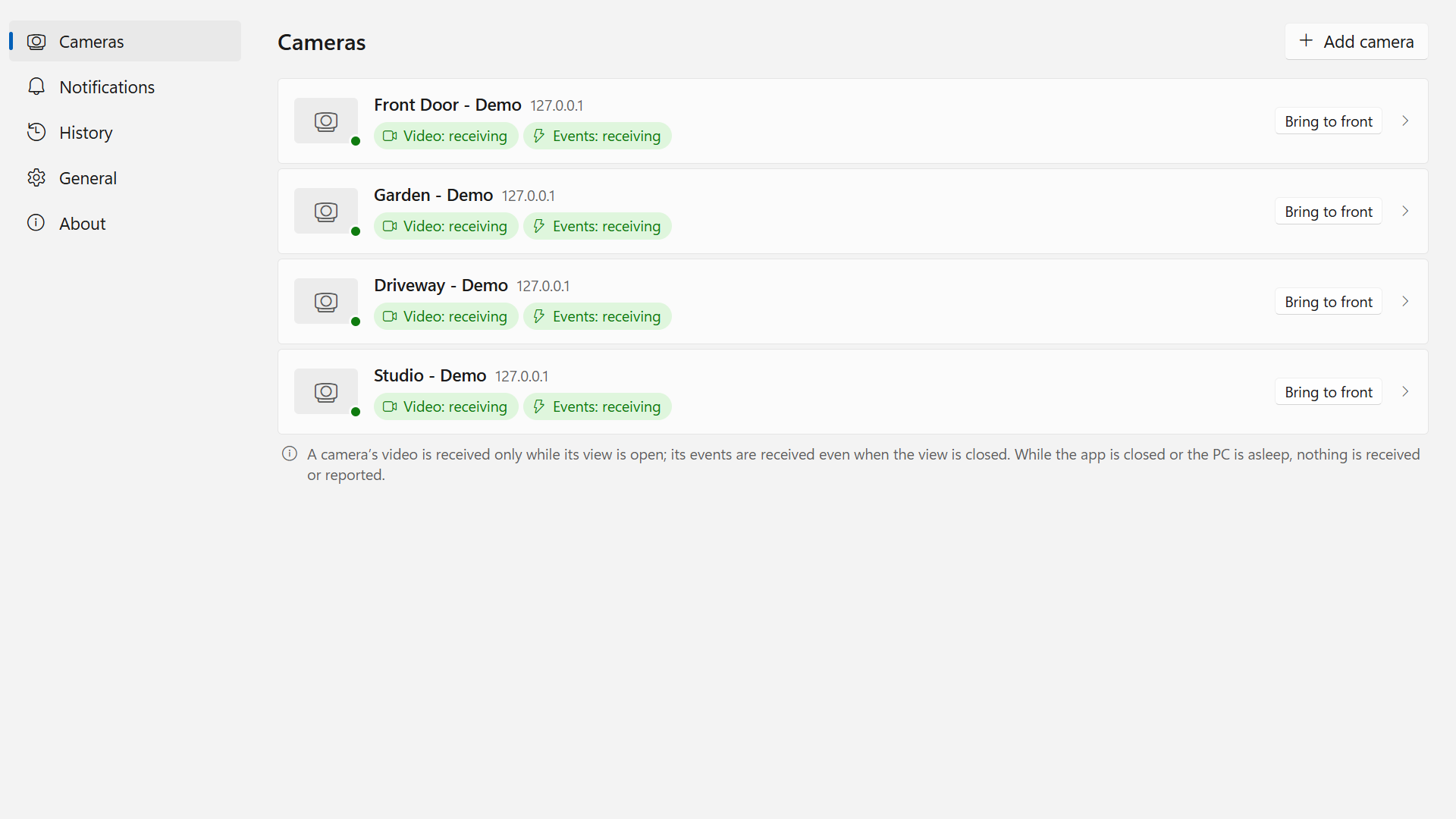
The Cameras page listing four cameras whose video and events are all being received, each with a Bring to front button
The Notifications page with the minimum interval, how long an enlarged view stays enlarged, a notification preview and a summary for each camera
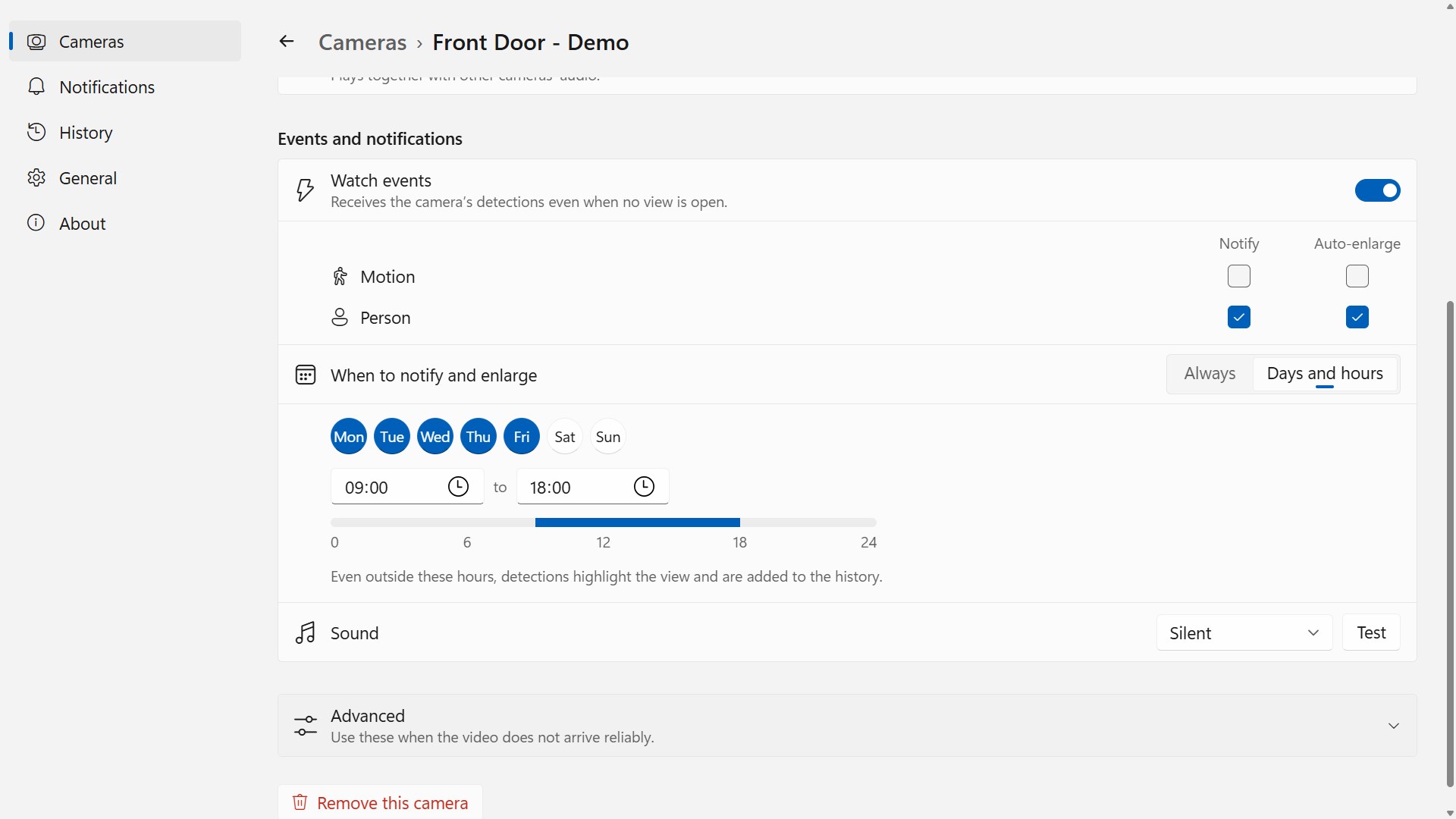
A camera's event settings where Person detections notify and auto-enlarge, only Monday to Friday from 09:00 to 18:00
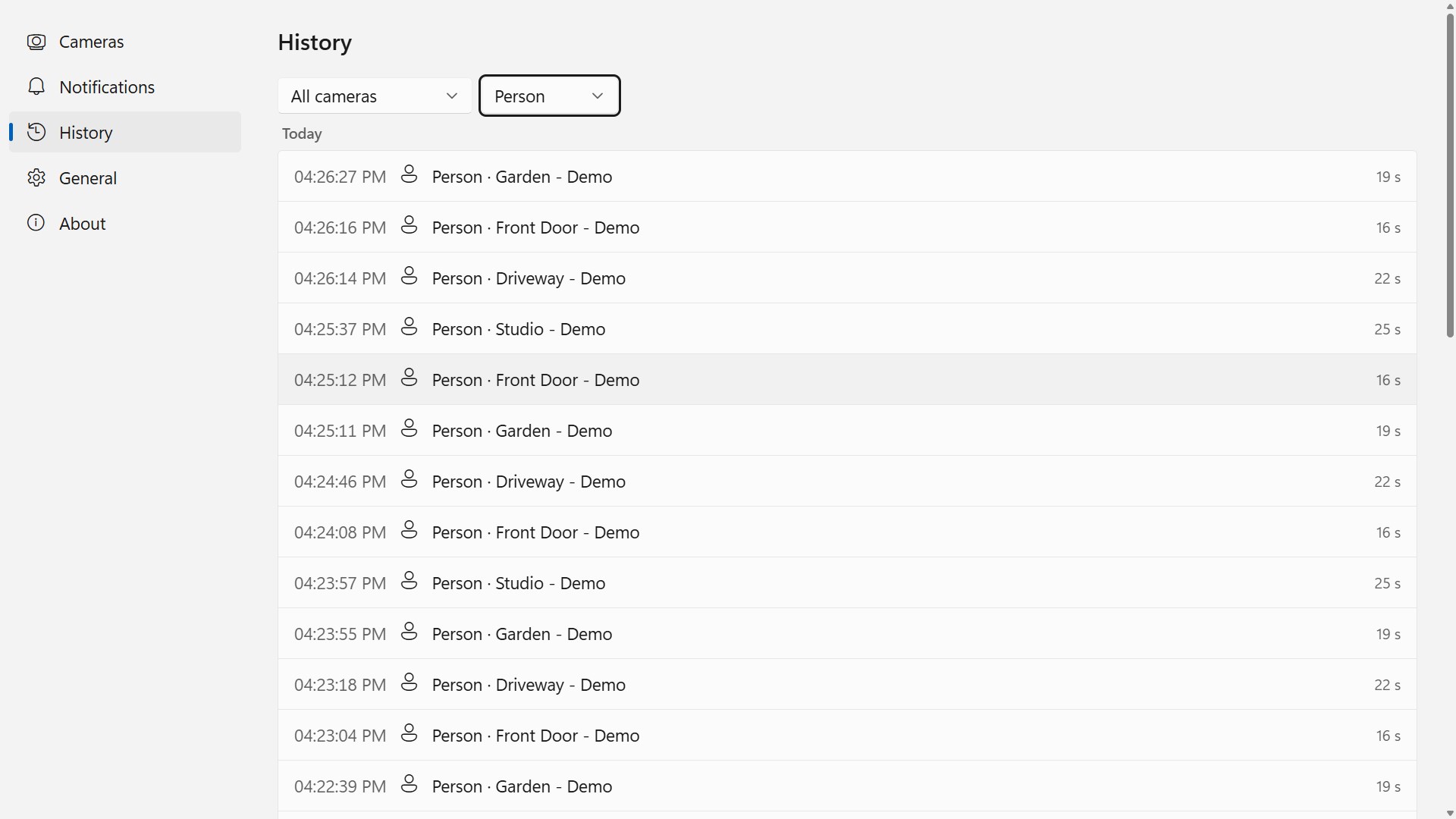
The History page filtered to Person detections from all cameras, with the time, camera and duration of each one

Get Started Today

Download from Microsoft Store

Supported OS: Windows 11 version 22000.0 or later
Cameras: IP cameras with RTSP video on your local network; ONVIF for the video list, detections and pan/tilt/zoom
UI Languages: English, Japanese, Simplified Chinese, Traditional Chinese, Korean, Spanish, German, French, Portuguese
Architecture: x64 | Publisher: futomi Co., Ltd.
Trial: Try every feature free for 15 days
Privacy: No Cloud, Zero Data Collection