fTool BLE Scanner Pro Icon
Windows 11 / 10 100% Offline One-Time Purchase

Bluetooth Low Energy Analyzer & GATT Explorer

fTool BLE Scanner Pro

The BLE tools developers actually reach for live on a phone. fTool BLE Scanner Pro puts the same job on the machine your firmware is built on. Scan for everything advertising nearby, read the whole advertisement byte by byte, let iBeacon, Eddystone, KSensor and SwitchBot frames be decoded for you, then connect and walk the GATT tree, reading and writing characteristics and watching notifications arrive live. No pairing to scan, no account, no cloud.

No Subscription No Cloud Uploads Verified by Microsoft
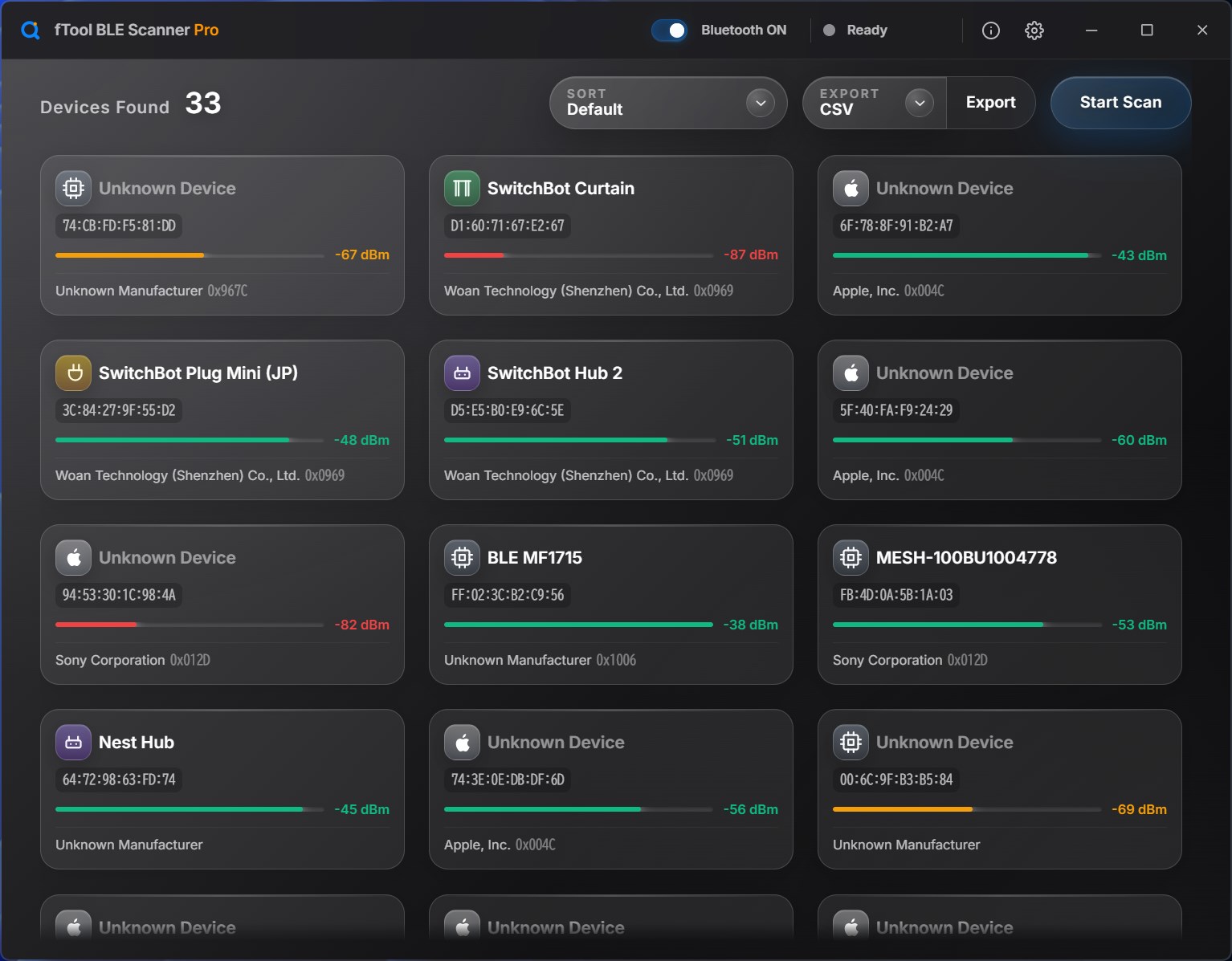
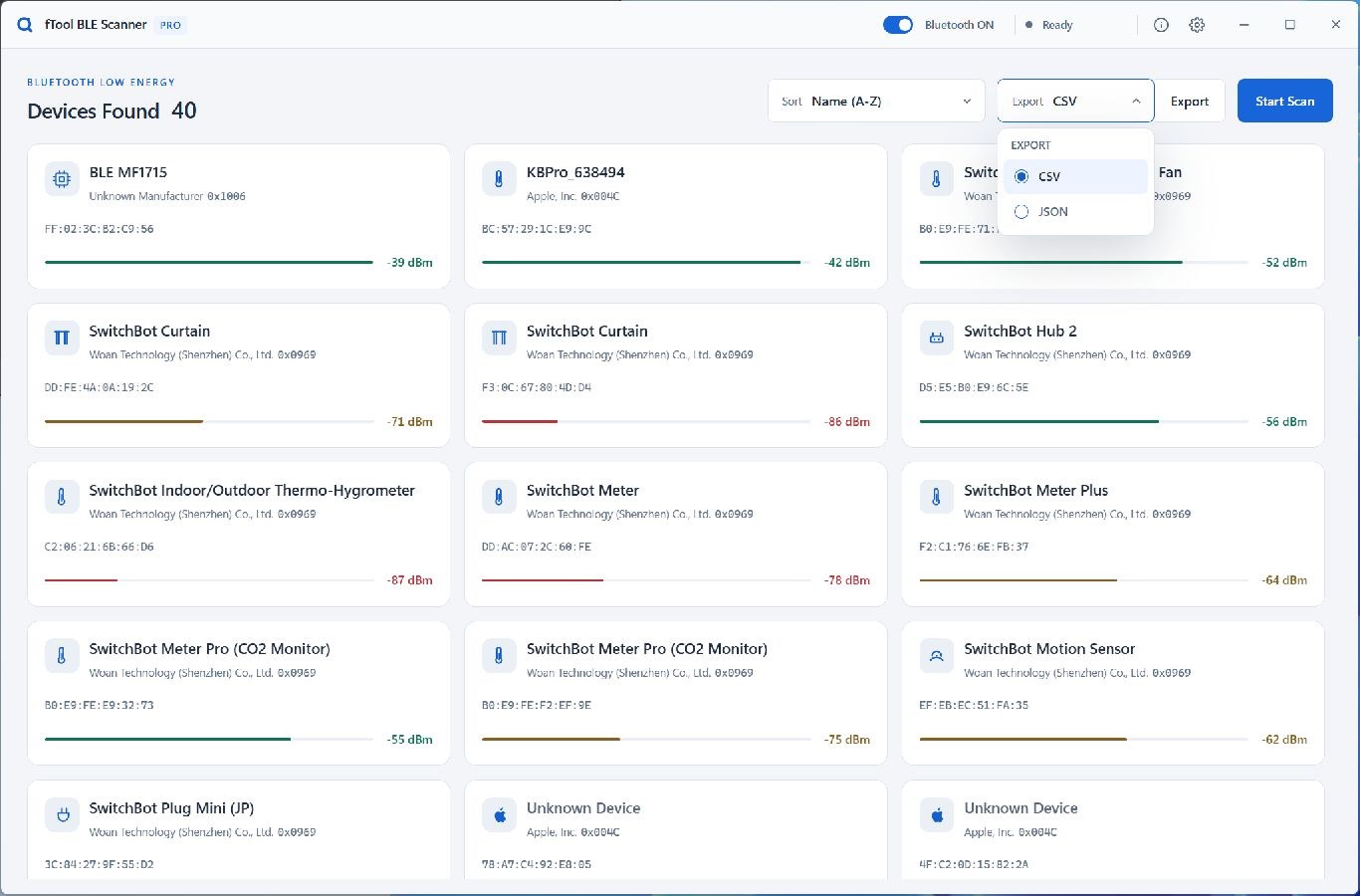
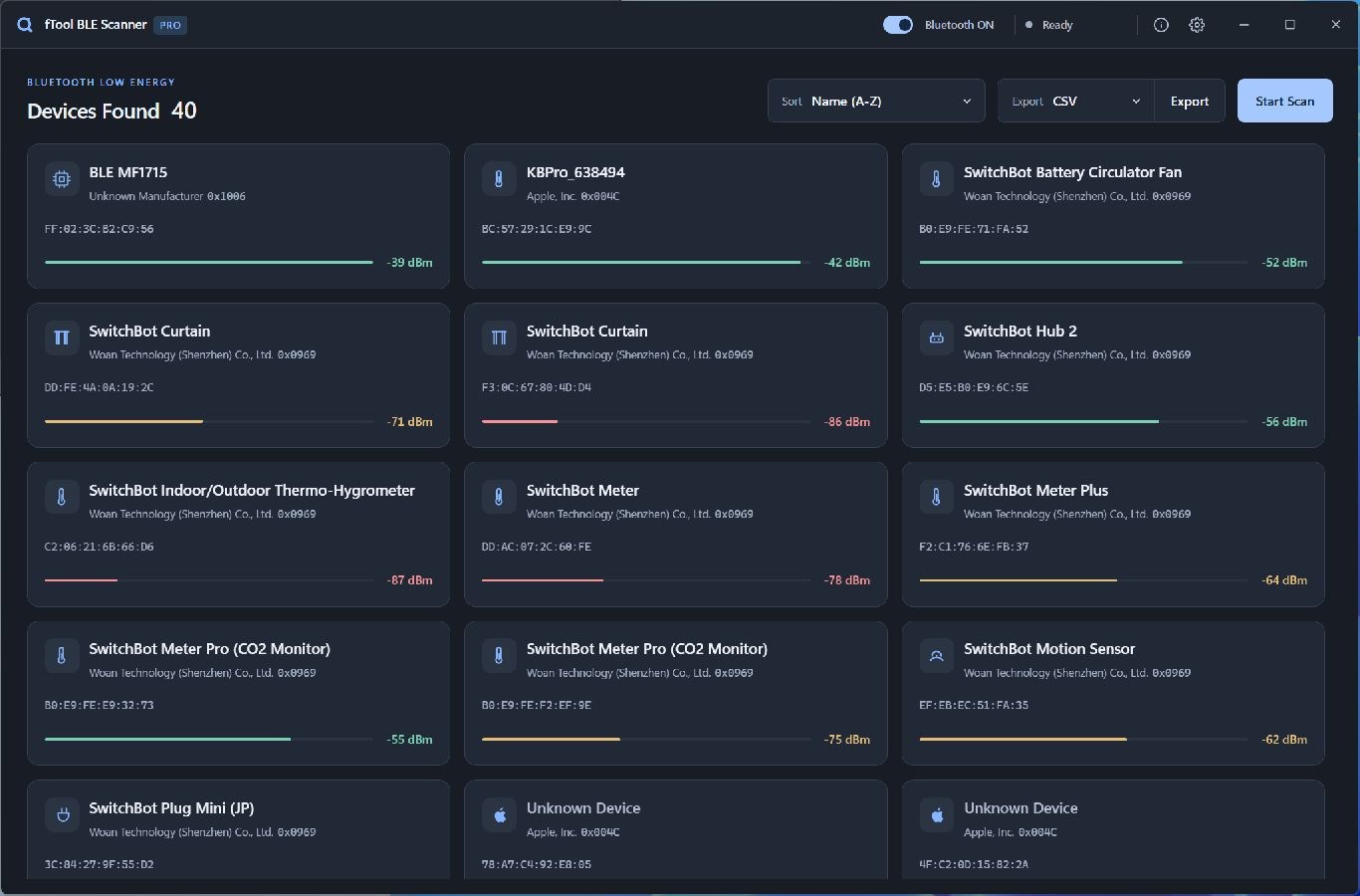
The fTool BLE Scanner Pro window listing thirty-three nearby BLE devices as cards, each with its address, signal strength in dBm and the manufacturer behind its company ID

Why fTool BLE Scanner Pro

Scan, Decode, Then Connect

Bringing up a BLE peripheral means asking the same questions over and over. Is it advertising at all? What is in the packet? Does the service UUID match the firmware? Did that write actually land? Answering them on the PC where the code lives beats picking up a phone every time.

Everything Advertising Nearby

One scan lists every BLE device in range with its address, signal strength and the company behind its manufacturer ID. Sensors, beacons, smart-home gear and your own prototype all show up together, whether or not they are paired.

The Whole GATT Tree

Connect to a device and its services and characteristics are enumerated for you, with the standard Bluetooth SIG names filled in and each characteristic labeled with what it actually supports: read, write, write without response, notify.

Beacons Already Decoded

iBeacon, Eddystone, KSensor and SwitchBot frames are unpacked into the fields you were going to count out by hand anyway, next to the raw hex they came from, so you can check the parse rather than trust it.

What You Can Do

From the Advertisement to the Characteristic

See What Is Actually There

Start a scan and every advertising device appears as a card: the broadcast name where there is one, the Bluetooth address, a signal bar with the RSSI in dBm, and the manufacturer resolved from the company ID in the packet. The count at the top tells you how many are in range, and the list can be sorted to bring the interesting ones to the front.

Read the Whole Advertisement

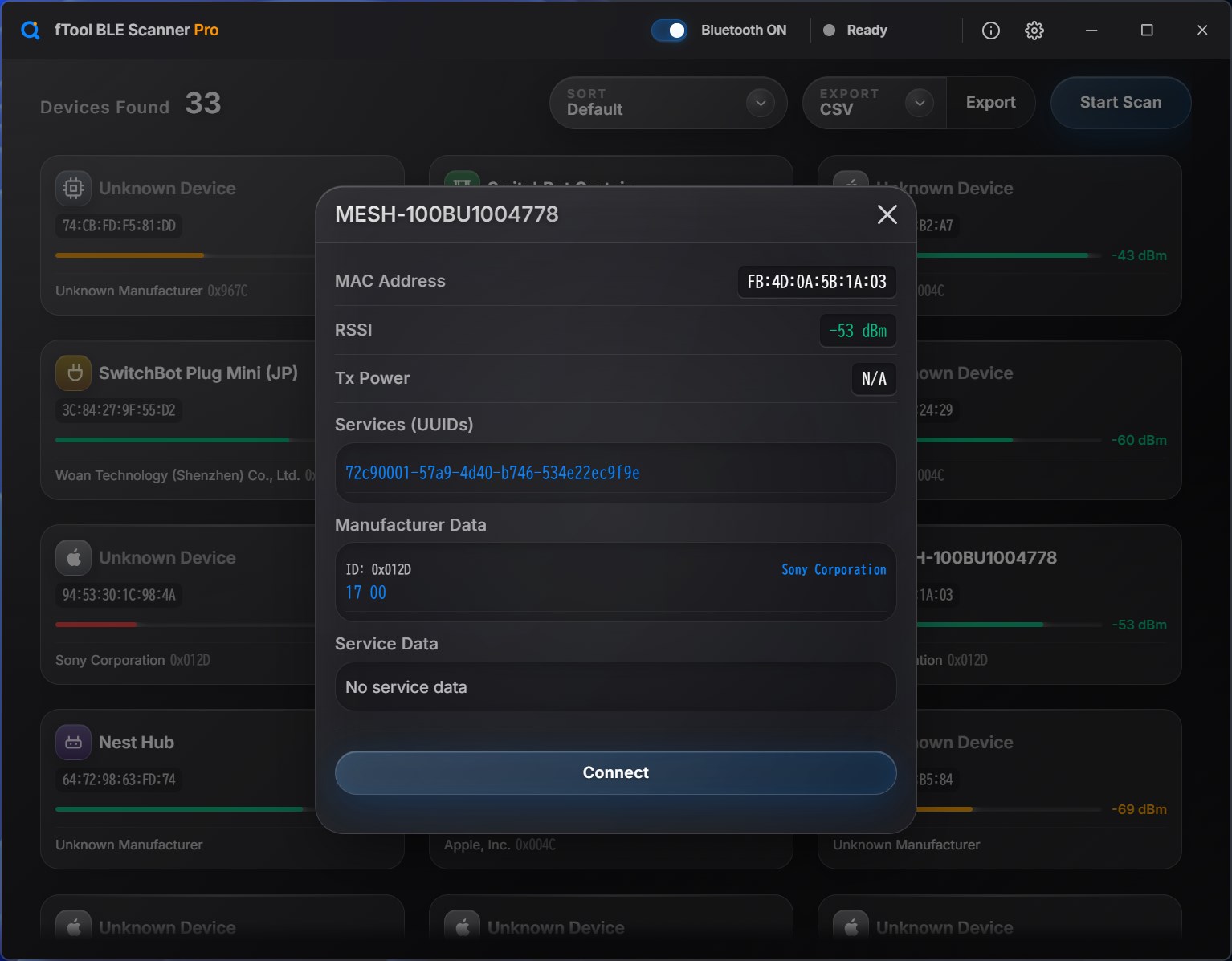
Open a device and you get the address, RSSI and Tx power, the advertised service UUIDs, the manufacturer data with its company ID resolved to a name, and the service data, all shown as raw bytes. When a field is missing it says so, which is often the answer you were looking for.

Beacons, Unpacked

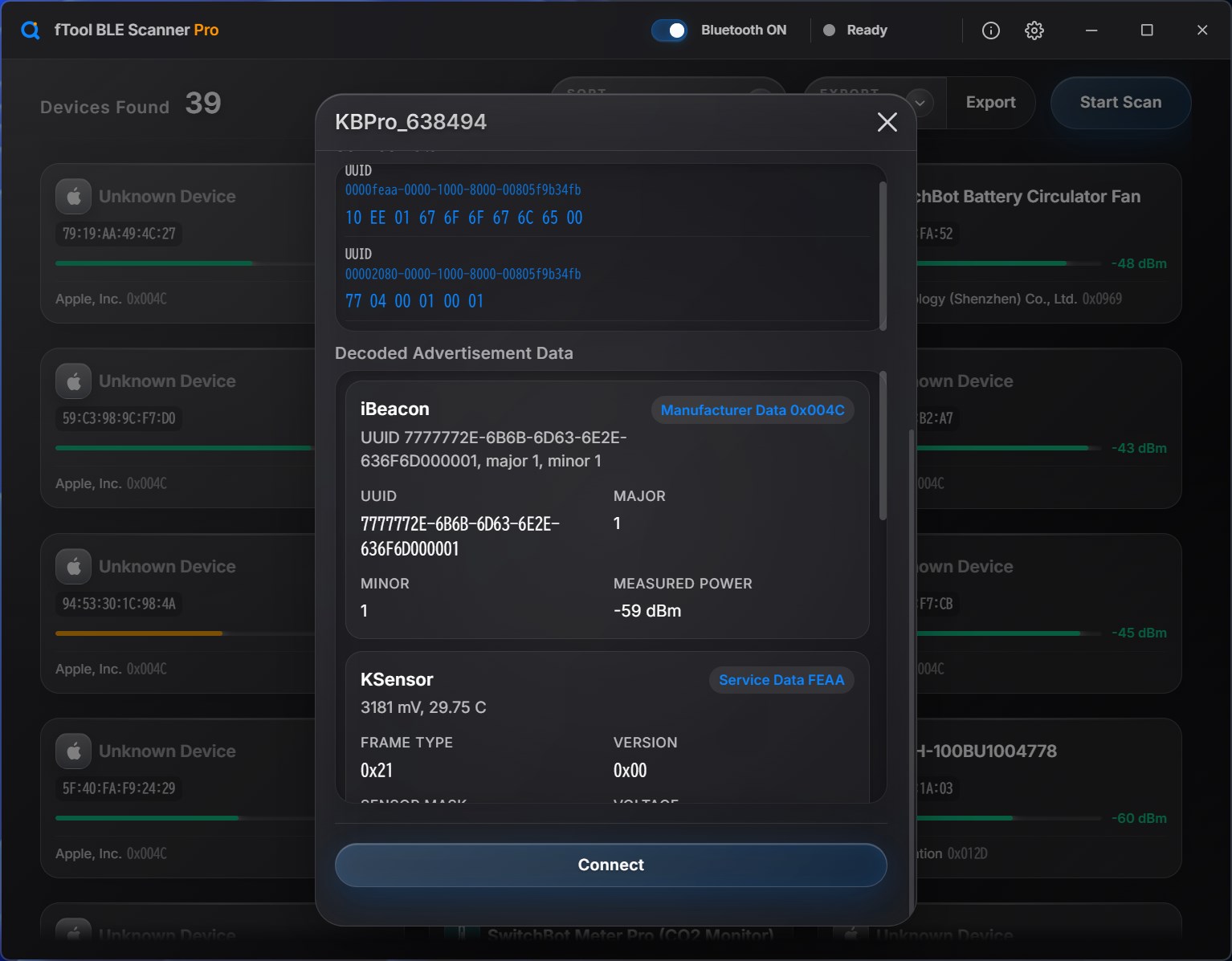
An iBeacon advertisement is broken out into its proximity UUID, major and minor, and Eddystone UID, URL, TLM and EID frames are decoded the same way. KSensor and SwitchBot payloads are read out as the readings they carry rather than as bytes. The decoded view sits directly beneath the manufacturer data it was read from, so a beacon that is nearly right is as easy to spot as one that is completely wrong.

Walk the GATT Tree

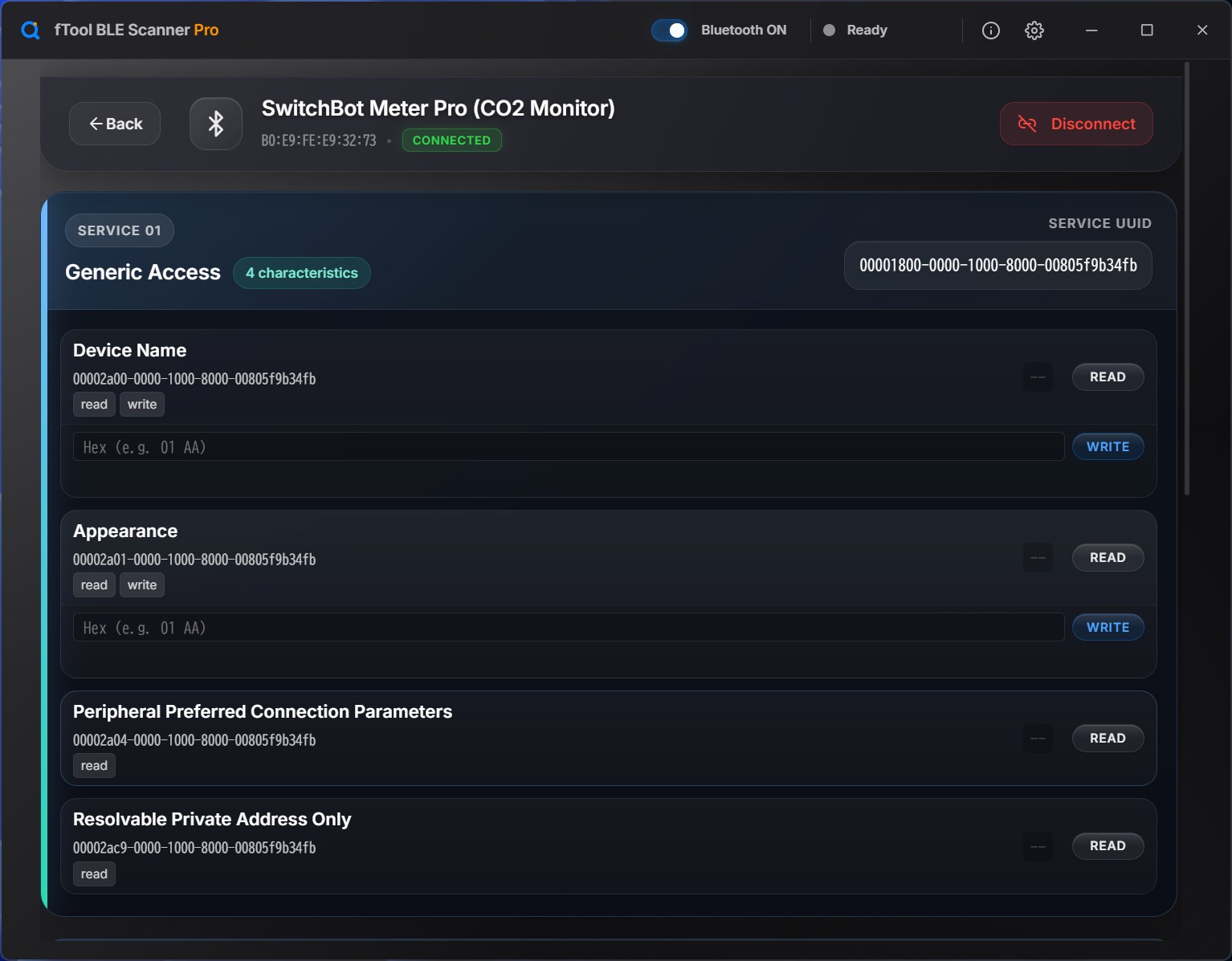
Connect and the primary services are listed in order with their UUIDs and how many characteristics each one holds. Standard services and characteristics carry their Bluetooth SIG names, custom 128-bit UUIDs are shown as they are, and every characteristic is tagged with the operations it supports.

Read, Write and Subscribe

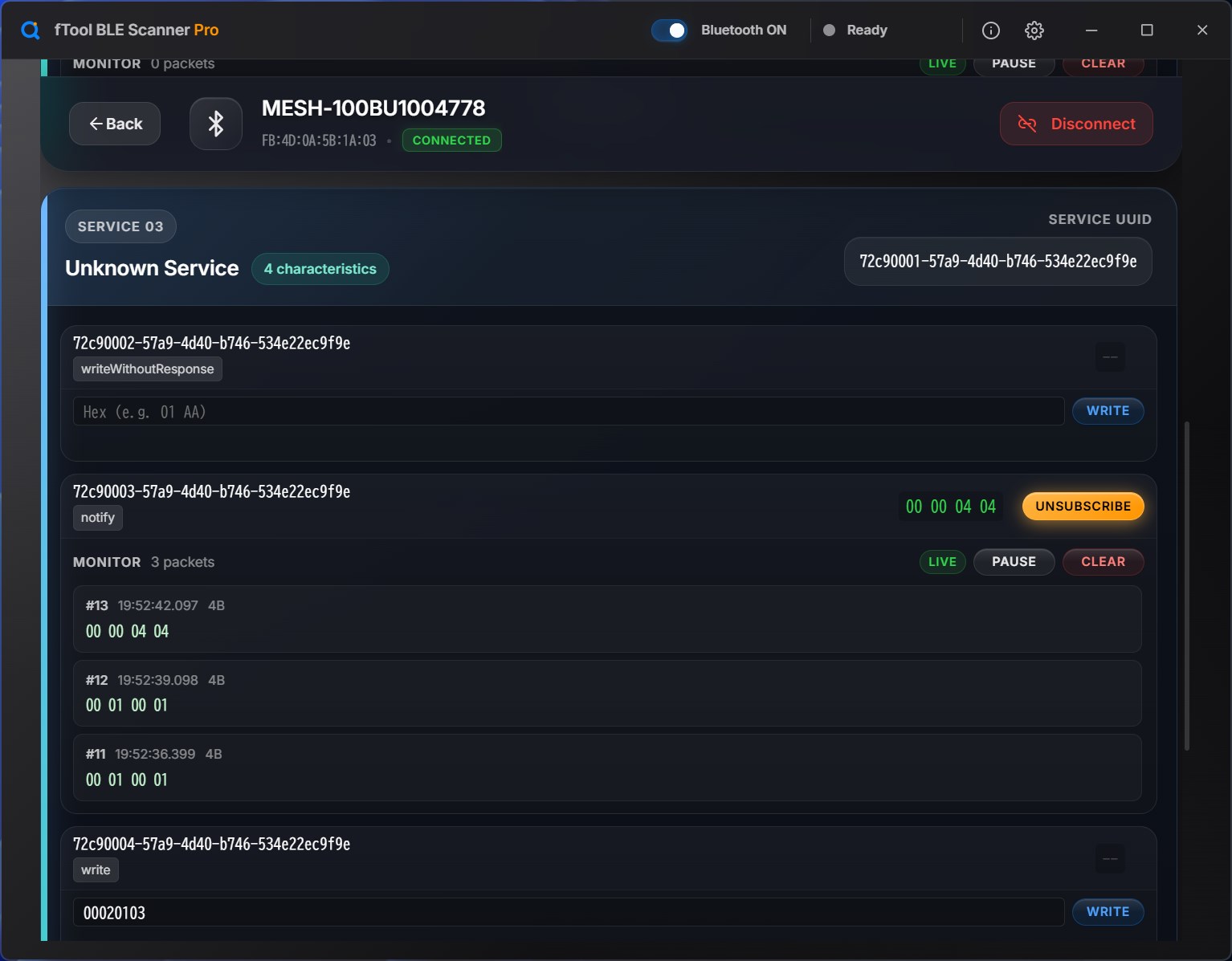
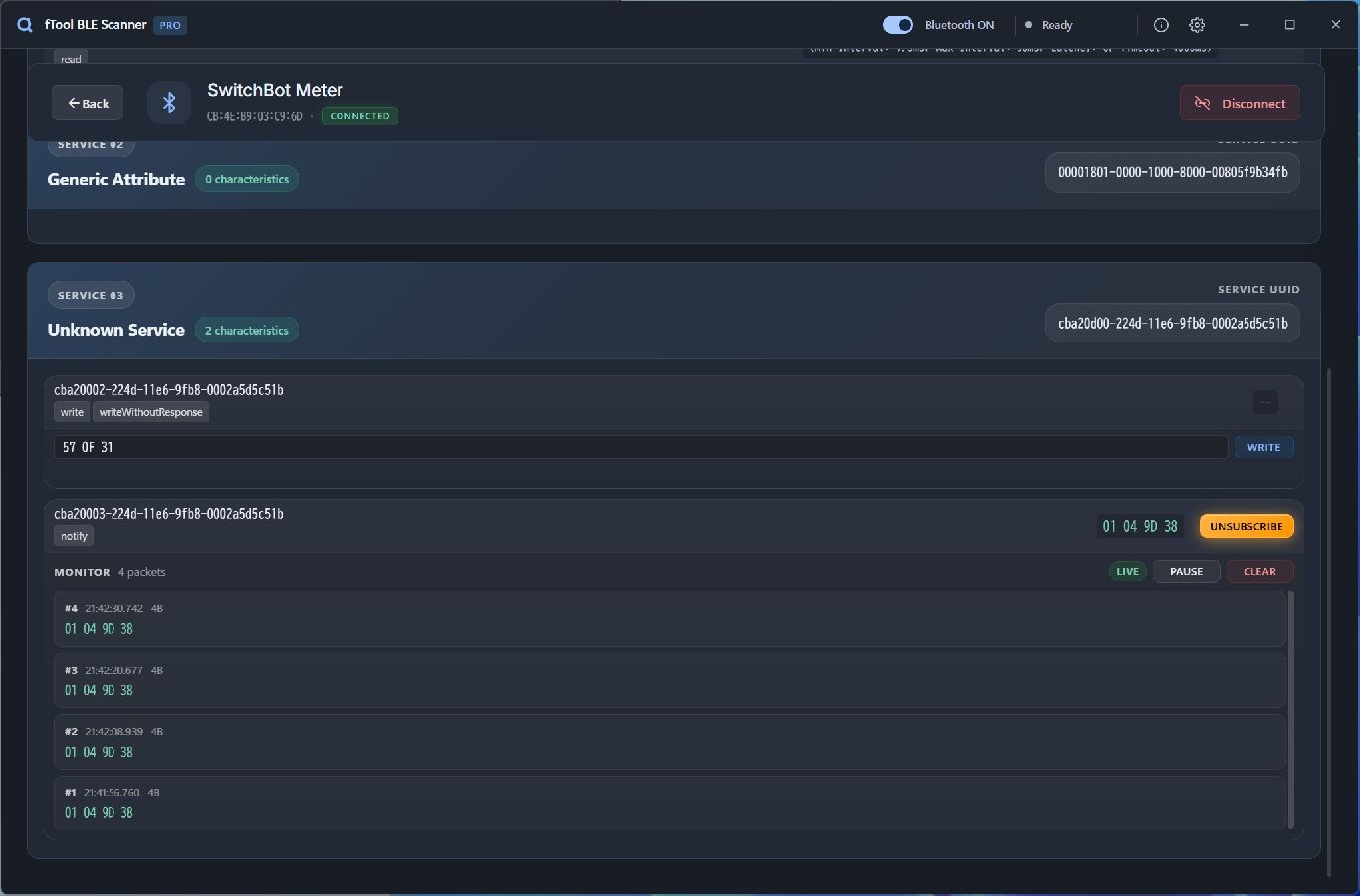
Read a characteristic and the value comes back as hex with the text interpretation beside it. Type a hex payload into the field and write it, with or without a response. Subscribe to a notify characteristic and packets stream in numbered and timestamped, with pause and clear so you can hold a burst still and read it.

Keep the Scan Under Control

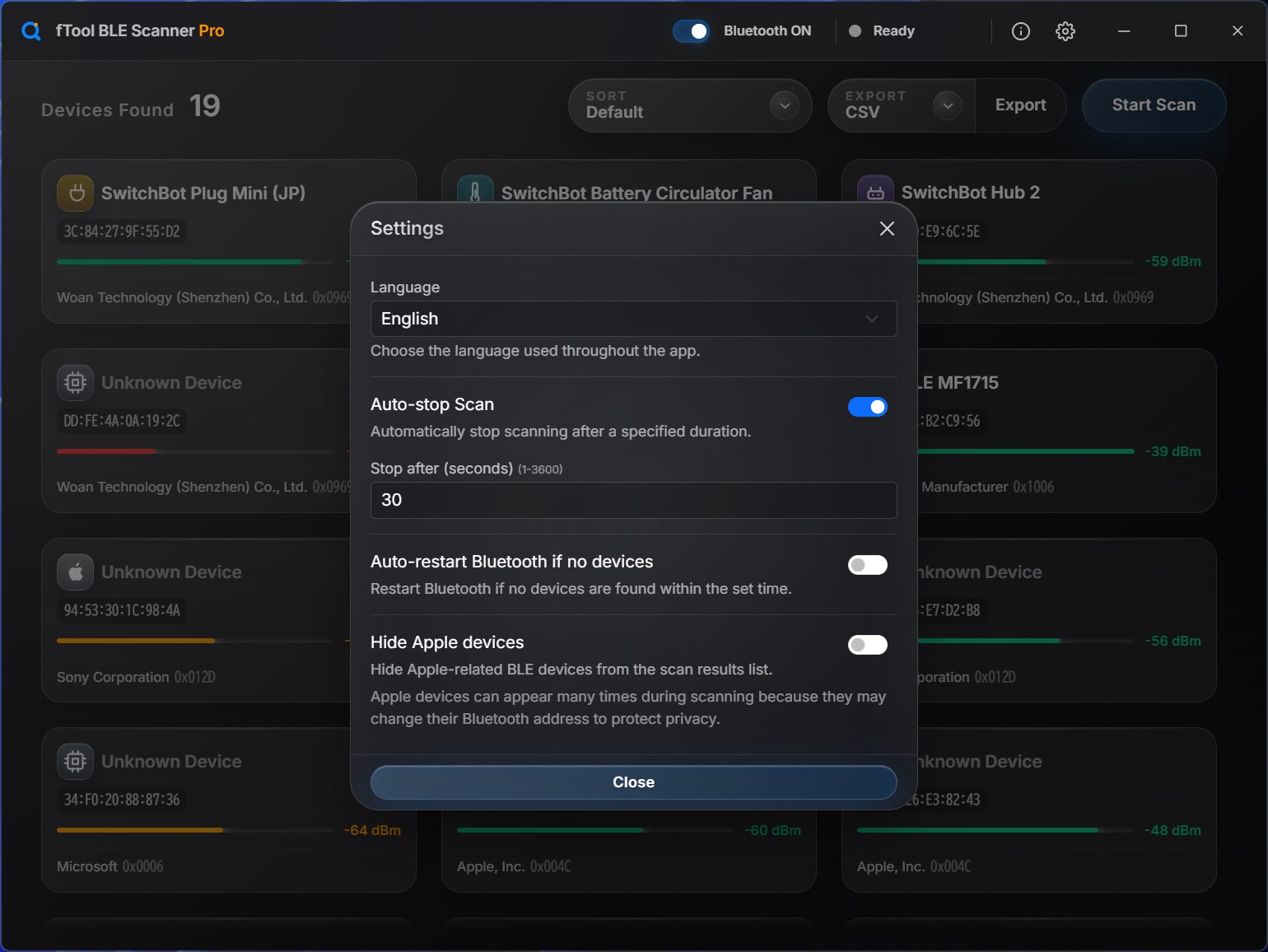
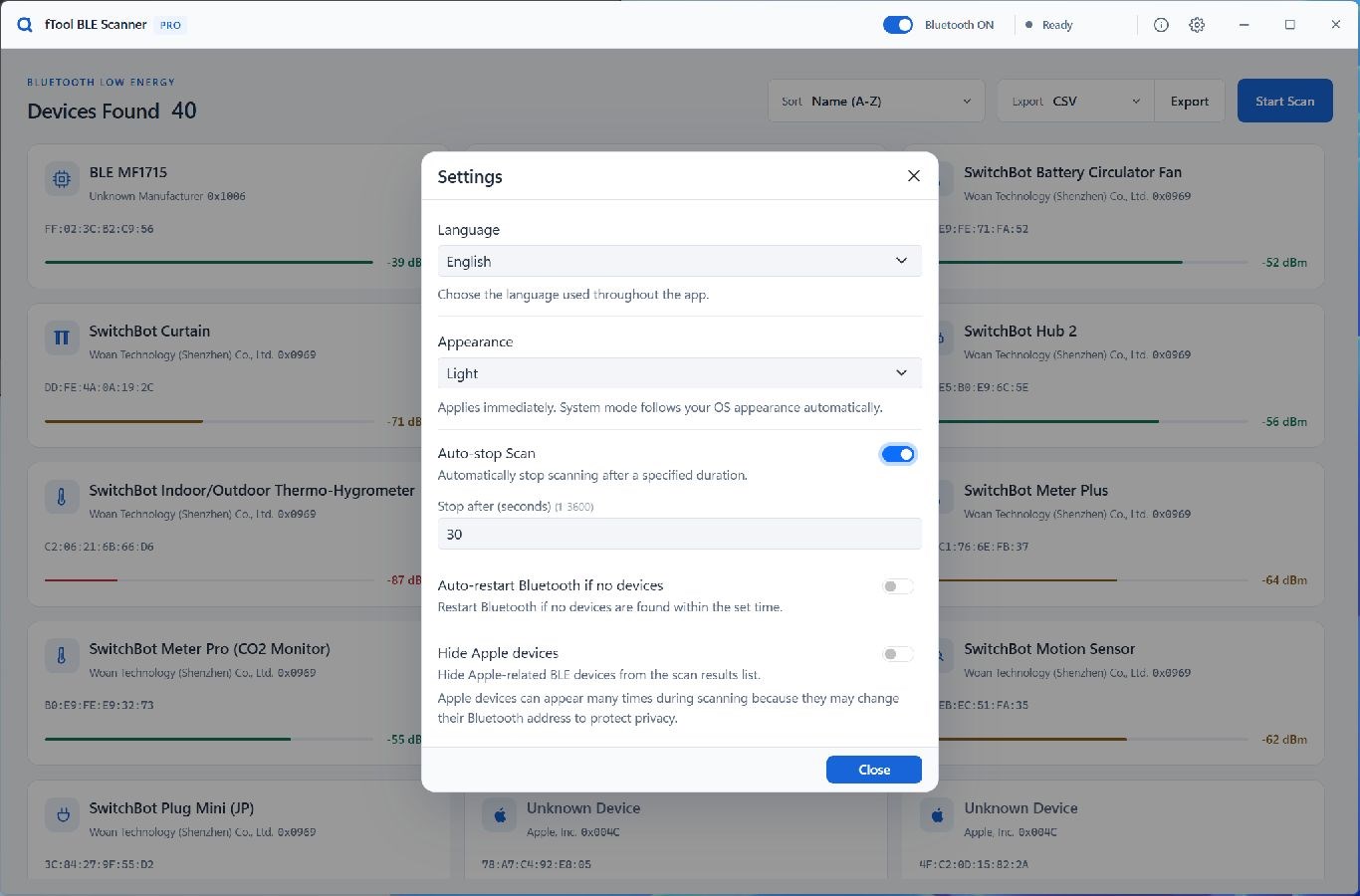
Stop the scan automatically after anything from 1 to 3600 seconds. Turn the adapter on and off from the app itself, or have Bluetooth restart by itself when nothing has been found for a set number of seconds, which clears up the adapter wedging that costs you a reboot. Hide Apple devices when their rotating addresses flood the list, and export what you found as JSON or CSV.

Reading the Results

What a Scan Tells You

On Every Device Card

Name — the local name from the advertisement, or Unknown Device when the packet does not carry one.

Bluetooth address — the address the device is advertising with right now, which is not always a fixed one.

Signal strength — the RSSI in dBm, with a bar to make near and far obvious at a glance.

Manufacturer — the company ID from the packet resolved to a name, or Unknown Manufacturer with the raw ID.

The Signal Bar

Green — a strong signal. The device is close and the readings are dependable.

Amber — a moderate signal. Usable, though packets will be missed now and then.

Red — a weak signal. Move closer before you blame the firmware for an intermittent connection.

Tx power — shown when the device advertises it, and marked N/A when it does not. It is what distance estimates rest on.

Local by Design

What You Capture Stays With You

A scan of the air around your desk is a picture of the hardware you own and the hardware you are building. fTool BLE Scanner Pro is a native Windows app that talks to the Bluetooth adapter and to nothing else.

  • No cloud uploads, no account registration and no tracking
  • Scan results, addresses and captured packets stay on this PC and are only written where you export them
  • Scanning is passive listening. Nothing is transmitted to a device until you connect to it yourself
  • Writes and subscriptions happen only when you press the button, never on their own
  • The interface is available in 9 languages and follows your Windows display language, with Bluetooth terms and exported files kept in English
What It Reads and Decodes
Beacon formats iBeaconEddystone-UIDEddystone-URLEddystone-TLMEddystone-EIDKSensorSwitchBot
Advertisement fields Service UUIDsManufacturer dataService dataTx powerRSSI
GATT operations ReadWriteWrite without responseNotifyIndicate
Export JSONCSV

fTool BLE Scanner Pro works within what Windows and the Bluetooth stack allow, and BLE has some behavior that surprises people the first time. Please read these points before you buy.

Good to Know
  • A PC with Bluetooth 4.0 or later is required. Built-in adapters and ordinary USB Bluetooth dongles both work; no special hardware is needed.
  • Apple devices change their Bluetooth address regularly to protect privacy, so one iPhone can fill the list with entries that look like different devices. There is a switch to hide them.
  • Many devices advertise without offering a name, and they appear as Unknown Device. That is the packet being sparse, not a failure to read it.
  • Connecting and exploring GATT only works with devices that accept connections. Beacons and other broadcast-only devices are read from their advertisements alone.
  • Writing to a characteristic changes the device on the other end. The app sends exactly the bytes you type, so know what a value does before you send it.
  • An internet connection is needed for purchases and may be needed to verify your license. Scanning does not require one.

Pricing

Try Everything for 7 Days

Install the free trial from the Microsoft Store and use every feature for 7 days. If it saves you time, buy the full version once and keep it. No subscription, no tiers.

Gallery

See It In Action

A device opened from the scan, showing its address, RSSI, Tx power, advertised service UUID and manufacturer data with the company resolved to a name
An advertisement with its raw manufacturer data above the decoded iBeacon and KSensor fields, showing the proximity UUID, major and minor beside the sensor readings
The GATT explorer connected to a SwitchBot Meter Pro, listing the Generic Access service and its characteristics with read and write buttons and a hex input field
A custom service with a notify characteristic subscribed, streaming numbered and timestamped packets, with pause and clear controls and a successful write below
The settings dialog with the interface language at the top, auto-stop scanning after 30 seconds, Bluetooth auto-restart, and a switch to hide Apple devices

Get Started Today

Download from Microsoft Store

Supported OS: Windows 10 version 17763.0 or later, Windows 11
Bluetooth: A built-in or USB Bluetooth 4.0 or later adapter
UI Languages: English, Japanese, Simplified Chinese, Traditional Chinese, Korean, Spanish, German, French, Portuguese
Architecture: x64 | Publisher: futomi Co., Ltd.
Trial: Try every feature free for 7 days
Privacy: 100% Local Execution, Zero Data Collection