fTool Archive Icon
Windows 11 / 10 100% Offline One-Time Purchase

Browse, Extract & Create Archives

fTool Archive

Open an archive and get straight to the files you need. fTool Archive gives ZIP, 7Z, RAR and a dozen more formats a familiar, Explorer-style window. Browse the folders inside, search by file name or path, preview images as thumbnails, and extract only what you want. Create and update ZIP and 7Z archives, with AES-256 protection when the contents should stay private. Archive processing takes place on your PC.

No Subscription No Cloud Uploads Verified by Microsoft
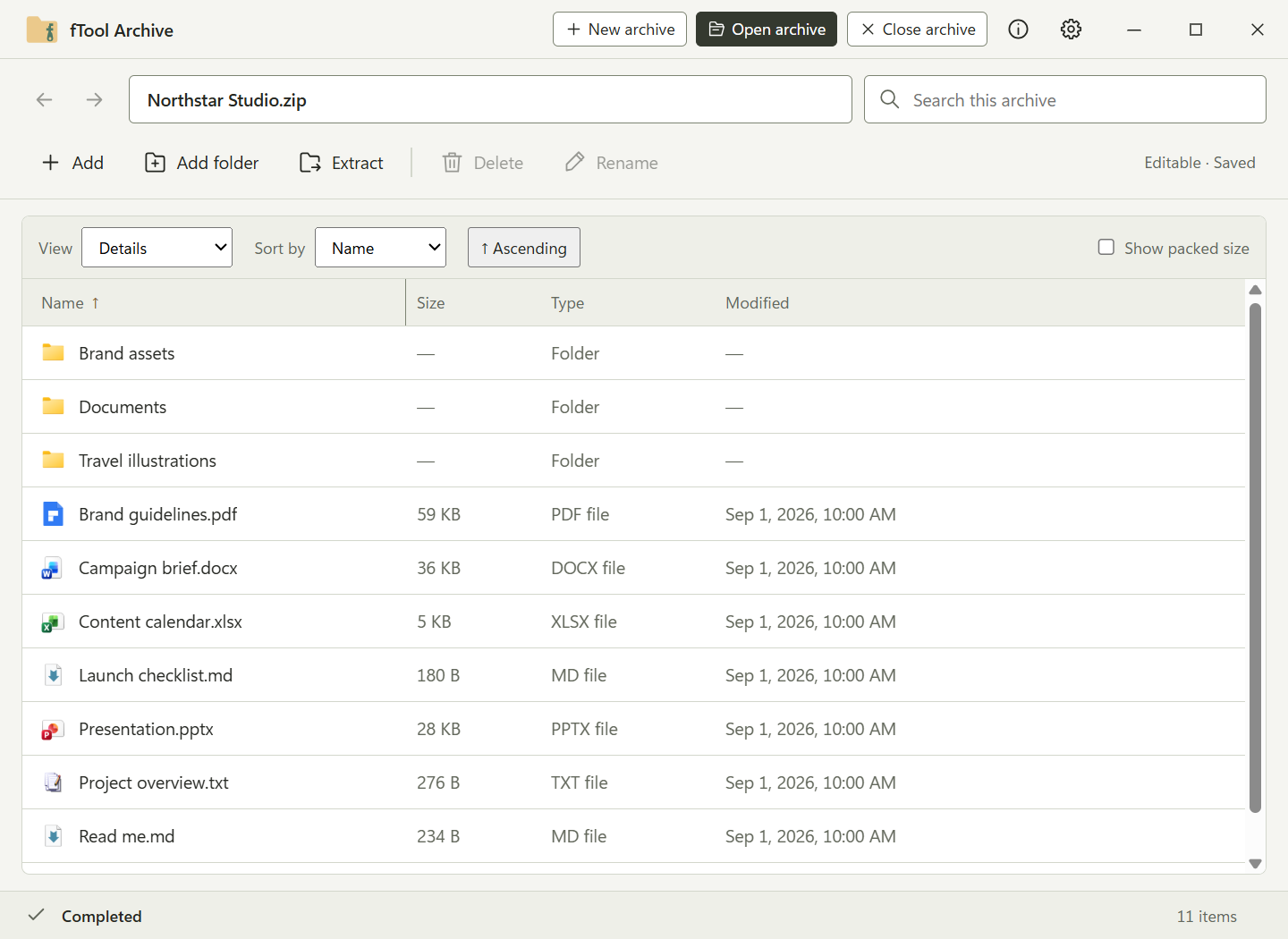
The fTool Archive window showing the contents of a ZIP file in the details view, with folders and files listed by name, size, type and date

Why fTool Archive

Open, Find, Extract

Downloaded attachments, shared photo sets, project handovers and software packages. Most of the time you do not want the whole archive unpacked on your desktop. You want to look inside, find one or two files, and take just those.

A Window You Already Know

Archives open the way folders do. Move through the folders inside, sort the columns, switch between details and icon views, and pick out exactly the files you want without unpacking everything first.

Opens What People Send You

ZIP, 7Z, RAR, TAR, GZ, BZ2, XZ, ZST, LZH, CAB, ISO and WIM all open in the same window, so you do not need a different tool for every format that arrives in your inbox.

Everything Happens on Your PC

Archive processing takes place on this PC. File names, paths and contents are never uploaded anywhere, and extracted files are written only to the destination you choose.

What You Can Do

Look Inside First, Then Decide

Browse It Like a Folder

Step into the folders inside an archive and back out again. Switch between details, medium icons and large icons, sort by name, size, type or date, and turn on Show packed size when you want to know how much space an entry really takes.

Find the One File You Need

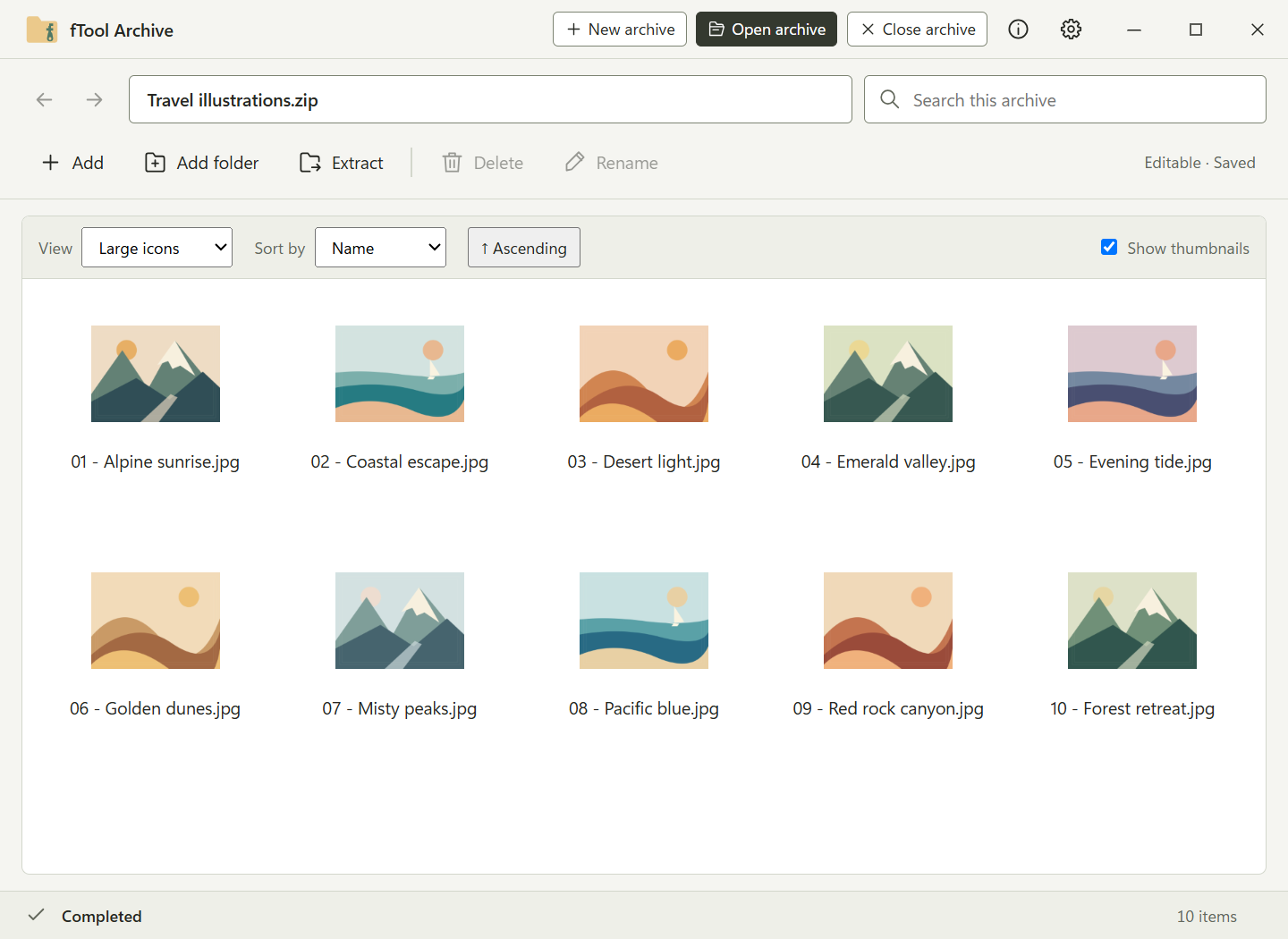
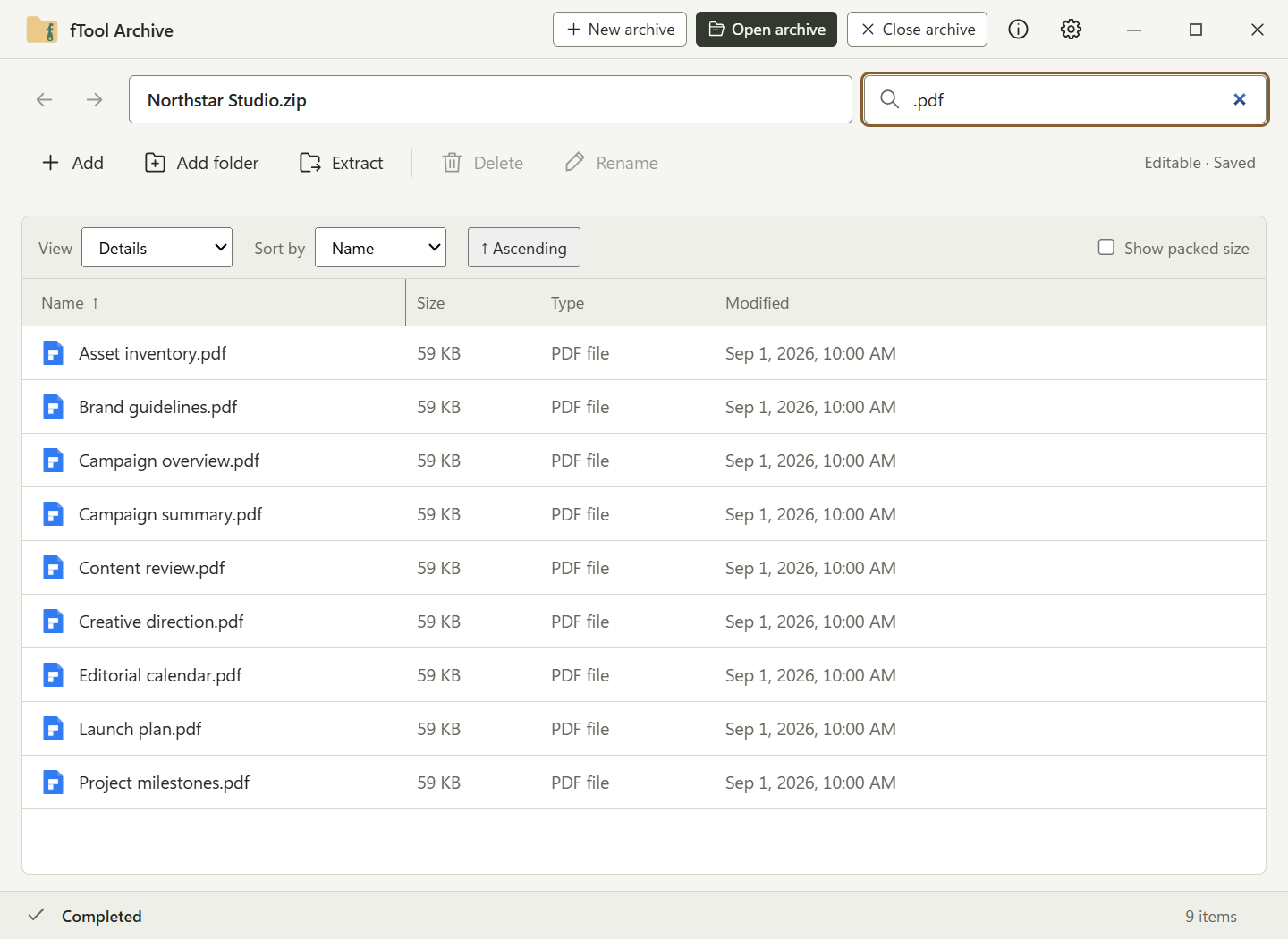
Type part of a file name or a path and the whole archive is searched, not just the folder you happen to be in. Turn on thumbnails and supported JPEG and PNG images are previewed right there in the list, so you can tell the photos apart before extracting any of them.

Smart Extract Keeps It Tidy

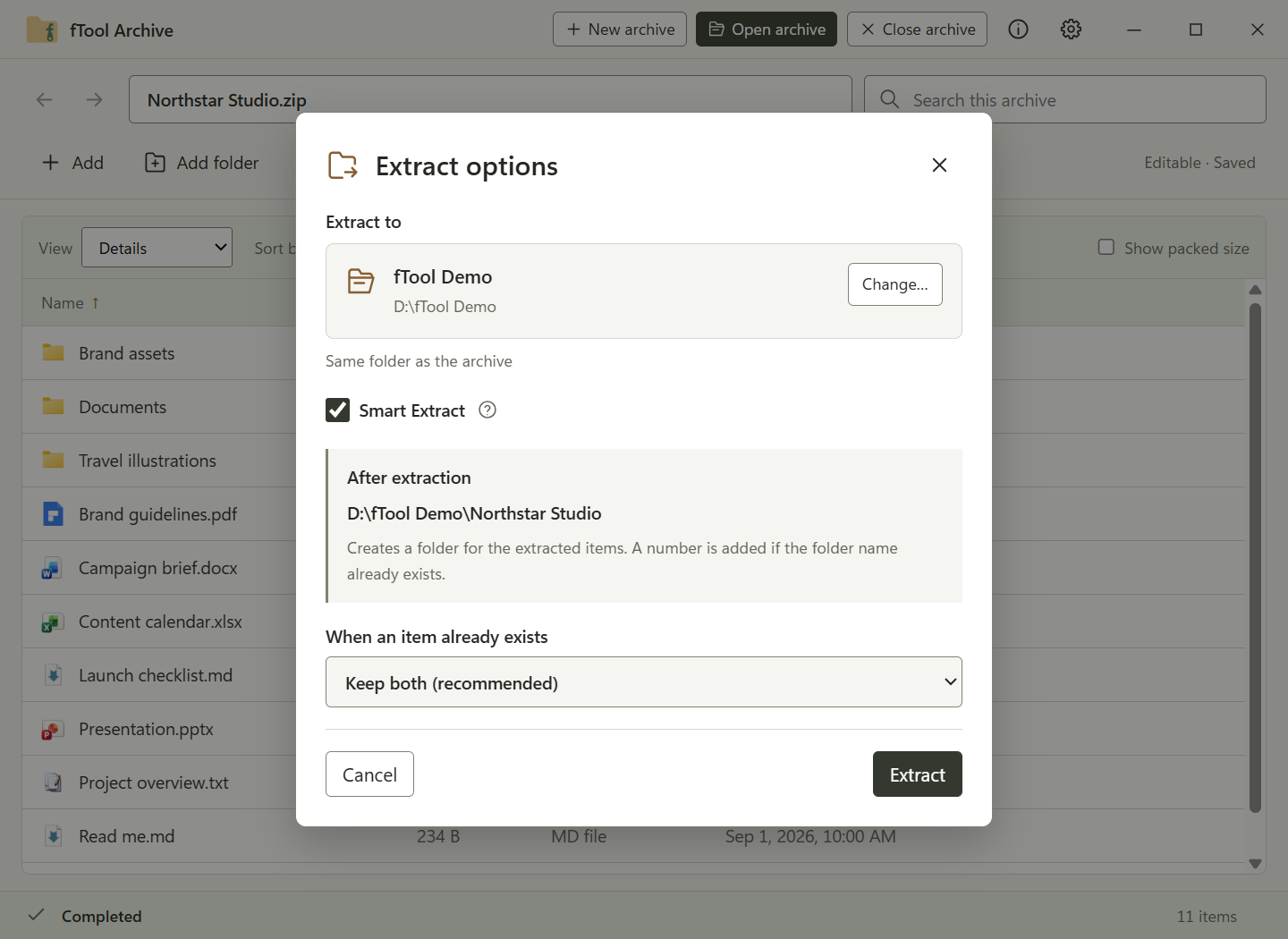
Extract everything, or only the files and folders you selected. Smart Extract creates a folder when the archive would otherwise scatter its contents, and avoids adding an extra one when the archive already has a single top-level folder. The destination is shown before extraction starts, and you choose Keep both, Replace or Skip when something already exists.

Create ZIP and 7Z

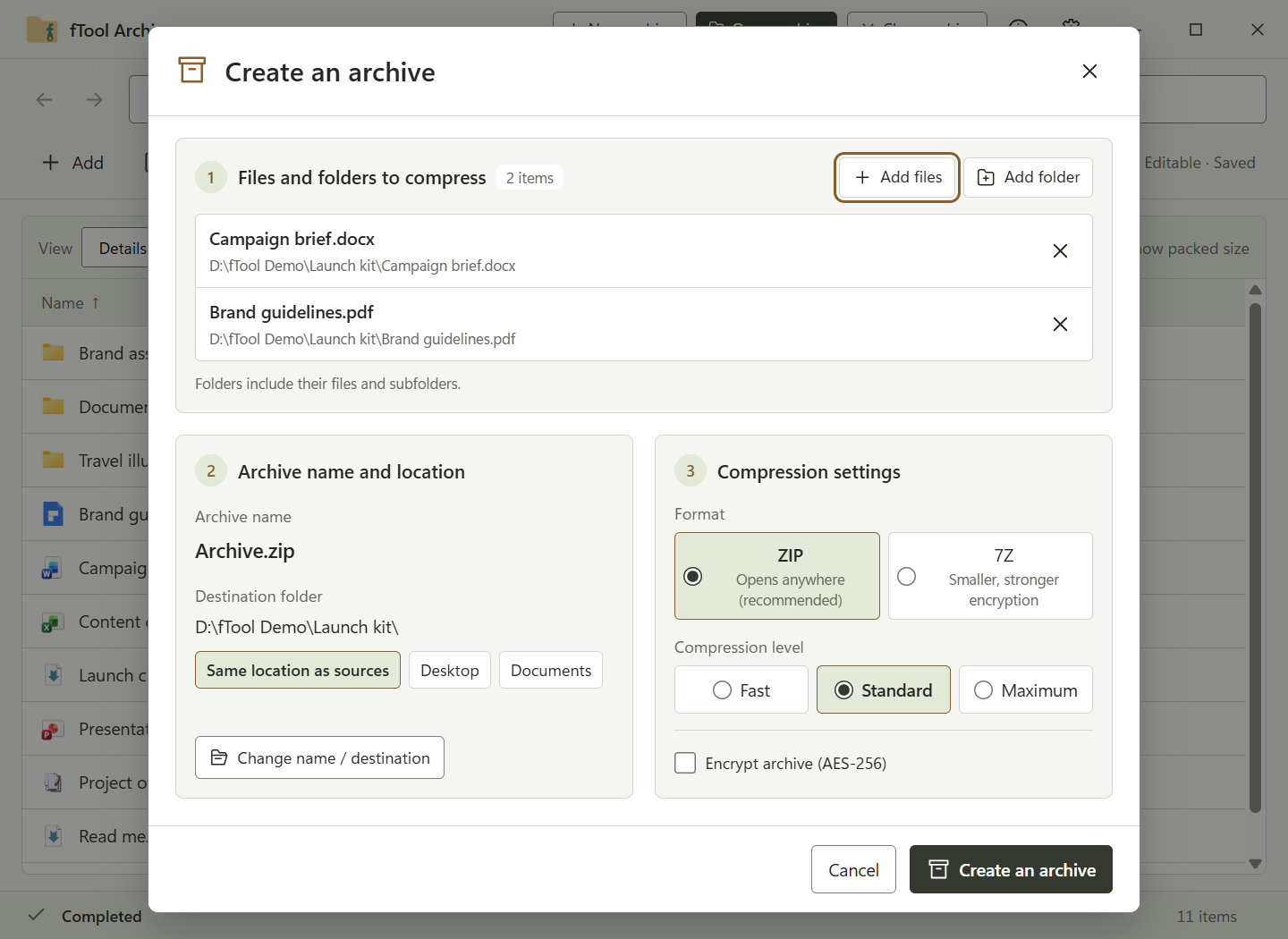
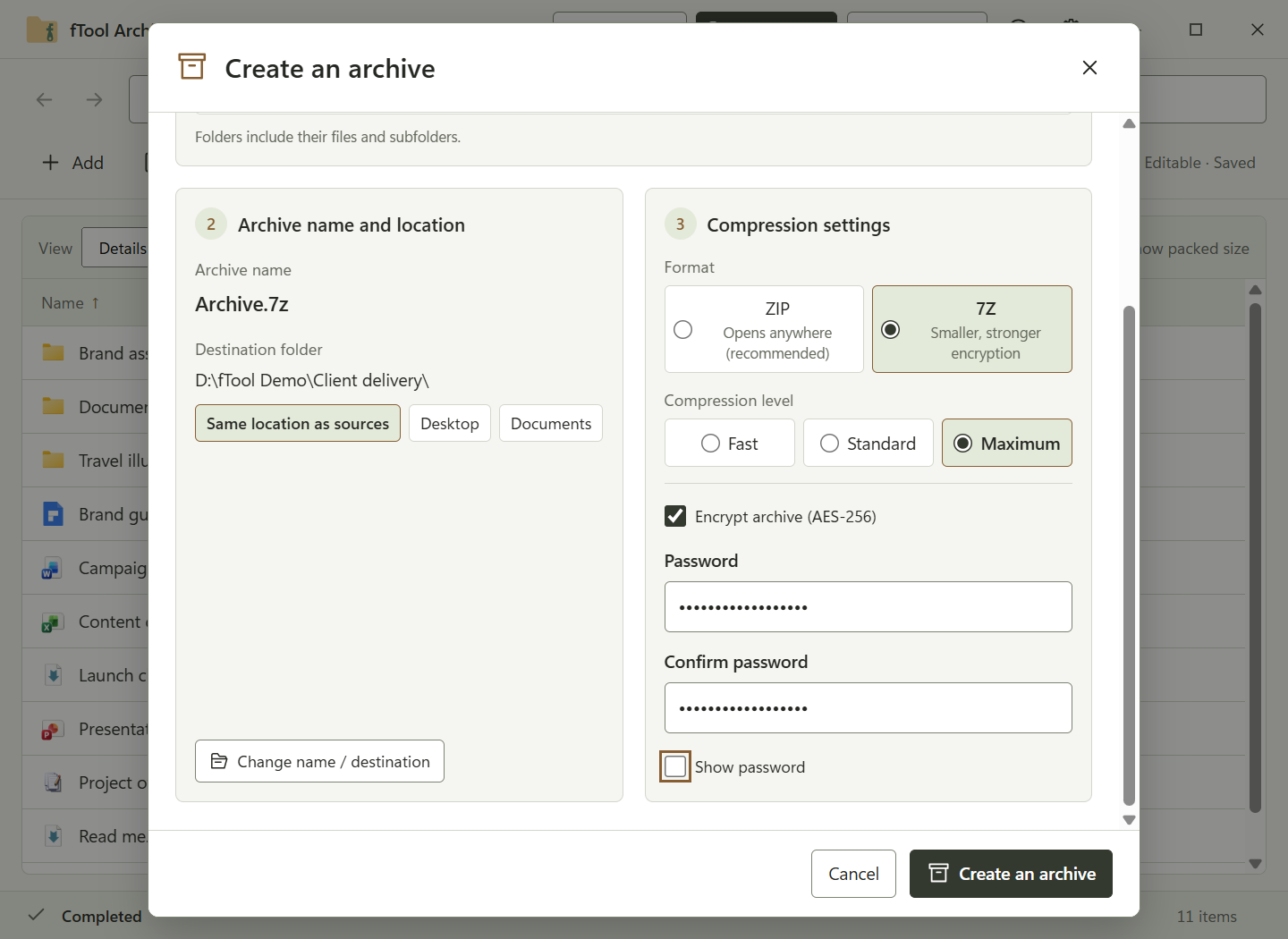
Build an archive from any files and folders. Choose ZIP for the format that opens anywhere, or 7Z for smaller files and stronger encryption. Pick Fast, Standard or Maximum compression, and add AES-256 password protection when the contents should stay private.

Edit an Archive in Place

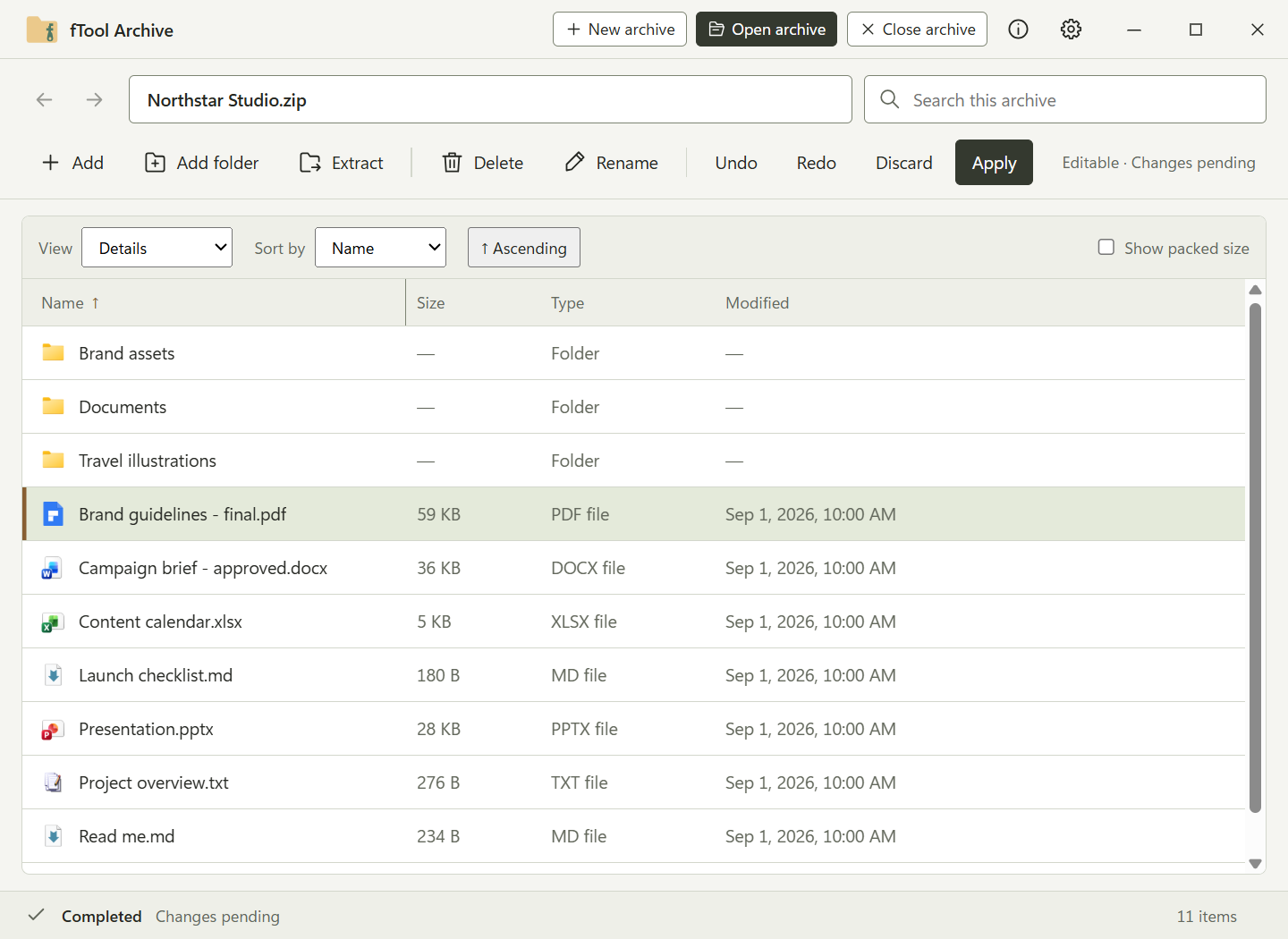
Add, rename and remove files and folders inside an existing ZIP or 7Z. Save automatically, or keep your edits pending and review them with Undo, Redo and Discard before you press Apply. Drag files in from File Explorer, and drag items out of the archive into a folder.

Start From File Explorer

Compress and extract straight from the File Explorer context menu, without opening the app first. When you do open it, recent archives are one click away, and light, dark or system appearance follows the way you like Windows to look.

Your Files Stay Yours

Your Archives Never Leave Your PC

Online unzip services ask you to upload the very archive somebody sent you. fTool Archive is a native Windows app and does all of its work locally.

  • No cloud uploads, no account registration and no tracking
  • Archive processing takes place on this PC; file names, paths and contents are never sent anywhere
  • Extracted files are written only to the destination you choose, and you see that destination before extraction starts
  • New ZIP and 7Z archives can be protected with AES-256 encryption
  • Light, dark or system appearance, with the interface available in 9 languages
Formats It Handles
Create and edit ZIP7Z
Open and extract ZIP7ZRAR (RAR4/RAR5)TARGZTAR.GZBZ2TAR.BZ2XZTAR.XZZSTTAR.ZSTLZH/LHACABISOWIM
Thumbnail previews JPEGPNG

fTool Archive is built for one job, working with archives, and it is honest about where its limits are. Please check these points before you buy.

Good to Know
  • New archives are created as ZIP or 7Z. The other formats open and extract, but cannot be created or edited.
  • AES-encrypted ZIP files require compatible archive software to open. Not every unzip tool supports them.
  • Thumbnails are shown for supported JPEG and PNG images. Other file types appear with their file-type icon.
  • An internet connection is needed for purchases and may be needed to verify your license. Working with archives does not require one.

Pricing

Try Everything for 7 Days

Install the free trial from the Microsoft Store and use every feature for 7 days. If it saves you time, buy the full version once and keep it. No subscription, no tiers.

Gallery

See It In Action

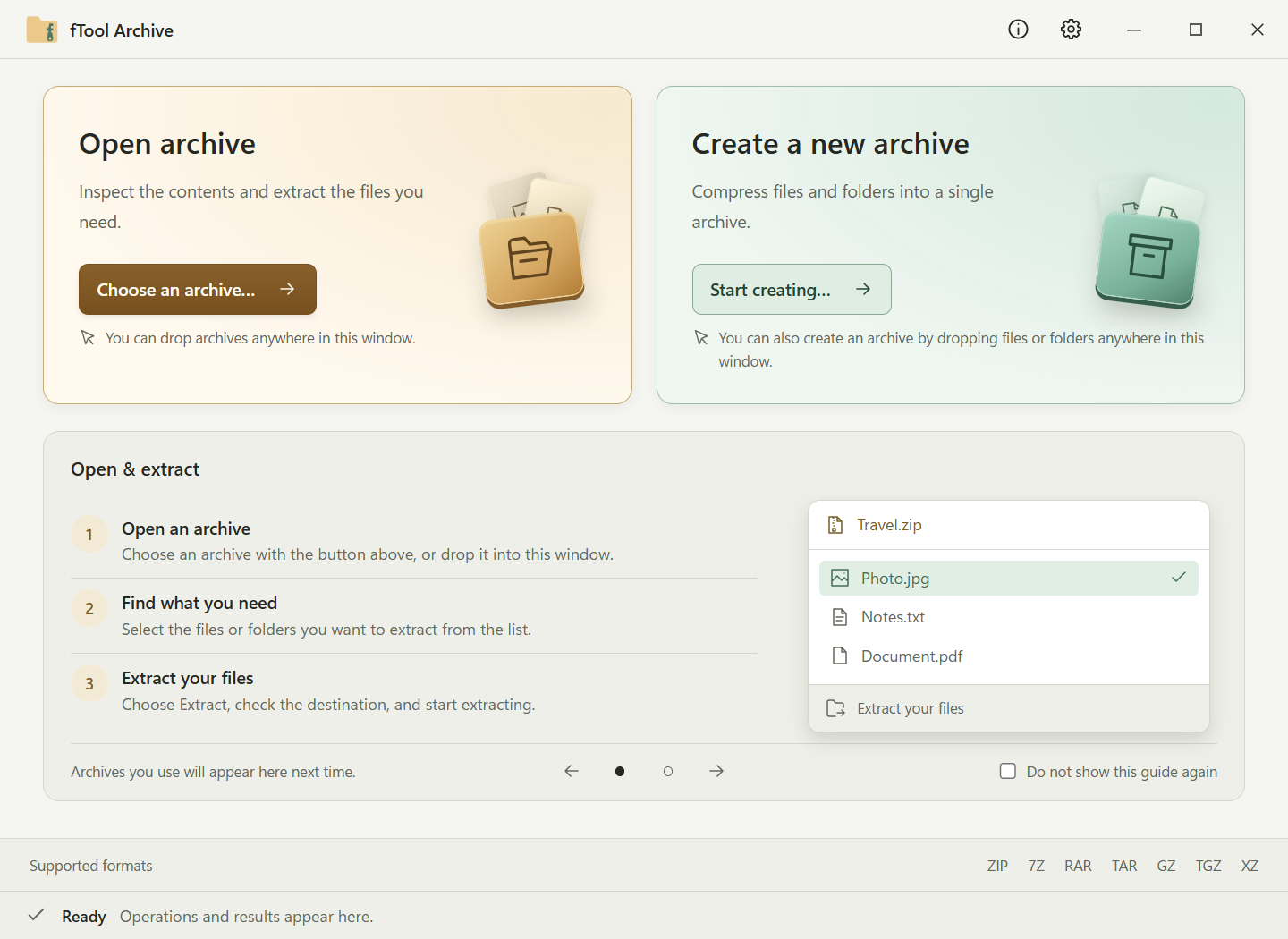
The start screen with an Open archive card and a Create a new archive card, above a three-step guide to opening and extracting
The large icons view showing the JPEG images inside an archive as thumbnails
Searching an archive for .pdf, with the matching files from every folder listed together
The Create an archive dialog with the files to compress, the destination folder, and ZIP selected with Standard compression
The Create an archive dialog with 7Z selected, Maximum compression and AES-256 password protection turned on
The Extract options dialog showing Smart Extract, the folder that will be created, and Keep both chosen for items that already exist
An archive being edited, with renamed files, Undo, Redo, Discard and Apply in the toolbar, and Changes pending in the status bar
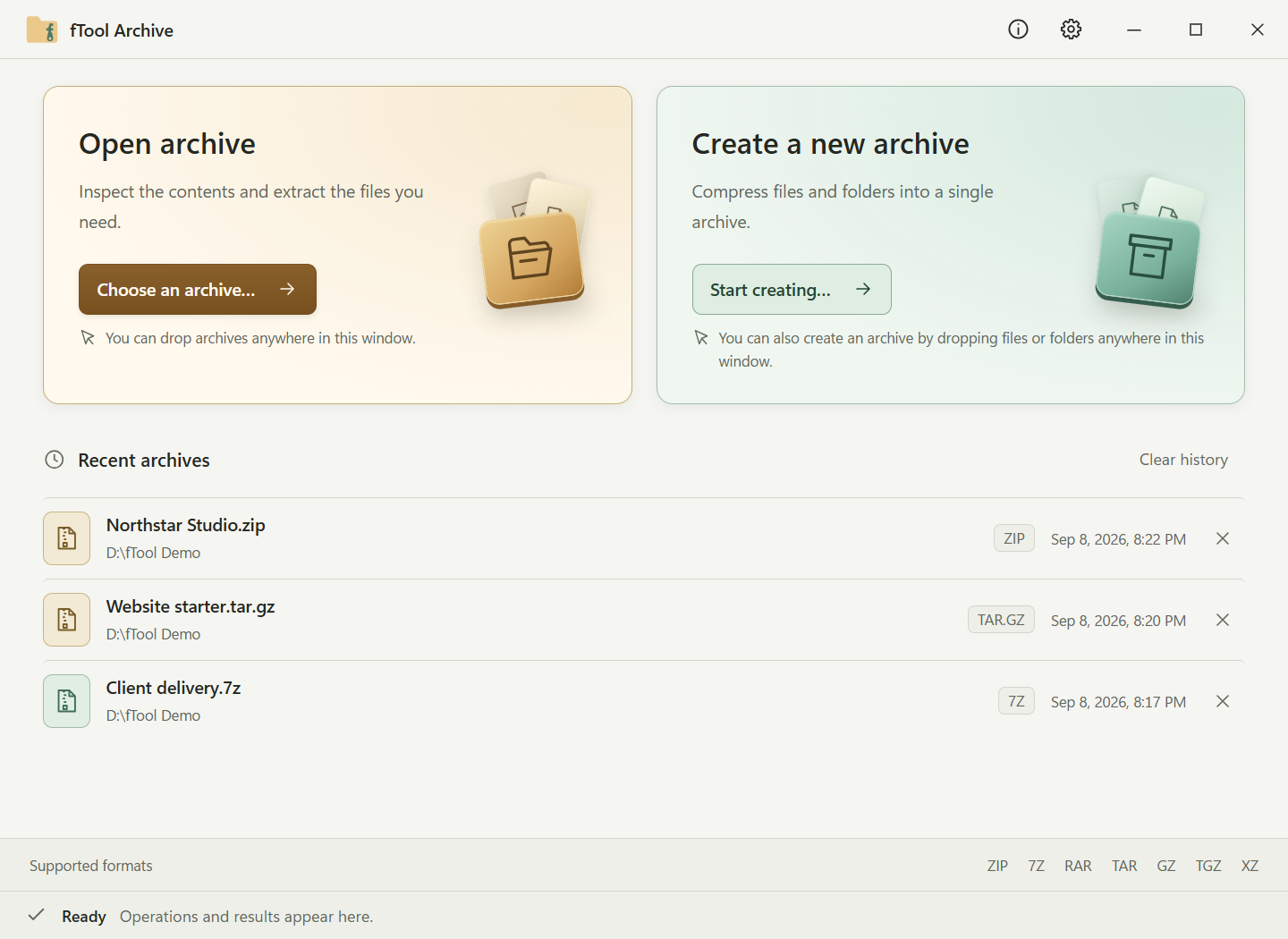
The start screen with a list of recent archives in ZIP, TAR.GZ and 7Z format
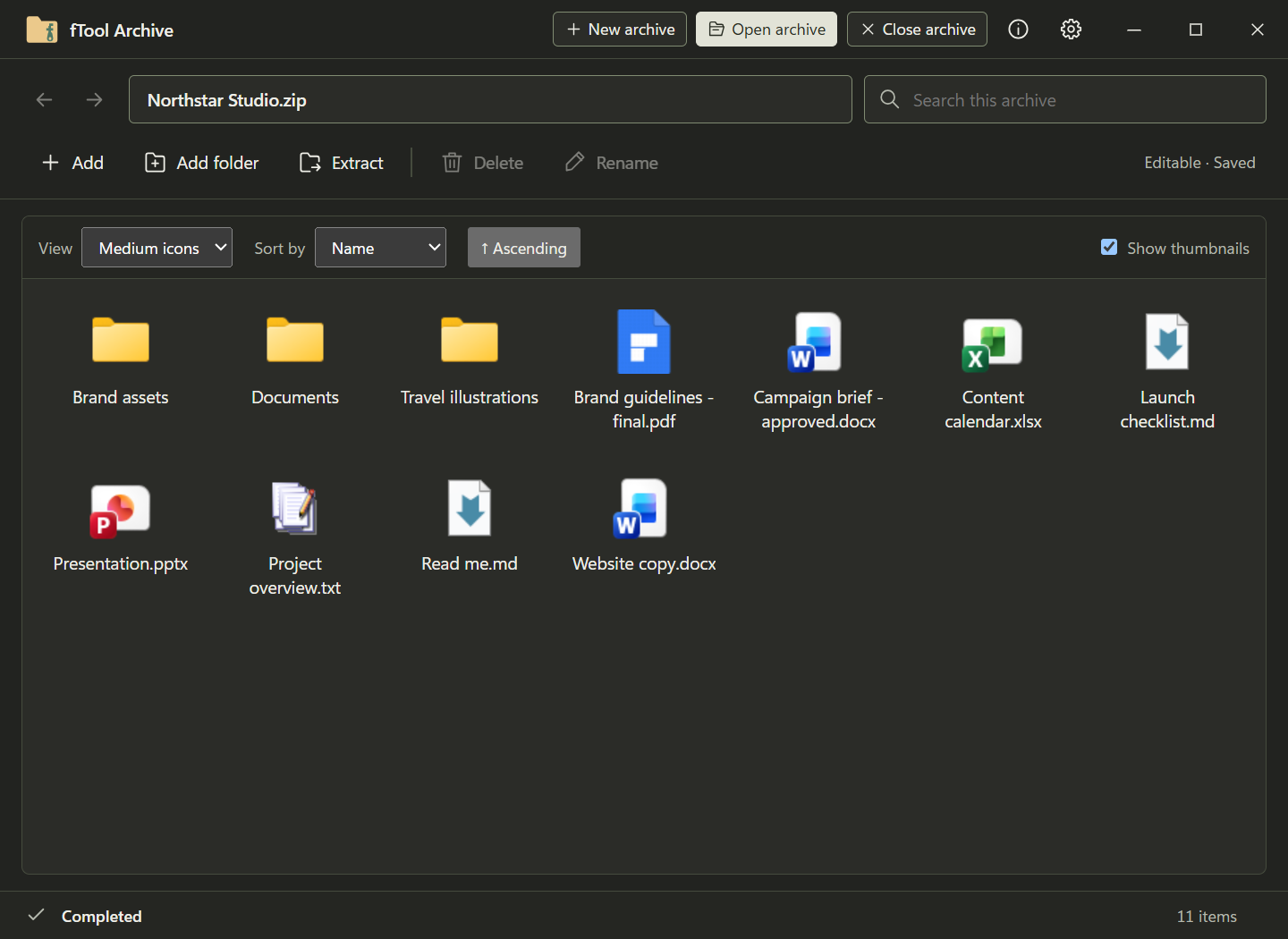
The contents of an archive in the dark theme, shown as medium icons

Get Started Today

Download from Microsoft Store

Supported OS: Windows 10 version 17763.0 or later, Windows 11
UI Languages: English, Japanese, Simplified Chinese, Traditional Chinese, Korean, Spanish, German, French, Portuguese
Architecture: x64 | Publisher: futomi Co., Ltd.
Trial: Try every feature free for 7 days
Privacy: 100% Local Execution, Zero Data Collection